
Boost Gaming Performance Before Replacing the GPU
An updated TechMuz diagnostic sequence for settings, thermals, memory pressure, drivers and actual component limits.
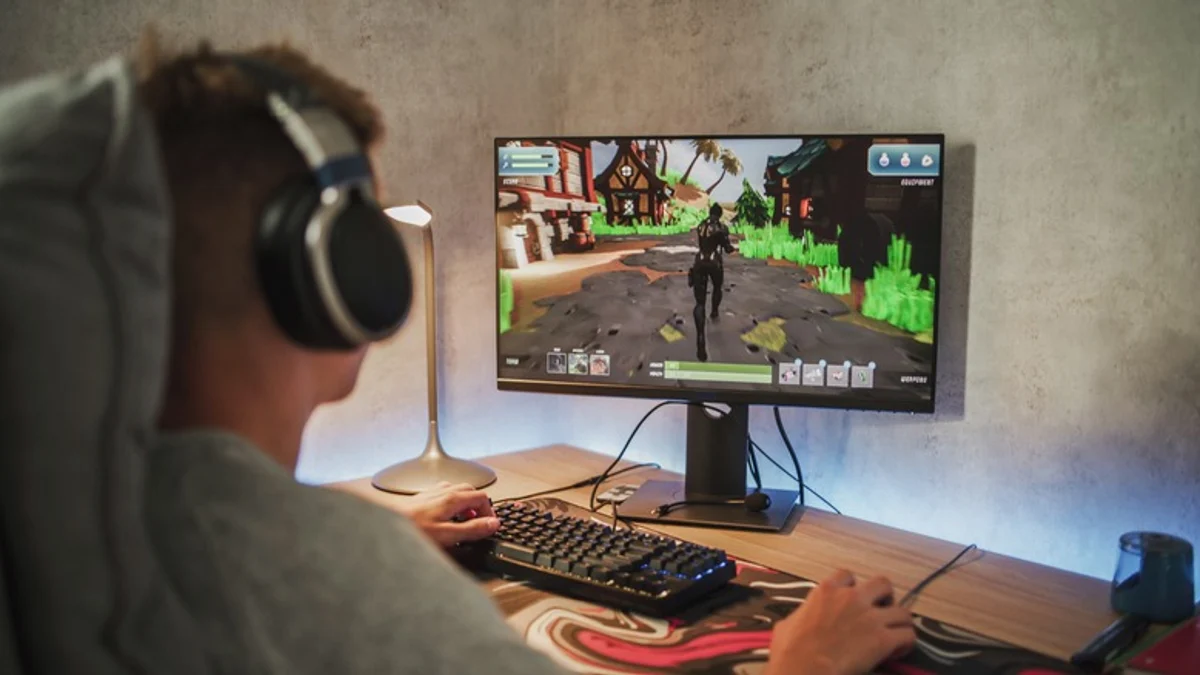
Establish a repeatable baseline
Test the same game scene with the same resolution and quality preset. Record frame rate, frame-time behavior, CPU and GPU utilization, temperatures and memory use. A GPU near full utilization may respond to lower graphics settings; one waiting on a busy CPU or a frame-rate cap will not.
Check that the display is using its intended refresh rate, the game is running on the discrete GPU and power modes are appropriate. Close unnecessary background workloads and verify that the system is not throttling.
Change one variable at a time
Update drivers through the hardware vendor, then test settings with high performance cost such as ray tracing, resolution scale, shadows and volumetric effects. Upscaling can improve output, but evaluate image quality and latency for the chosen game rather than enabling every feature by default.
This update turns TechMuz's original list of tips into a diagnosis flow. If performance remains below target with healthy temperatures and a known component limit, the Builder can then recommend an upgrade that addresses the measured constraint.
Research trail
References support factual checks and topic research. No third-party article text or imagery is republished here.
Put the guide into practice.
Open exact specifications, compatibility fields and available buying references.
 RAM32GB
FURY Beast 32GB (1 module) DDR5-5600
32GB 1-module DDR5-5600 desktop memory configuration.
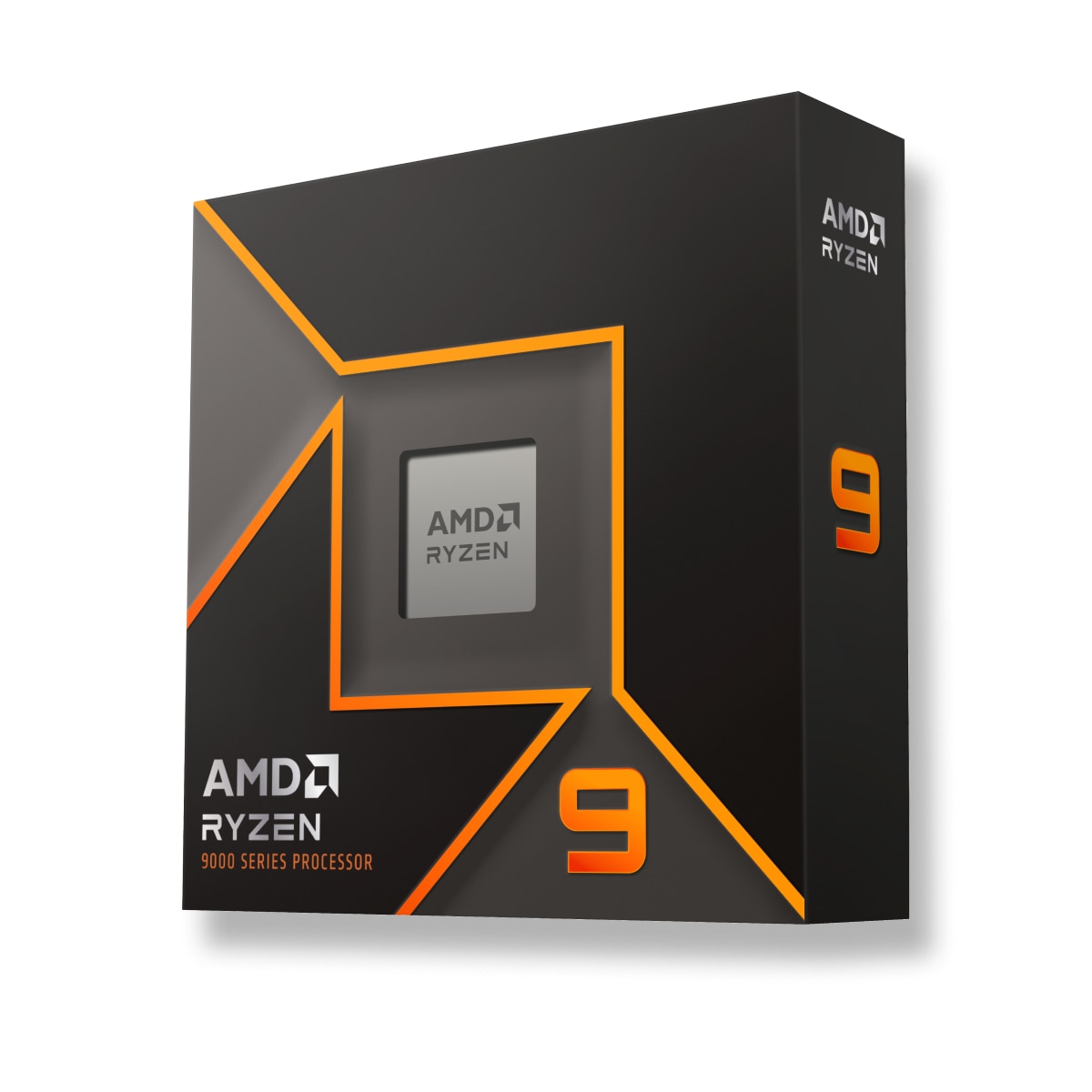 CORES16C
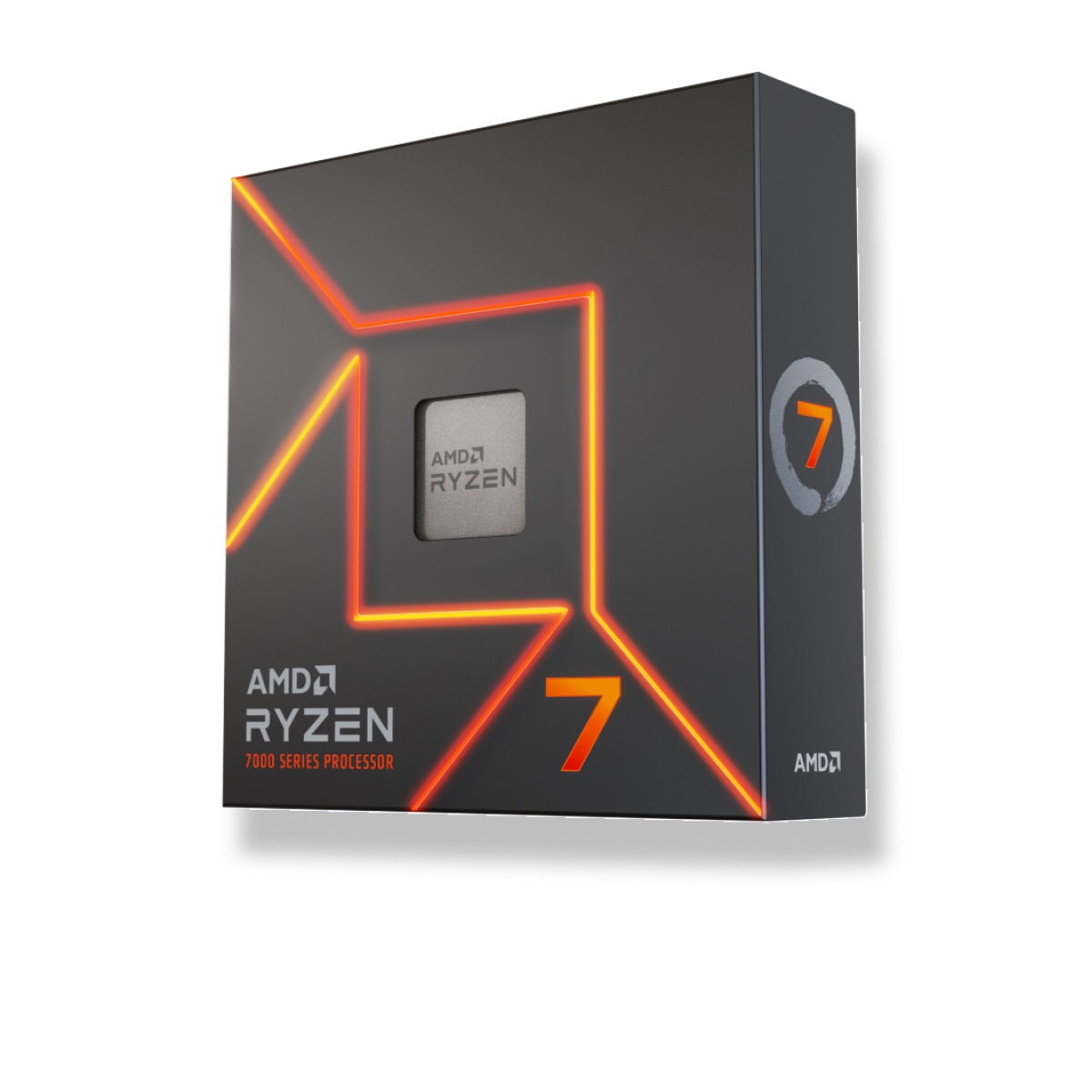 CORES8C