Quick Facts
- Thermal Limit: Most modern PC components start thermal throttling at 85°C to protect themselves from damage.
- RAM Sweet Spot: Upgrading to 32GB is becoming the 2026 standard for stutter-free AAA gaming.
- OS Advantage: Windows 11 offers roughly a 5% performance lead over Windows 10 due to better scheduler optimization.
- Storage Speed: High-speed NVMe SSDs can load assets up to ten times faster than traditional hard drives.
- GPU Overclocking: Safely tweaking your existing card can yield a 5-15% increase in frame rates.
To boost gaming performance without a new GPU, you should focus on eliminating software bloat, optimizing operating system settings, and performing essential hardware maintenance. By clearing thermal bottlenecks and utilizing modern AI upscaling tools like DLSS or FSR, you can significantly improve pc frame rates on your existing hardware.
| Method | Impact | Effort |
|---|---|---|
| Driver Updates | Medium | Low |
| Windows Game Mode | Low | Low |
| RAM Upgrade | High | Medium |
| NVMe SSD Swap | High | Medium |
| GPU Overclocking | Medium | High |
| Thermal Maintenance | Medium | High |
We have all been there. You look at the latest AAA benchmarks, see the price of a mid-range graphics card, and feel that familiar sting in your wallet. But here is the reality: your current rig likely has untapped potential. Before you drop $500 on a new card, you need to ensure your current system is breathing properly and running efficiently. Many gamers are leaving double-digit performance gains on the table simply because of unoptimized software or dusty fans. This guide is about reclaiming that lost power.
1. Diagnose Bottlenecks with MSI Afterburner
Before you change a single setting, you need to know what is actually slowing you down. Installing a monitoring tool like MSI Afterburner is the first step in any performance journey. By enabling the On-Screen Display (OSD), you can track your CPU and GPU usage in real-time while you play.
If you see your GPU sitting at 60% while your CPU is pinned at 99%, you have a CPU bottleneck. In this scenario, buying a faster graphics card won't help you at all. Understanding this relationship is crucial for gaming performance on old hardware. Look for a utilization imbalance; a well-balanced system usually shows the GPU near 95-100% in demanding titles. This diagnostic phase tells you whether you should focus on software tweaks or if a budget-friendly hardware swap like more RAM is the better path forward.
Pro Tip: Use the frame time graph in MSI Afterburner rather than just the FPS counter. A steady line means a smooth experience, while "spikes" indicate stuttering that might be caused by background processes or slow storage.
2. Eliminate Thermal Throttling: Dust and Thermal Paste
Heat is the silent killer of frame rates. When your components reach a certain temperature—usually around 85°C—they engage in thermal throttling. This means the hardware intentionally slows itself down to prevent melting. If your PC sounds like a jet engine but your games are crawling, it is time for a deep clean.
Start by using compressed air to blow dust out of your GPU fans and CPU heat sink. Dust acts as an insulator, trapping heat and forcing fans to work harder for less cooling. If your system is more than three years old, consider replacing the thermal paste on your processor. Over time, this paste dries out and loses its ability to transfer heat effectively. Fixing these issues is one of the most effective ways to boost gaming performance on old laptops where cooling is already limited.
3. Optimize Windows 11 for Peak Performance
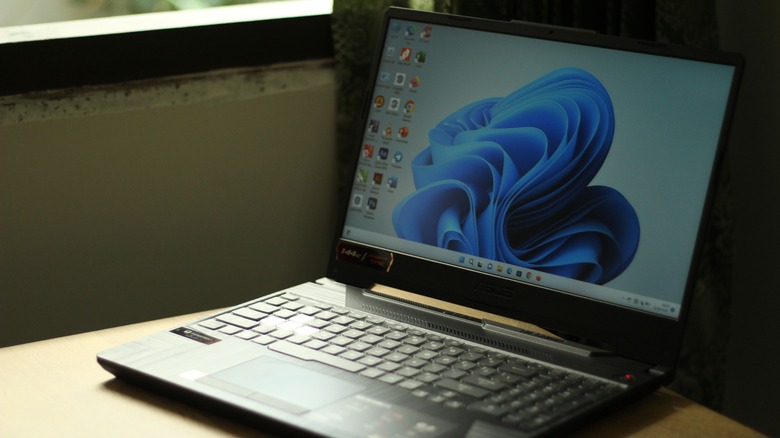
Microsoft has made significant strides in making their OS gamer-friendly, but the best features aren't always on by default. To optimize game fps, you need to dive into the settings menu. First, ensure Game Mode is toggled on. This feature prevents Windows Update from performing driver installations and sending restart notifications while you are playing, and it helps achieve a more stable frame rate by prioritizing the game process.
Next, look into your Power Plan. By default, Windows uses a "Balanced" plan. Switching this to "High Performance" ensures your CPU doesn't downclock during intense gaming moments. Finally, for those on Windows 11, consider disabling Virtualization-Based Security (VBS) if you only use your PC for gaming. While it is a great security feature, it has been known to cause a slight performance hit in modern titles. Using windows 11 high performance mode for gaming ensures your hardware is always ready to deliver its maximum frequency.
4. Master Resolution Scaling and AI Upscaling
You don't need a new GPU to benefit from AI-powered performance. If you have an NVIDIA RTX card, ensure DLSS (Deep Learning Super Sampling) is enabled in your game settings. For everyone else, including those with older NVIDIA cards or AMD hardware, FSR (FidelityFX Super Resolution) is a lifesaver.
These technologies work by rendering the game at a lower internal resolution and then using smart algorithms to upscale the image to match your monitor. This is a game-changer for anyone wondering how resolution scaling works to improve fps. By dropping the render load on the GPU, you can often jump from 40 FPS to 60 FPS with minimal loss in visual clarity. Just keep an eye on input lag; while upscaling is great, some implementations can add a tiny bit of delay in fast-paced shooters.
5. Strategic Hardware Pivots: Dual-Channel RAM and SSDs
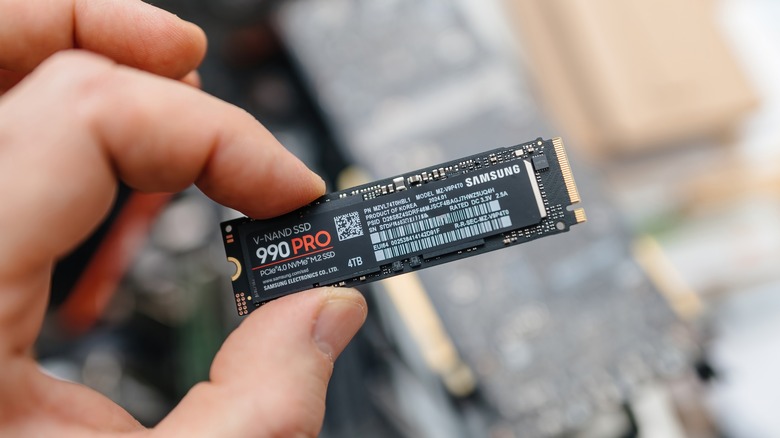
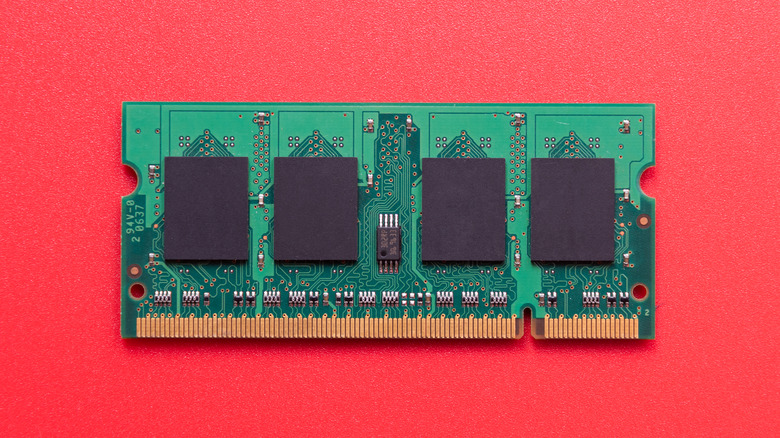
Sometimes, the best way to boost gaming performance is to spend a small amount of money on the components surrounding the GPU. System memory is a prime example. If you are running a single stick of RAM, you are effectively cutting your memory bandwidth in half. Research indicates that upgrading from DDR4-2400 to DDR4-3600 RAM can improve average in-game frame rates by up to 20%.
Moving into 2026, 32GB is the new standard. Ensuring you have a dual-channel configuration (two or four sticks) allows the CPU to access data much faster. Additionally, don't overlook your storage. Solid State Drives (SSDs) are typically two to ten times faster than traditional Hard Disk Drives (HDDs) at loading assets. If you are still gaming on a spinning platter drive, switching to an NVMe SSD will eliminate those annoying micro-stutters that happen when a game tries to load a new area. These budget ram and ssd upgrades for gaming 2026 are the most cost-effective ways to modernize an aging rig.
6. Safely Overclock Your Current GPU
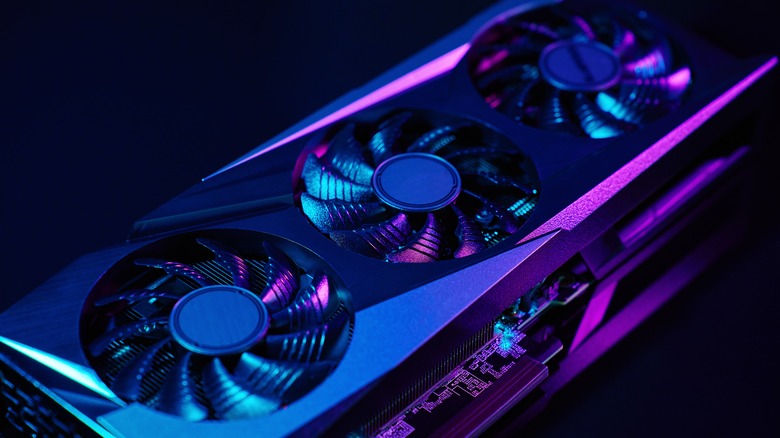
If you are comfortable with a little bit of tinkering, overclocking can provide a "free" upgrade. Using tools like MSI Afterburner, you can slowly increase the core clock and memory clock of your graphics card. Start in small increments of 10-20 MHz and test for stability using a benchmark software like Heaven or 3DMark.
While it won't turn a budget card into a flagship, a well-tuned overclock can help you maintain a locked 60 FPS in titles where you were previously dipping into the 50s. Before you start, make sure you are updating gpu drivers for better fps, as newer drivers often provide the stability needed for a successful overclock. If you ever see "artifacts" (weird colors or flickering) on your screen, back off the settings immediately. Learning how safely overclock gpu for more fps is a rite of passage for many hardcore gamers.
7. Leverage Cloud Gaming for Low-End Systems
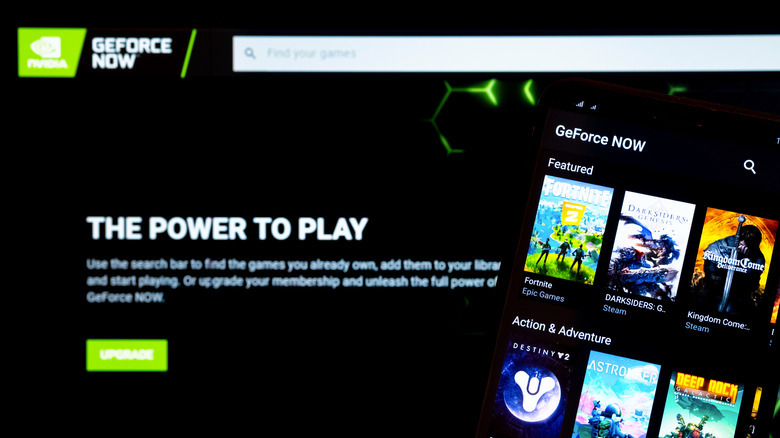
If your hardware is truly ancient—we are talking ten years or older—there is only so much software optimization can do. In this case, your best bet might be to stop relying on your local hardware entirely. Cloud gaming services like GeForce Now or Xbox Cloud Gaming allow you to stream games from high-end servers directly to your screen.
As long as you have a stable, high-speed internet connection, you can play the latest AAA titles at Ultra settings on a basic office laptop. This bypasses the need for a local GPU entirely. The only trade-off is a slight increase in input lag, which might be a deal-breaker for competitive players but is perfectly fine for single-player adventures.
8. Keep Drivers Up to Date
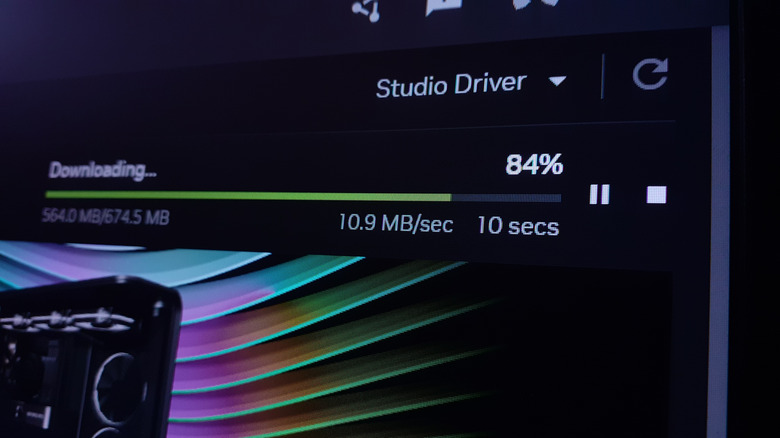
It sounds basic, but many gamers neglect their driver updates. NVIDIA, AMD, and Intel frequently release "Game Ready" drivers specifically optimized for new releases. According to industry data, regularly updating graphics drivers can provide performance gains of up to 10% in modern gaming titles through software optimization alone. These updates often include "under-the-hood" fixes for memory leaks and shader compilation issues that can ruin an otherwise great gaming session.
9. Manage Background Processes
Every application running in your system tray is a potential thief of your CPU cycles. Apps like Chrome, Discord, and Spotify can consume significant amounts of RAM and CPU power. Before launching a game, open your Task Manager and close unnecessary background processes. Pay special attention to "overlay" software; while Steam and Discord overlays are helpful, having five different overlays running at once can introduce stuttering and lower your overall fps.
10. Adjust In-Game Graphics Settings Intelligently
Not all graphics settings are created equal. Some, like "Texture Quality," mostly depend on how much VRAM your card has. Others, like "Shadow Quality," "Ambient Occlusion," and "Volumetric Clouds," are incredibly taxing on the GPU core. If you need a quick boost, try lowering shadows from Ultra to Medium. You will often find the visual difference is negligible, but the performance gain is massive.
11. Choose the Right API: DirectX 12 vs. Vulkan
Modern games often give you a choice between different APIs (Application Programming Interfaces). DirectX 11 is older and more compatible, but DirectX 12 and Vulkan are designed to reduce CPU overhead. If you have a relatively modern CPU, switching to DirectX 12 can improve your minimum frame rates and provide a smoother experience by better utilizing multiple processor cores.
12. Optimize Monitor and Sync Settings
If you are experiencing "screen tearing," you might be tempted to turn on V-Sync. However, traditional V-Sync can introduce significant input lag. If your monitor supports G-Sync or FreeSync, use those instead. Additionally, make sure your monitor is actually set to its highest refresh rate in the Windows Display settings; you would be surprised how many people own 144Hz monitors but have been playing at 60Hz for years.
13. Disk Cleanup and Optimization
While an SSD is preferred, if you are stuck with an HDD, keeping it organized is vital. Use the built-in Windows Disk Cleanup tool to remove temporary files. For HDDs, regular defragmentation helps the drive read data more sequentially, which can reduce load times. For SSDs, never defragment them, but do ensure that "TRIM" is enabled to maintain long-term write speeds.
14. Network Optimization for Multiplayer
If your "performance" issues are actually lag and rubber-banding in online games, the problem isn't your GPU—it's your connection. Always use a wired Ethernet connection over Wi-Fi whenever possible. If you must use Wi-Fi, ensure you are on a 5GHz or 6GHz band to avoid interference from household appliances. Lowering your network latency won't increase your FPS, but it will make the game feel much more responsive.
FAQ
How can I increase my FPS for gaming?
You can increase your FPS by updating your graphics drivers, enabling Windows Game Mode, and adjusting in-game settings—specifically lowering shadows and ambient occlusion. Additionally, using upscaling technologies like DLSS or FSR can provide a significant boost without requiring new hardware.
Does adding more RAM improve gaming performance?
Adding more RAM improves performance if your current system is hitting its memory limit, which causes the PC to use much slower "virtual memory" on your hard drive. Upgrading to a dual-channel 16GB or 32GB setup can eliminate stutters and improve minimum frame rates in modern titles.
What are the best Windows settings for high performance gaming?
The best settings include enabling Game Mode, setting your Power Plan to High Performance, and ensuring your GPU drivers are updated. For Windows 11 users, disabling Virtualization-Based Security (VBS) can also provide a small but measurable increase in frame rates.
Does updating drivers help with gaming performance?
Yes, updating drivers is one of the easiest ways to gain performance. Manufacturers often release optimizations for specific games that can increase frame rates by up to 10% and fix stability issues or visual glitches found in older driver versions.
Is an SSD better for gaming performance than an HDD?
An SSD is significantly better than an HDD for gaming. While it doesn't typically increase your maximum FPS, it dramatically reduces loading times and prevents "asset-streaming" stutters where the game pauses briefly to load new textures or map sections.
How do I stop background apps from slowing down games?
You can stop background apps by using the Task Manager (Ctrl+Shift+Esc) to close non-essential programs like web browsers and chat apps before starting a game. You can also disable unnecessary startup programs in the "Startup" tab of the Task Manager to keep your system lean.