Quick Facts
- Market Context: 40% of households in the United States that utilize a smart home platform use either Ring or Amazon Alexa most frequently.
- Primary Goal: Enable hands-free monitoring and two-way talk directly on your smart display.
- Core Requirement: A stable Wi-Fi connection and the Ring skill enabled within the Alexa app.
- Storage Options: A Ring Protect subscription is required for cloud recording, though live view is available for free.
- Regional Note: Smart Home Dashboard features are primarily for US/Canada users; certain features are restricted in Illinois.
- Hardware Compatibility: Compatible with most Echo Show models; excludes 1st Gen Fire Stick hardware.
To connect a Ring camera to an Echo Show, open the Alexa app and navigate to Skills & Games. Search for the Ring skill, enable it, and sign in to your Ring account to link the services. After linking, select Discover Devices to allow Alexa to identify and integrate your cameras for voice control and real-time monitoring. Start your Ring Alexa setup to enjoy hands-free home security today.
Connecting your Ring camera to an Echo Show allows for real-time monitoring and two-way talk. Follow our Alexa Ring skill configuration steps to get started and bridge the gap between your front porch and your kitchen counter.
Step 1: Pre-Setup Compatibility Checklist
Before diving into the software side of things, it is essential to ensure your hardware environment is ready for a high-quality video stream. Research from early 2024 indicates that 43% of United States internet households now own a home security solution, and many of these users struggle with connectivity simply because their Wi-Fi network stability isn't optimized for video. Ensure your router is within a reasonable range of both the camera and the Echo Show to prevent lagging or timed-out connections.
You should also verify that you have the latest versions of both the Alexa and Ring apps installed on your mobile device. While the setup process is generally universal, specific features like Picture-in-Picture (PiP) mode require newer Echo Show models, such as the Echo Show 8 (2nd Gen) or the Echo Show 15. Industry data from 2024 shows that outdoor cameras are the most popular smart home security feature, owned by 63% of users with security systems. If you are integrating an outdoor camera, ensure the signal strength can penetrate exterior walls before finalizing the software link.
Step 2: Enabling the Ring Skill and Account Linking
The core of the Ring Alexa setup lies in the Alexa app. Think of the Alexa app as the central brain of your smart home integration, where different brands are taught how to speak the same language. This process uses the Alexa Ring skill configuration to grant Amazon's assistant permission to access your camera's video feed.
Follow this specific path to begin:
- Open the Alexa app.
- Tap More in the bottom-right corner.
- Select Skills & Games.
- Use the search icon to find Ring.
- Tap Enable to Use.
Once you tap enable, a browser window will open, asking you to sign in to your Ring account. This is the official account linking process. For those who prioritize security, you can manage these permissions by navigating to the Ring app, tapping the Menu (☰), selecting Control Center, and then choosing Amazon Account Linking. This allows you to see exactly which Amazon account is tied to your security hardware.
Step 3: Configuring Ring Notifications and Doorbell Announcements
Linking the accounts is only half the battle; you also want your Echo Show to actively alert you when someone is at the door. If you don't configure these settings, you might miss a delivery or a visitor simply because your smart display remained silent.
To set up doorbell announcements, navigate through the Alexa app UI: Devices > Cameras > [Your Camera Name] > Settings. Within this menu, look for the Announcement section. You can toggle on Doorbell Press and Motion alerts. If your camera supports it, enabling person detection notifications is a game-changer. This feature uses AI to distinguish between a swaying tree branch and a human being, significantly reducing false alarms and ensuring your Echo Show only chimes when it truly matters.
Step 4: Mastering Voice Commands for Echo Show Live View
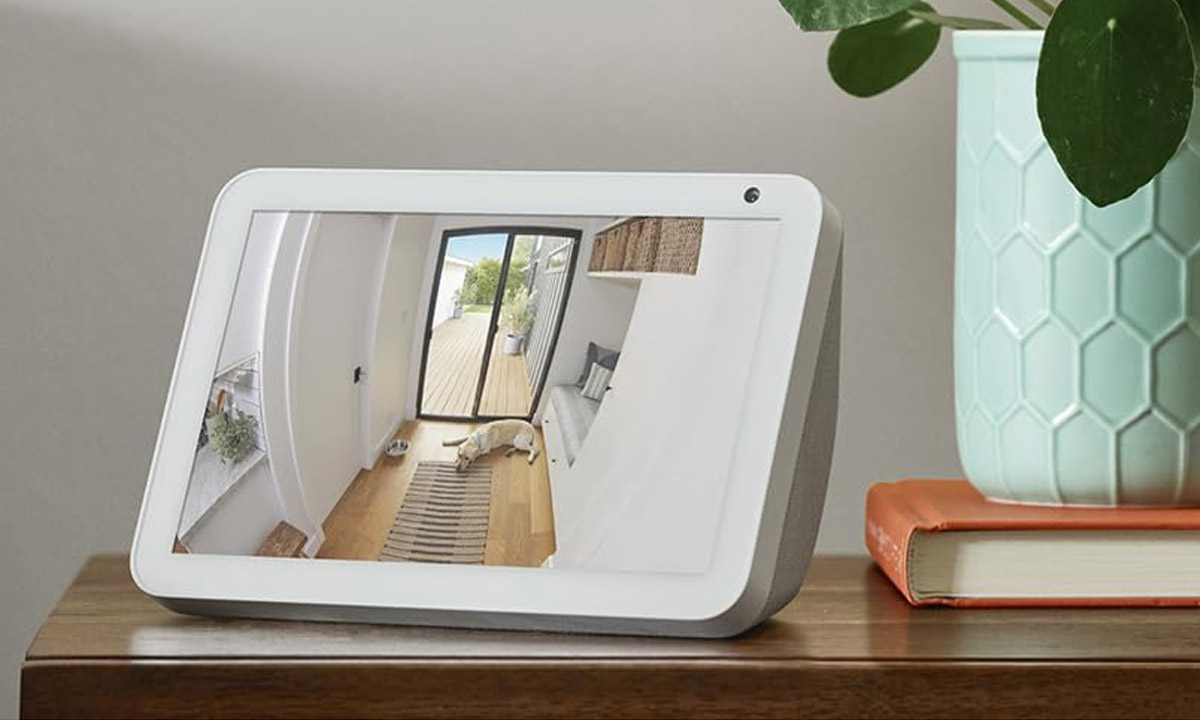
The primary reason users want to link ring doorbell to alexa app is the convenience of hands-free operation. Whether you are elbow-deep in bread dough or washing the dog, being able to see who is at the gate without touching a screen is the ultimate smart home luxury.
To view ring camera live on echo show 5 or any other Echo Show model, you must use specific phrases that Alexa recognizes. Below is a quick reference table for your daily interactions:
| Command | Action |
|---|---|
| Alexa, show my Front Door | Opens the live feed of your specific Ring camera. |
| Alexa, talk to the driveway camera | Activates two-way communication and audio. |
| Alexa, answer the front door | Connects the live stream and enables the microphone immediately. |
| Alexa, hide [Camera Name] | Stops the video feed and returns to the home screen. |
| Alexa, stop | Ends the current activity on the display. |
To use two-way communication through your Echo Show, simply use the "talk to" or "answer" commands. This opens a live stream with active audio, enabling you to hear and speak to visitors directly through your Amazon Echo device using its built-in microphone and speakers.
Step 5: Advanced Features: Picture-in-Picture and Dashboard
For those with larger displays like the Echo Show 10 or 15, you aren't limited to a full-screen view. You can utilize alexa voice commands for ring doorbell picture in picture to keep a small window active while you watch a recipe video or check the weather. This allows for constant visual confirmation of your property while maintaining your workflow.
Furthermore, you can access the Smart Home Dashboard on your Echo Show screen at any time by swiping down from the top edge of the screen and tapping Smart Home. This dashboard provides a visual overview of all your connected appliances and cameras. For many users, this centralized control represents the peak of home security automation, as it allows for a quick glance at multiple camera feeds without needing to issue individual voice commands for each one.
Step 6: Troubleshooting Common Connection Issues
Even with a perfect setup, you might occasionally encounter a screen that says the device is not responding. Often, the easiest way to fix ring camera not responding to alexa commands is to simply refresh the connection. You can do this by asking Alexa to "Discover my devices" or by navigating to the Devices tab in the Alexa app and pulling down to refresh the list.
If the issue persists, check your Ring Protect subscription status. While a subscription isn't strictly necessary for live viewing, some advanced notification features and all cloud recording playback require an active plan. Additionally, ensure that your Wi-Fi network stability hasn't dipped; if your upload speed is too low, the Echo Show will struggle to handshake with the Ring servers, leading to a black screen or a "searching" animation. If you find your account is out of sync, returning to the Control Center in the Ring app to unbind and re-bind the Amazon account usually clears any lingering software glitches.
FAQ
How do I connect my Ring doorbell to Alexa?
Open the Alexa app, go to More, and select Skills & Games. Search for the Ring skill, enable it, and sign in to your Ring account to link them. Once linked, Alexa will prompt you to discover devices, which adds your doorbell to the Alexa ecosystem.
Can I view my Ring camera on an Echo Show?
Yes, you can view the live feed by saying, Alexa, show my [Camera Name]. The feed will appear automatically on the screen, providing a real-time monitor of your camera's field of view.
How do I enable Ring notifications on Alexa devices?
In the Alexa app, navigate to Devices, select your Ring camera, and tap the Settings gear icon. From there, you can toggle on Doorbell Press announcements or Motion announcements to receive alerts on your Echo devices.
Why is my Ring device not showing up in the Alexa app?
This usually happens if the skill wasn't enabled properly or if the accounts didn't link. Try disabling the Ring skill in the Alexa app and then re-enabling it. Ensure you are using the correct login credentials for your Ring account during the linking process.
Can Alexa automatically show the front door when the Ring doorbell is pressed?
Yes, on many Echo Show models, you can set up a Routine or enable specific announcement settings so that the live video feed automatically pops up as soon as someone rings the doorbell, providing immediate visual confirmation.
How do I talk through my Ring camera using Alexa?
You can initiate a conversation by saying, Alexa, talk to the [Camera Name], or, Alexa, answer the front door. This activates the microphone on your Echo Show and the speaker on your Ring camera for two-way communication.