Quick Facts
- Primary Connectivity: Zigbee 3.0 (Requires Aqara Bridge)
- Matter Support: Enabled via Matter-over-Bridge
- Base Length: 2 meters (6.6 ft), extendable up to 10 meters
- Special Features: RGBIC with 10 addressable segments, tunable white (2700K-6500K)
- Integration Requirement: Matter controller hardware (HomePod mini, Apple TV 4K)
- Matter vs. HomeKit: Matter connection disables Apple Adaptive Lighting
The Aqara LED Strip T1 is a powerful lighting solution that brings RGBIC technology and Zigbee reliability to your smart home. If you want to integrate the Aqara T1 Matter setup with Apple Home, it requires a specific bridging process. To add the Aqara LED Strip T1 to Apple Home via Matter, first pair the strip to a compatible Zigbee 3.0 bridge like the Aqara Hub M2. Generate a Matter pairing code within the Aqara Home app, then open the Apple Home app and select Add Accessory. Scan the code or enter it manually using a Matter-compatible controller, such as a HomePod mini or Apple TV 4K, to complete the integration. Integrating the Aqara T1 via Matter provides multi-platform interoperability but currently results in the loss of Apple HomeKit Adaptive Lighting. Users who require Adaptive Lighting should connect the strip directly to Apple Home using the standard HomeKit bridge method.
Hardware Prerequisites for Matter Integration
When we talk about the latest wave of smart lighting, Matter is often the first word on everyone's lips. However, it is important to understand the technical architecture behind the Aqara T1 Matter integration. Unlike some newer sensors that use Matter-over-Thread, this light strip relies on a Matter-over-bridge configuration. This means the strip itself communicates via Zigbee 3.0, and it is the hub that translates those signals into the Matter language that Apple Home understands.
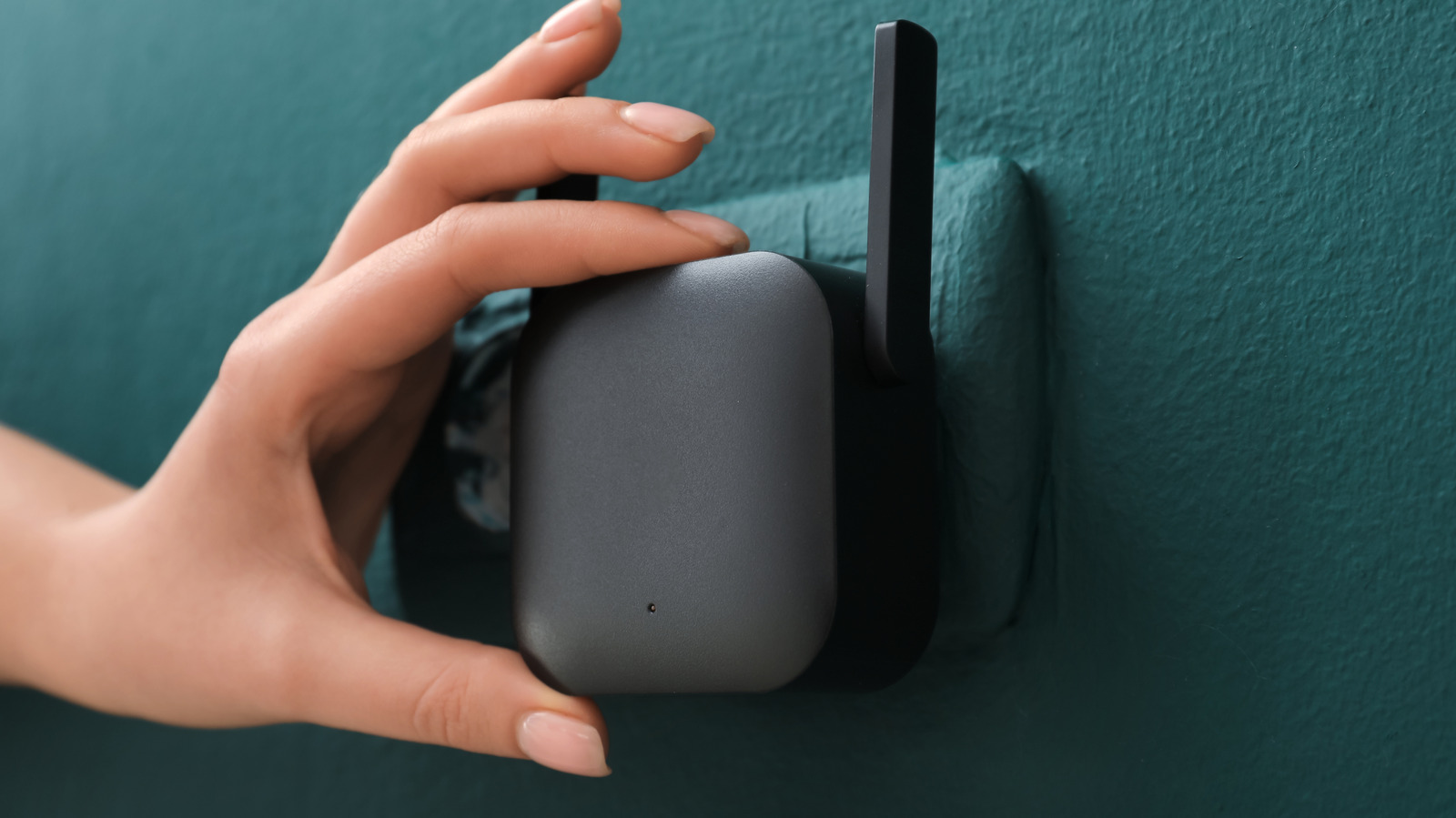
To get started, you cannot simply plug the strip in and expect it to show up in your Home app. The Aqara LED Strip T1 requires a compatible Aqara Zigbee 3.0 hub to enable Matter-over-bridge support for integration with Apple Home and other smart home platforms. My go-to recommendation for this setup is the Aqara Hub M2, though the Hub M1S (Gen 2), Camera Hub G3, or the Hub E1 will also work perfectly fine as long as they are running the latest firmware.
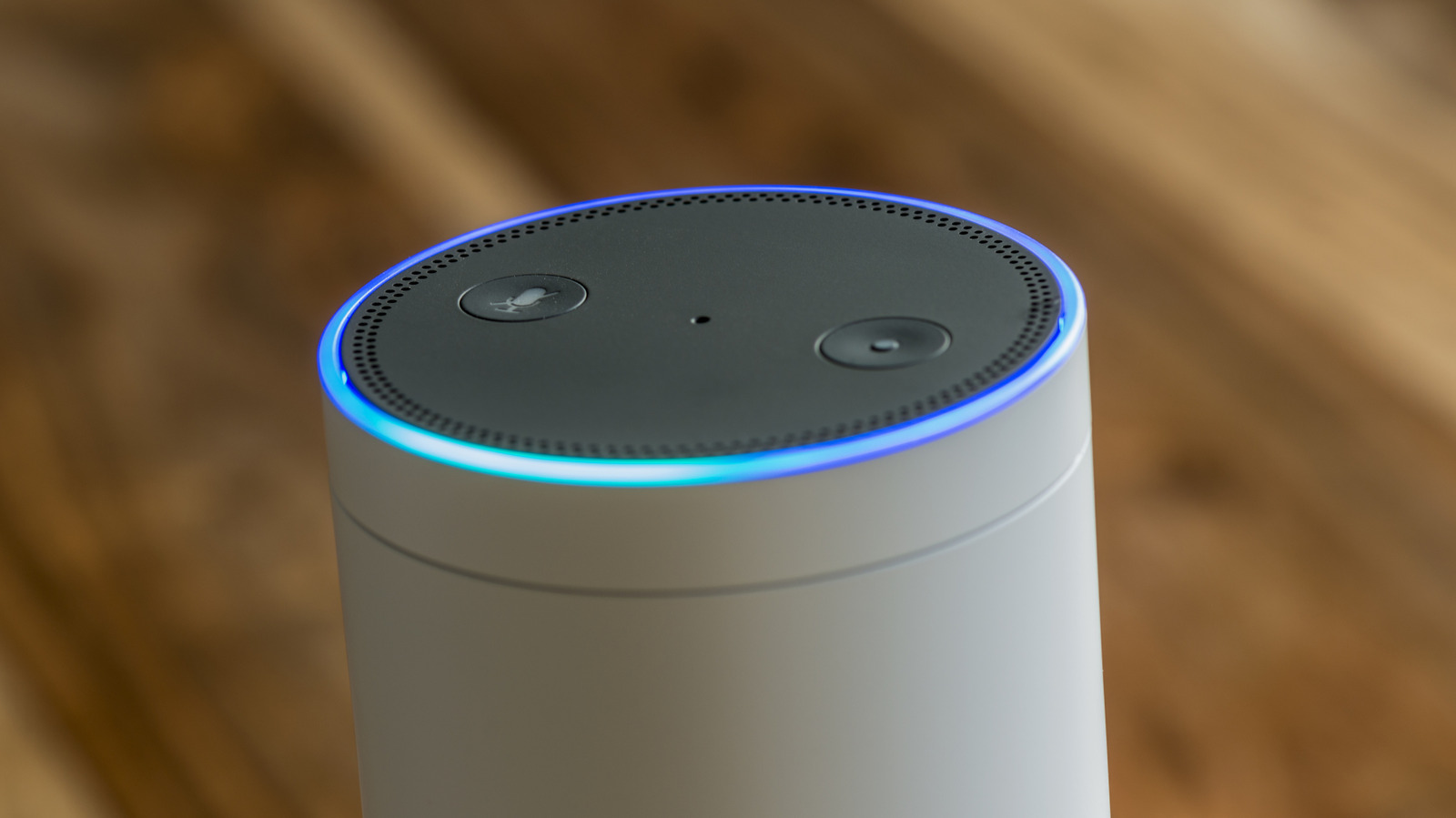
Beyond the bridge, you also need a Matter controller within the Apple ecosystem. This is the "brain" that manages Matter devices on your local network control system. Suitable hardware includes a HomePod mini, a HomePod (2nd Gen), or an Apple TV 4K (2nd Gen or newer). Without one of these devices acting as a local hub, the Matter-over-bridge commissioning process will fail. Before you even unbox the strip, ensure your Aqara Hub M2 firmware is up to date and your Apple devices are running at least iOS 16.4 or later to ensure smooth smart home interoperability.
Step-by-Step: Syncing Aqara T1 with Apple Home via Matter
The pairing process for a Matter-over-bridge device is slightly different than the traditional HomeKit setup you might be used to. Following this Aqara Matter integration guide will ensure you don't run into the "Unable to Add Accessory" errors that plague many DIY smart home enthusiasts.
First, you must complete the Aqara Home app configuration. Plug in your light strip and open the Aqara app. Tap the '+' icon to add a new device and select the LED Strip T1. Follow the on-screen prompts to pair it with your Zigbee 3.0 bridge. Once the strip is visible and controllable within the Aqara app, you can move on to the Matter portion.
Navigate to the settings of your hub (e.g., the Aqara Hub M2) within the Aqara app. Look for the "Expose to Matter" or "Matter" section. Here, you will find the option to generate a Matter pairing code. This is a temporary, unique numeric or QR code that allows the hub to "share" its connected devices with Apple Home. I recommend copying the numeric code to your clipboard or taking a screenshot of the QR code.
Now, switch over to the Apple Home app. Tap the '+' icon in the top right corner and select "Add Accessory." Instead of scanning the code on the back of the device, you will scan the code generated by the Aqara app. This initiates the QR code commissioning process. Your HomePod mini integration will handle the heavy lifting, authenticating the device through your local network. Within a few moments, the light strip will appear in Apple Home, and you can assign it to a room and give it a name. Note that this specific Aqara T1 Matter firmware update instructions should be followed whenever you add new Zigbee devices to the same bridge that you want to appear in Apple Home via Matter.
Matter vs. HomeKit: The Adaptive Lighting Trade-off
This is the part of the guide where I need to be real with you as an editor who values practical experience. Just because you can use Matter doesn't always mean you should right now. There is a significant difference between the Aqara T1 Matter vs HomeKit Adaptive Lighting experience.
Apple’s Adaptive Lighting is a fantastic feature that automatically adjusts the color temperature of your lights throughout the day—shifting from cool, energizing whites in the morning to warm, amber tones in the evening to help you wind down. As of the current Matter specification (Matter 1.2 and early 1.3), Apple Adaptive Lighting Matter support is officially absent. If you connect the Aqara LED Strip T1 to Apple Home via Matter, you will lose the ability to use this feature.
| Feature | Standard HomeKit Bridge | Matter-over-Bridge |
|---|---|---|
| Local Control | Yes | Yes |
| Apple Adaptive Lighting | Yes | No |
| Multi-Platform Support | No (Apple Only) | Yes (Google, Alexa, etc.) |
| Segmented RGBIC Control | Limited | Basic |
| Reliability | Very High | High |
| Tunable White Support | Yes | Yes |
If you are a "pure" Apple household and don't plan on using Google Home or Amazon Alexa, you might actually prefer the standard HomeKit bridge method. This method still uses the hub but adds the device through the native HomeKit integration rather than the Matter code. This preserves the full tunable white spectrum automation that Apple fans love. However, if you want the flexibility of controlling your strip from both an iPhone and a Nest Hub in the kitchen, Matter is the way to go.
Physical Installation and Segment Control
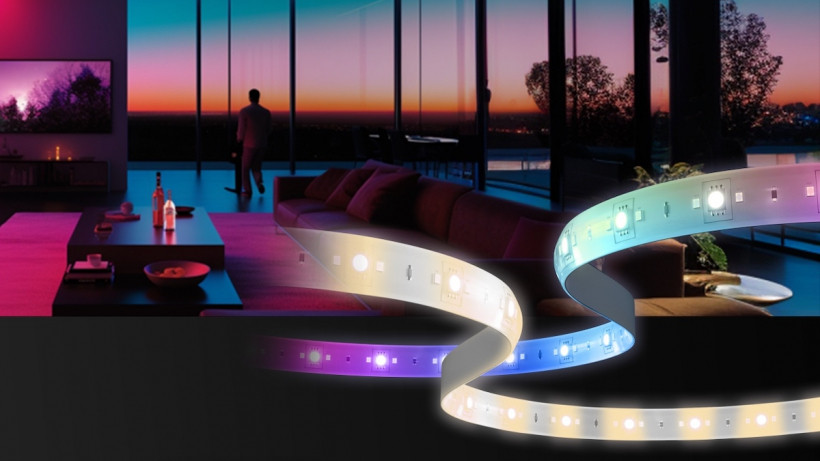
One thing that sets the Aqara LED Strip T1 apart from cheaper alternatives is its RGBIC technology. While standard RGB strips can only show one color at a time across the whole length, the T1 features 10 individually addressable RGBIC segments. This allows for complex, multi-colored effects and ambient mood lighting that can sync with your music or your movies.
When you are physically installing the strip, pay attention to the power connector. The power plug requires a 45-degree turn clockwise to lock it securely into the controller. This is a common point of failure for new users who find their strip flickering or not powering on at all. Once it is physically installed, you can use the Aqara T1 Matter segment control guide within the Aqara app to paint different colors on different parts of the strip. Even if you are using Apple Home for daily control, I highly suggest keeping the Aqara Home app for setting up these advanced "Scenes."
If you need more than 2 meters, the LED Strip T1 is extendable up to a maximum length of 10 meters (32.8 feet) from its base length using optional 1-meter extension kits. If you do extend the strip, you must go into the device settings in the Aqara app and run the "Length Calibration." This tells the controller exactly how many addressable LED segments are connected so it can map your lighting effects correctly across the entire 10-meter span. Failure to do this will result in the end of your strip remaining dark even when the rest is lit.
Troubleshooting and Factory Reset
Even with the best hardware, things occasionally go sideways during setup. If you find yourself stuck during the "Connecting to Bridge" phase or if the Apple Home app refuses to recognize the Matter code, the first step is always a restart of your Matter controller hardware. Unplug your HomePod mini or Apple TV for 30 seconds and plug it back in.
If the strip itself becomes unresponsive, you may need to perform a factory reset to return it to device pairing mode. To do this, long-press the physical button on the inline controller for 5 seconds until the light strip flashes red. Alternatively, if the strip is installed in a hard-to-reach place, you can toggle the power switch or unplug it from the wall three times in quick succession. Once the strip begins to breathe or flash, it is ready to be added back to the Aqara Home app.
Another common issue is troubleshooting Aqara T1 Matter pairing failure where the hub is "reached" but the accessory "cannot be added." This is often due to a "hanging" Matter pairing session. Go back into the Aqara Hub M2 settings, delete any existing Matter pairings, wait 5 minutes, and generate a completely new code. Matter is still a relatively young protocol, and sometimes a fresh start is the only solution.
FAQ
Does the Aqara T1 support Matter?
Yes, the Aqara T1 supports Matter through a Matter-over-bridge configuration. This means it requires a compatible Aqara Zigbee 3.0 bridge to be exposed to Matter-enabled ecosystems like Apple Home, Google Home, and Amazon Alexa.
How do I connect the Aqara T1 to a Matter controller?
You first pair the strip with an Aqara hub in the Aqara Home app. Then, you generate a Matter pairing code from the hub's settings and scan that code in your preferred smart home app (like Apple Home) using a Matter-compatible hub such as a HomePod mini.
Does the Aqara T1 require a hub for Matter compatibility?
Yes, the Aqara T1 requires a hub. It uses Zigbee 3.0 to communicate, so it must be paired with an Aqara Zigbee 3.0 bridge like the Hub M2 or Hub M1S to bridge the device into a Matter network.
Can the Aqara T1 light strip be cut and extended?
The Aqara T1 can be cut at designated marks, and those cut pieces can even be reattached using specialized connectors. It can also be extended up to 10 meters using 1-meter extension kits, provided you calibrate the length in the app afterward.
Is the Aqara T1 compatible with Apple HomeKit and Google Home?
The Aqara T1 is natively compatible with Apple HomeKit through the Aqara bridge and can be used with Google Home either through a direct account link or via the newer Matter integration for local network control.
Conclusion
The Aqara LED Strip T1 is currently one of the most versatile lighting products on the market for Apple Home users. It successfully bridges the gap between high-end RGBIC technology and the emerging world of Matter. By following this guide to sync your Aqara T1 Matter setup, you gain the ability to manage your lighting alongside your other smart home products using Siri voice commands or complex Apple Home automations.
While the loss of Apple Adaptive Lighting is a trade-off you must consider, the benefit of having a device that can work across every major smart home platform is a huge win for future-proofing. Whether you are using it for under-cabinet lighting or an immersive gaming setup, the T1 offers the reliability of Zigbee with the flexibility of the Matter standard. Choose your integration method based on whether you prioritize ecosystem-specific features like Adaptive Lighting or the broader interoperability of the Matter ecosystem.