Quick Facts
- Wired vs. Wireless Latency: Wired Gigabit Ethernet typically provides latency levels below 1 millisecond, whereas Wi-Fi 6 generally delivers between 10 and 20 milliseconds under normal home conditions.
- Wall Interference: Physical obstructions like a 3.5-inch brick wall can attenuate a 2.4 GHz Wi-Fi signal by approximately 50%, significantly impacting throughput.
- Data Throughput: Wi-Fi 6 technology can achieve a 40% increase in data speeds compared to Wi-Fi 5 by supporting up to 12 data streams.
- Future Proofing: Transitioning to Wi-Fi 7 and MLO (Multi-Link Operation) by 2026 will allow devices to use multiple frequency bands simultaneously for near-zero congestion.
- The Switch Advantage: Integrating a dedicated network switch offloads processing tasks from the primary router, preventing bottlenecks during high-traffic periods.
- Cabling Standard: For any modern home network setup, CAT6 cabling is the recommended baseline to support 10Gbps speeds over short distances.
An optimal home network setup balances wired and wireless connections for maximum efficiency. Use CAT6 Ethernet cabling for stationary, high-bandwidth devices like gaming consoles and PCs to ensure low latency and consistent throughput, while supplementing this with a Wi-Fi 6E or Wi-Fi 7 mesh system to provide seamless wireless coverage for mobile devices throughout the home.
Phase 1: The Diagnostic Audit & Diagramming
Before you start buying expensive hardware, you need to conduct a diagnostic audit of your space. As we move into 2026, the average household now manages over 30 connected devices, ranging from low-bandwidth smart bulbs to high-demand 8K streaming boxes. The first step in achieving the best setup for home network performance is identifying where your bandwidth is actually going.
Start by creating a simple home network setup diagram. You do not need professional software for this; a simple sketch on paper or a digital tablet will suffice. Mark the location of your ISP (Internet Service Provider) entry point, usually a cable or fiber modem. From there, identify the rooms where you spend the most time using high-performance devices, such as the home office or the living room entertainment center.
Your diagram of home network setup should also account for physical barriers. Take note of thick walls, large appliances, or mirrors, as these are the primary enemies of signal strength. A 1.75-inch solid wood door might seem insignificant, but it can still lead to notable signal attenuation. By mapping these out, you can strategically place nodes and access points to bypass these obstacles, ensuring that wireless home network setup translates to high speeds in every corner of the house.
- Inventory Devices: List every device that connects to the internet. Categorize them as 'Stationary' (TVs, PCs, Consoles) or 'Mobile' (Phones, Tablets, Laptops).
- Identify Dead Zones: Walk through your home with a Wi-Fi analyzer app to see where signal drops occur.
- Trace Existing Lines: Check if your home already has CAT5e or CAT6 wiring behind the wall plates.
- Locate the Hub: Choose a central, elevated location for your primary router to minimize signal interference.
Phase 2: Building the Wired Foundation with Switches
While wireless technology has made incredible leaps, a truly robust wired home network setup remains the gold standard for stability. If you rely on a single router to manage every connection, you are likely experiencing network congestion. The router's processor has to handle routing, firewall tasks, Wi-Fi broadcasting, and device management simultaneously.
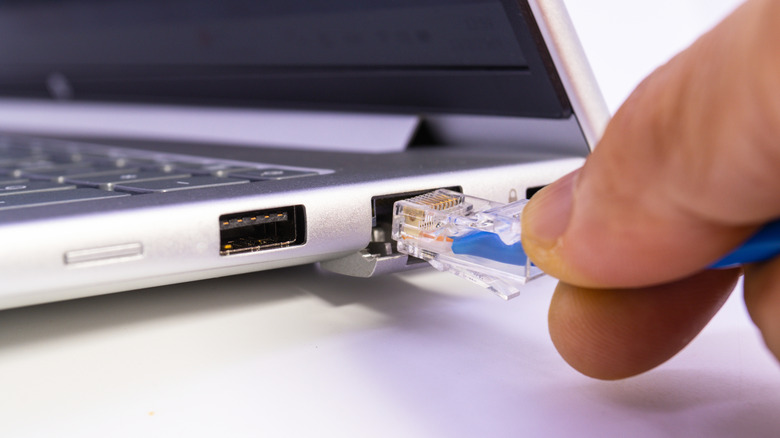
This is where a home network setup with switch becomes essential. Instead of plugging everything into the back of your router, you run a single CAT6 cable from the router to a secondary network switch located in a high-demand area, like your office. This switch then acts as a central hub for your desktop PC, network-attached storage (NAS), and work laptop. A home network switch setup effectively offloads the local traffic management, allowing the router to focus on the wireless signals and the internet gateway.
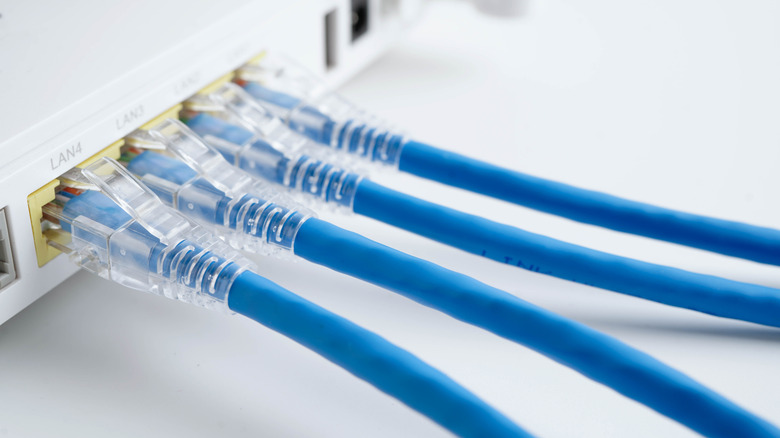
Using CAT6 cabling is a non-negotiable for future-proofing. While CAT5e can handle Gigabit speeds, CAT6 is designed for higher throughput optimization, supporting up to 10Gbps over shorter distances. For professionals working with large video files or PC builders who want the absolute lowest latency, having a dedicated wired backbone ensures that your high-priority traffic is never interrupted by someone else streaming a movie in the next room.
Phase 3: Wireless Mastery: Mesh Nodes & Wi-Fi 6E/7
Once your wired foundation is solid, it is time to address the wireless home network setup. The days of a single router covering an entire 2,000-square-foot home are over. To achieve seamless coverage, you should look toward Wi-Fi 6E or the emerging Wi-Fi 7 mesh systems. Unlike traditional range extenders, which create a separate, weaker network, mesh nodes work in tandem to create a single, unified network name (SSID).
The key to a high-performance mesh home network setup is the 'backhaul.' This is the connection that links the satellite nodes back to the main router. While many systems use a dedicated wireless band for backhaul, the most stable results come from a wired backhaul. By connecting your mesh nodes via Ethernet, you eliminate the 50% speed drop that often occurs when signals are repeated wirelessly.
Furthermore, Wi-Fi 6E introduces the 6GHz band, which acts like a wide-open highway compared to the congested 2.4GHz and 5GHz bands. This is particularly useful in urban environments where dozens of neighboring routers are competing for signal space. If you are planning for 2026 and beyond, Wi-Fi 7 brings MLO (Multi-Link Operation), allowing your phone or laptop to send and receive data across multiple bands at the exact same time, virtually eliminating signal interference.
| Feature | Wi-Fi 5 (802.11ac) | Wi-Fi 6 (802.11ax) | Wi-Fi 7 (802.11be) |
|---|---|---|---|
| Max Throughput | 3.5 Gbps | 9.6 Gbps | 46 Gbps |
| Frequency Bands | 2.4 GHz, 5 GHz | 2.4 GHz, 5 GHz | 2.4, 5, 6 GHz |
| Latency | Moderate | Low | Ultra-Low |
| Key Tech | MU-MIMO | OFDMA | MLO |
Phase 4: Software Tuning for Gaming & Streaming
Hardware is only half the battle; the software configuration of your home network setup for gaming and streaming determines how that hardware prioritizes your data. Most modern routers include Quality of Service (QoS) settings. When enabled, QoS allows you to tell the router that gaming packets or Zoom calls are more important than a background Windows update or a cloud backup.
For the competitive gamer, low latency is the priority. Even on a Wi-Fi 6 connection, you might experience "jitter" or spikes in ping. If you cannot run a long cable across the house, consider using a high-quality Powerline adapter or a MoCA (Multimedia over Coax) adapter, which uses your home's existing electrical or cable TV wiring to transmit data. This provides a more consistent flow than wireless signals that have to bounce through walls.
Additionally, always check for firmware updates. Manufacturers frequently release patches that improve throughput optimization and fix bugs that cause infrequent signal drops. If you find your connection is unstable during peak hours, use your router’s admin panel to select a less crowded channel on the 5GHz or 6GHz spectrum. Turning off features like WPS (Wi-Fi Protected Setup) can also free up minor resources while significantly improving your overall security posture.
Phase 5: Hardening Your Secure Home Network
A fast network is useless if it is compromised. Learning how to setup a secure home network is the final, critical step in your optimization journey. The first move is to move away from legacy security protocols. Ensure your router is using WPA3 encryption, which provides much stronger protection against "brute-force" password guessing than the older WPA2 standard.
Another professional tip is to use VLAN (Virtual Local Area Network) isolation or a Guest Network for your Smart Home (IoT) devices. Smart fridges, light bulbs, and cheap indoor cameras are notorious for having weak security. By placing them on a separate guest network, you ensure that if a smart bulb is hacked, the attacker cannot bridge over to your main desktop PC where you store sensitive financial data.
Finally, disable UPnP (Universal Plug and Play) if you do not absolutely need it. While UPnP makes connecting devices easier, it also creates a hole in your firewall that malware can exploit to open ports without your knowledge. Manually setting up port forwarding for specific games is a slightly more technical task, but it is far safer for your long-term network integrity. Regular maintenance, including changing your admin password every few months and checking for unauthorized devices on your home network setup diagram, will keep your connection both fast and safe.
Expert Tip: Always use a unique, complex password for your router's administrator panel that is different from your Wi-Fi password. If someone gets onto your Wi-Fi, you don't want them to have the keys to your entire network configuration.
FAQ
What do I need for a home network setup?
You primarily need a modem (to bring the internet into your home), a router (to distribute the signal), and high-quality CAT6 Ethernet cables for wired connections. Depending on the size of your home, you may also need a network switch to add more ports and mesh nodes or access points to extend wireless coverage.
Is it worth setting up a home network?
Yes, a custom home network setup is essential if you have multiple users or high-bandwidth needs like 4K streaming and gaming. An optimized network reduces lag, eliminates dead zones, and ensures that your internet speed actually reaches the devices you are paying for, rather than being lost to interference.
How can a home network be set up?
A home network is set up by connecting your modem to a router via Ethernet. You then decide which devices should be wired (best for stability) and which should be wireless (best for mobility). You configure the network settings through a web browser or a smartphone app to set your SSID, password, and security protocols like WPA3.
What is home network setup?
Home network setup refers to the combination of hardware and software configurations used to connect all your devices to each other and the internet. This includes the physical placement of routers, the installation of cables and switches, and the logical tuning of settings like QoS and firewall rules to maximize efficiency.
What are signs of a hacked WiFi network?
Common signs include a significant and unexplained drop in internet speed, your router settings being changed without your input, or seeing unfamiliar devices listed in your router's connected devices log. If your antivirus software frequently flags unauthorized access attempts, it may also indicate that your wireless home network setup has been compromised.