Quick Facts
- Protocol: Matter over Wi-Fi (standard 2.4GHz, no Thread border router required).
- Hardware Density: Features a high density of 60 LEDs per meter for smooth light diffusion.
- Network Requirement: Mandatory IPv6 support must be enabled on your wireless router.
- Pairing Window: The device remains in Matter pairing mode for only 15 minutes after power-on.
- Compatibility: Native support for Apple Home, Google Home, Amazon Alexa, and Home Assistant.
- Technology: Utilizes RGBIC+ technology with 50 controllable color segments for advanced DIY scenes.
To set up the Govee M1 with Matter, first ensure your router has IPv6 enabled, as this protocol is mandatory for Matter connectivity. Use the Govee Home app to perform initial firmware updates, then locate the Matter QR code on the physical controller. Scan this code within your preferred smart home ecosystem, such as Apple Home or Home Assistant, to enable local control and cross-platform interoperability.
Hardware Evolution: Why the M1 Matters
We have seen many LED strips hit the market over the last decade, but the Govee LED Strip Light M1 represents a significant shift in how we approach smart lighting. As the manufacturer's first Matter-certified product, it bridges the gap between high-end hardware and universal smart home compatibility.
Beyond the protocol, the physical hardware is significantly upgraded. The strip features a high density of 60 LEDs per meter, which Govee states provides twice the brightness compared to its previous LED strip models. This density is crucial because it eliminates the "spotting" effect common in cheaper strips, resulting in a continuous, neon-like glow even when placed close to reflective surfaces.
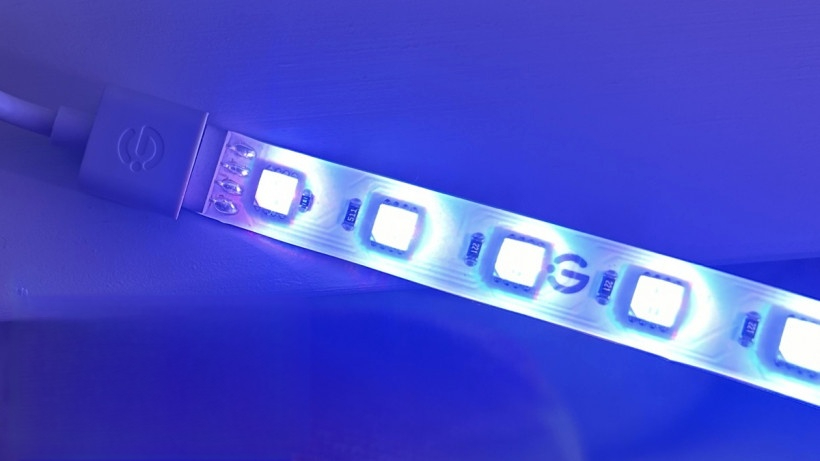
Utilizing 4-in-1 RGBIC+ technology, the M1 light strip offers 50 controllable color segments and supports over 64 preset lighting modes. This level of granularity allows for sophisticated gradients and animations that standard RGB strips simply cannot replicate.
Mandatory Pre-Setup Checklist
Before you begin the Govee M1 setup instructions, we need to address the technical environment. Matter is a robust protocol, but it is less "plug-and-play" than traditional Bluetooth if your network isn't configured correctly.
We recommend verifying the following requirements to avoid the common "Unable to Add Accessory" errors:
- Hardware Verification: Ensure you have the H61E0 model. While Govee has many strips, only specific versions carry the Matter certification.
- Enable IPv6: This is the most common point of failure. Matter relies on IPv6 for local communication between the device and your hub. Log into your router settings and ensure IPv6 is set to "On" or "Auto."
- 2.4GHz Wi-Fi Connection: Like most IoT devices, the Govee M1 Matter requires a 2.4GHz Wi-Fi band. If you use a mesh system with a single SSID, ensure your phone is temporarily forced to the 2.4GHz band during setup.
- Matter Controller Hub: You must have a compatible hub in your home. This includes an Apple HomePod Mini, Apple TV 4K (2nd Gen+), Nest Hub 2nd Gen, or an Echo (4th Gen).
- Firmware Readiness: Always download the Govee Home app first. Even though Matter aims to bypass proprietary apps, the initial firmware update is often required to stabilize the Matter stack.
Step-by-Step Govee M1 Matter Setup
The process of how to set up Govee M1 with Matter follows a specific sequence. If you miss the 15-minute pairing window, you will need to power cycle the device to reopen the Matter commission window.
- Physical Installation: Connect the light strip to the controller and power adapter. Ensure the connection is tight.
- The Govee Home App Bridge: Open the Govee Home app and add the device via Bluetooth first. Immediately check for a firmware update. We have found that early units require a patch to properly broadcast the Matter signal.
- Locate the Matter QR Code: You will find a small sticker on the side of the physical controller with the Matter logo (a stylized triangular icon) and a QR code. We recommend taking a photo of this code for your digital records in case the sticker peels off.
- Primary Ecosystem Pairing: Open your preferred app, such as Apple Home. Tap "Add Accessory" and scan the QR code on the controller. Because of the Govee M1 Apple HomeKit setup via Matter, the device should appear almost instantly as a light source.
- Enabling Multi-Admin: One of the best features of the Matter protocol smart lighting integration is the ability to control the device from multiple platforms simultaneously. To add the M1 to a second ecosystem (e.g., Google Home), go to the "Settings" of the device in Apple Home, select "Turn on Pairing Mode," and use the generated 11-digit setup code in the Google Home app.

Matter vs. Govee Home App: Feature Comparison
While we love the local control and interoperability provided by Matter, it is important to manage expectations regarding what the protocol can actually do. Currently, the Matter 1.0/1.1/1.2 specifications for lighting focus on core functions.
| Feature | Matter Protocol (Apple/Google/Alexa) | Govee Home App |
|---|---|---|
| Power On/Off | Yes (Local Control) | Yes (Cloud/Bluetooth) |
| Brightness Control | Yes | Yes |
| Solid Color Selection | Yes | Yes |
| Segmented Control | Limited (Entire strip only) | Yes (50 Individual Zones) |
| Music Sync Mode | No | Yes |
| DreamView Sync | No | Yes |
| Scene Modes | Basic Scenes Only | 64+ Advanced Presets |
| DIY Animations | No | Yes |
As we can see, the Govee M1 Matter vs Govee Home App functionality debate isn't about which is better, but rather how they complement each other. Use Matter for your daily automations—like turning the lights on at sunset—and use the Govee app for the specialized RGBIC+ technology effects or when you want to use the music sync mode.
Troubleshooting Common Connection Issues
Even with the best hardware, smart home tech can be finicky. Here is our expert guide on Govee M1 connection troubleshooting for the most common pain points.
Solving the "Device Not Found" Error
If your ecosystem fails to find the strip after scanning the QR code, the Govee M1 Matter IPv6 configuration guide usually points back to the router. Many ISP-provided routers have IPv6 disabled by default. If it is enabled and still failing, perform a hard reset. To reset the strip, hold the top power button on the controller while pressing the middle button four times. The strip will flash to indicate a successful reset.
Fixing Govee M1 Slow Brightness Lag in Home Assistant
Users integrating the M1 into Home Assistant via the Matter (Beta) or official integration often report a slight delay or "stepping" when changing brightness. This is caused by the way transition times are handled in the local API. To fix this, you can implement custom light profiles in your configuration files to manage transition times. By setting a default transition of 0.1 seconds, the light response will feel instantaneous.
Handling Multi-Admin Failures
If you are struggling with Govee M1 Matter connection troubleshooting when adding a second user or platform, remember that the "pairing mode" for Matter expires. You must generate the setup code from the original "parent" app and use it within minutes. Additionally, ensure both the Matter controller (hub) and the light strip are on the same 2.4GHz Wi-Fi network; Matter does not like hopping between VLANs unless you have a mDNS repeater configured.
Physical Splicing and Cutting
The M1 is physically flexible, but cutting it requires precision. Only cut along the designated gold contact pads. If you are splicing two sections together, ensure you use the provided 4-pin connectors. Note that if you extend the strip beyond its original length, you may need to adjust the "Number of Segments" in the Govee app settings to ensure the RGBIC+ technology animations still reach the end of the strip.
FAQ
Does Govee M1 support Matter?
Yes, the Govee M1 (model H61E0) is Matter-certified, making it Govee's first lighting product to support the universal smart home standard for local control and cross-platform interoperability.
How do I connect Govee M1 to Apple HomeKit?
You can connect the Govee M1 to Apple HomeKit by using the Matter protocol. Ensure your Apple HomePod or Apple TV is updated to at least iOS 16.2, then scan the Matter QR code located on the M1's physical controller within the Apple Home app.
Can you cut the Govee M1 Matter light strip?
Yes, you can cut the Govee M1 light strip at the specific cut points marked by gold contacts. However, once cut, the removed portion will require a separate power controller or a specialized connector to function again.
Does Govee M1 Matter require a hub?
Yes, to use the Matter features of the Govee M1, you must have a Matter controller hub from a compatible ecosystem, such as an Amazon Echo (4th Gen), Google Nest Hub (2nd Gen), or Apple HomePod Mini.
How do I reset the Govee M1 Matter LED strip?
To reset the Govee M1, hold the power button on the physical controller and simultaneously press the middle button four times. The light strip will flash, indicating that it has been factory reset and is ready for a new setup.
Final Thoughts
The Govee M1 Matter integration is a massive win for enthusiasts who value local control and longevity. While the Govee Home App remains necessary for those who want to dive deep into segmented lighting and complex DIY scenes, the ability to flip a switch in Apple Home or Google Home without relying on the cloud is a game-changer.
By following our Govee M1 setup instructions and ensuring your IPv6 settings are correct, you can enjoy one of the brightest and most versatile LED strips currently available. We recommend this strip for anyone looking to future-proof their smart home lighting without being locked into a single ecosystem.