Quick Facts
- Launch Date: The Google Photos integration is scheduled to debut on Samsung TVs starting with 2026 models, with the Memories feature expected to launch in March 2026.
- Compatibility: Limited exclusively to eligible 2026 Samsung AI TV models running the latest Tizen operating system.
- Core Features: Phased rollout includes digital picture frame functionality, AI-driven Memories, and advanced editing tools like Remix and Photo to Video.
- AI Technology: Powered by Google’s Nano Banana AI model and integrated with Samsung's Vision AI Companion for smart content discovery.
- Setup Method: Simplified user authentication security via smartphone QR code scanning and direct Google Account linking.
- Privacy Controls: Includes a dedicated Guest Mode and content safety filters to manage which images appear on the big-screen user interface.
To use Google Photos on a compatible 2026 Samsung TV, sign into your Google Account directly through the TV interface or via a mobile QR code. Once authenticated, your photo library integrates with Samsung Daily Plus and the Daily Board widget, allowing you to view Memories or use generative AI tools to edit images directly on the Google Photos Samsung TV app.
The 2026 Rollout: When and Where to Get Google Photos
For years, smart home enthusiasts have been looking for a more native way to bring their mobile memories to the living room centerpiece. The wait finally has a definitive end date. The Google Photos Samsung TV app is slated for a phased release, marking a significant milestone in smart home connectivity between the Android ecosystem and Samsung’s display hardware.
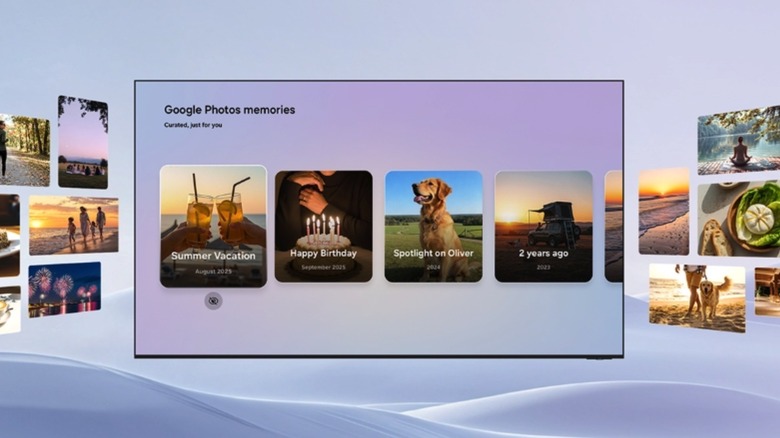
According to recent reports, Google Photos integration is scheduled to debut on Samsung TVs starting with the 2026 model lineup. The rollout begins in March 2026 with an exclusive six-month window where Samsung will be the only TV manufacturer offering the specialized Memories feature. This initial phase focuses on passive viewing, transforming your television into a dynamic digital picture frame functionality that cycles through curated highlights from your life.
The second half of 2026 will see a much deeper update. This H2 2026 phase will introduce the heavy hitters: generative AI tools and personalized results. While older Samsung sets have previously relied on clumsy casting or third-party gallery apps, this native integration ensures high-definition playback and a UI optimized specifically for large screens. It is important to note that the Google Photos Samsung TV app rollout timeline 2026 is currently restricted to the upcoming AI-enhanced hardware; there is no confirmed support for 2025 models or older units at this time.
Step-by-Step: How to Set Up Google Photos on Your Samsung TV
Setting up the integration is designed to be as frictionless as possible, moving away from the tedious on-screen keyboard entries of the past. The process leverages your smartphone to ensure user authentication security remains a top priority.
Before you begin, ensure your mobile Google Photos app is updated and that you have enabled the Memories feature in your mobile settings. This is a prerequisite for the TV to pull the curated content correctly.
- Locate the App: Navigate to the Samsung Daily Plus hub on your 2026 Samsung AI TV. You will find the Google Photos icon within the app launcher or as a recommended widget on the Daily Board.
- Initiate Pairing: Select the app to bring up a unique QR code on the big-screen user interface.
- Authenticate via Mobile: Scan the QR code with your smartphone. You will be prompted to select the Google Account you wish to link.
- Grant Permissions: Approve the request for the Tizen operating system to access your Google Photos library.
- Configure the Daily Board: Once linked, you can choose to have Google Photos Memories for Samsung Daily Board setup automatically. This allows the TV to display your photos whenever it enters Ambient mode display or a low-power state.
By following these steps for how to set up Google Photos on Samsung TV 2026, you create a seamless bridge between your cloud storage and your home decor. The system is designed to work in the background, updating your display as you take new photos on your phone.
Advanced Features: From Memories to AI Remixing
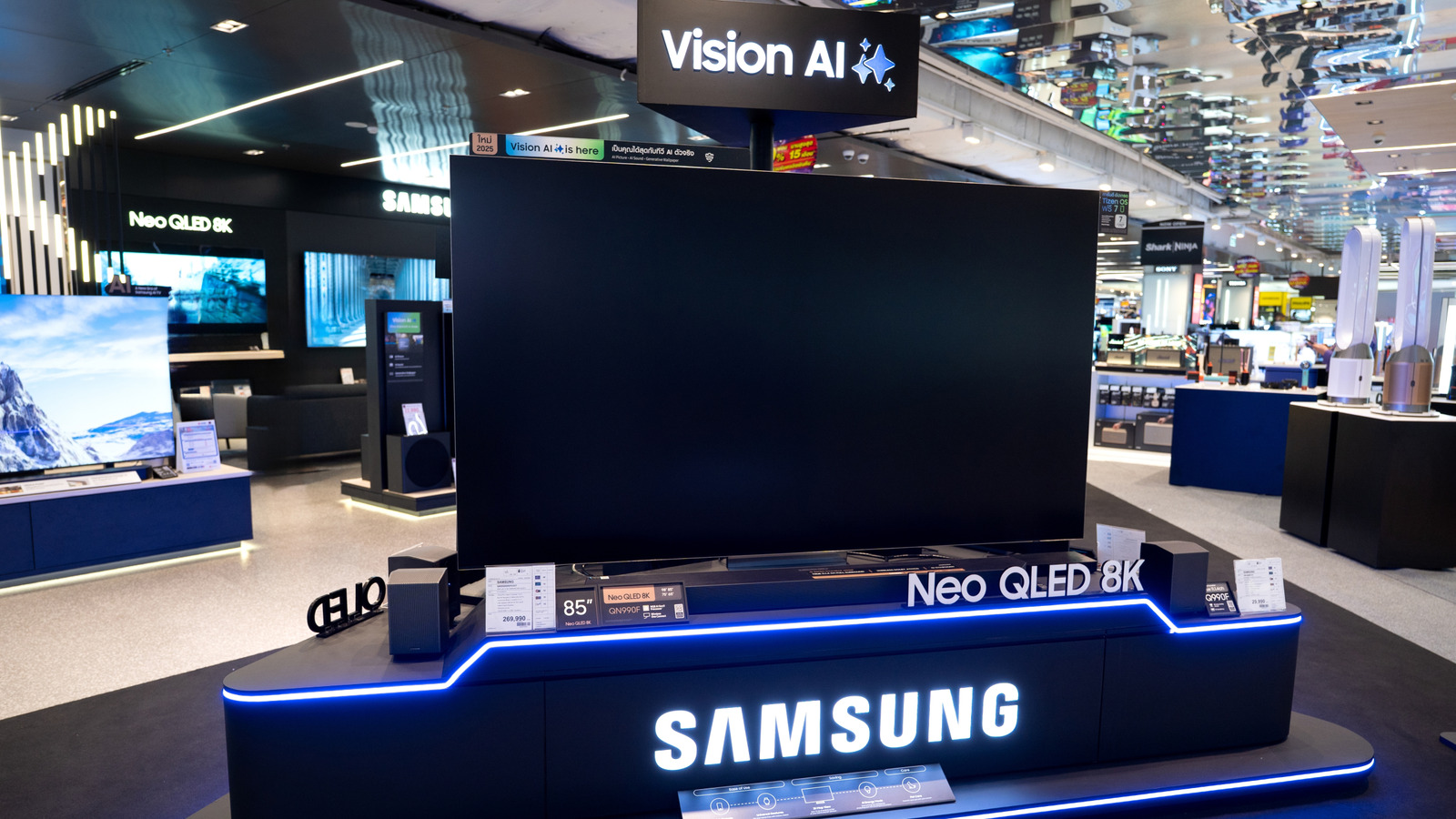
This partnership goes beyond a simple slideshow. The 2026 Samsung models are branded as AI TVs for a reason—they pack enough local processing power to handle complex image manipulation. The core of this experience is the Samsung TV Vision AI Companion integration, which works alongside Google’s Nano Banana AI model to understand the context of your photos.
Using the Vision AI Companion
The Vision AI Companion acts as your digital curator. Instead of scrolling through thousands of images, you can use voice commands or the remote to ask for specific moments, such as "Show my photos from the beach last summer." The system uses facial recognition technology to identify family members and group images logically, making content discovery nearly instantaneous.
Creative Tools and the Nano Banana Model
One of the most exciting additions coming in the latter half of 2026 is the suite of Google Photos AI editing tools for TV. This includes the Remix feature, which allows you to apply different artistic styles to your photos using the Nano Banana AI model. If you have a stunning landscape, you can "Remix" it into an impressionist painting to better suit your living room’s aesthetic.
Furthermore, the Google Photos AI remix and photo to video on Samsung TV feature enables users to transform static albums into short, cinematic clips. These clips are generated on-device, ensuring that your private media isn't being uploaded to external servers for processing. This turns the TV into a creative workstation where the family can gather to "produce" memories together on a massive canvas.
Privacy and Shared Screens: Managing Guest Mode
As a smart home editor, I frequently hear concerns about privacy when it comes to displaying personal photos in a shared space like the living room. Nobody wants a sensitive screenshot or a private document appearing on a 75-inch screen while guests are over. Samsung and Google have addressed this by enabling Google Photos Guest Mode on Samsung TVs.
Guest Mode acts as a sophisticated content safety filters system. When enabled, the TV will only display photos that have been tagged as "Favorites" or belong to specific "Shared Albums." It automatically hides images that the AI identifies as containing sensitive information, such as receipts, IDs, or blurred shots.
Additionally, you can customize Google Photos personalized results on Samsung Daily Plus to ensure that only certain faces—identified through facial recognition technology—are shown. If you have children, you can set the TV to prioritize family photos while excluding everything else. These settings are synced with your mobile app's privacy preferences, so if you archive a photo on your phone, it disappears from the TV immediately.
Hardware Compatibility Comparison
Not all Samsung TVs will receive these features. The deep integration with the Tizen operating system and the requirement for local AI processing means older hardware is left out of this specific loop.
| Feature | 2026 Samsung AI TV Models | 2024-2025 Samsung Smart TVs | 2023 and Older Models |
|---|---|---|---|
| Native Google Photos App | Yes (March 2026) | No (Casting Only) | No |
| Memories on Daily Board | Yes | No | No |
| AI Remix (Nano Banana) | Yes (H2 2026) | No | No |
| Vision AI Companion | Full Integration | Limited | No |
| Guest Mode Filters | Yes | No | No |
| 4K Photo Playback | Native | Via Casting | Limited |
If you own an older model, the easiest way to display photos on a Samsung TV from a Google account remains using a Chromecast or the built-in "Cast" feature from the Google Photos mobile app. However, you will miss out on the automated Ambient mode display and the advanced AI tools.
FAQ
How can I see my Google Photos on a Samsung TV?
For owners of the Samsung 2026 TV models supporting Google Photos app, you can see your photos by signing into the native app via the Samsung Daily Plus hub. For older models, you must use the "Cast" icon within the Google Photos app on your smartphone or connect a dedicated media streamer like a Chromecast with Google TV.
Is there a Google Photos app for Samsung Smart TVs?
Starting in March 2026, there will be a native Google Photos app specifically for newer Samsung AI TVs. Historically, there has not been a dedicated Tizen app for Google Photos, forcing users to rely on web browsers or screen mirroring. This new integration represents the first official native support.
Can I use Google Photos as a screensaver on my Samsung TV?
Yes, on 2026 models, Google Photos integrates directly with the Ambient mode display and Daily Board. You can set specific albums or the AI-generated Memories to act as a revolving screensaver whenever the TV is not in active use.
Why is the Google Photos app missing from the Samsung TV app store?
If you are searching for the app on a model released before 2026, it will not appear because the current Tizen operating system versions do not support the native integration. Furthermore, the official rollout is not scheduled to begin until March 2026, so even newer 2026 models purchased very early in the year may require a software update to see the app.
What is the easiest way to display photos on a Samsung TV from a Google account?
On the latest 2026 models, the easiest way is the native app integration which automatically syncs your library. For anyone else, the most reliable method is using a smartphone to cast photos over the same Wi-Fi network. Simply open a photo on your phone, tap the cast icon, and select your Samsung TV from the list of available devices.