
Quick Facts
- Top Search Fix: Everything (Instant indexing of names and paths)
- Best UI Customizer: Microsoft PowerToys v0.98 (Window management and batch renaming)
- Privacy Essential: Ente Auth (Open-source, end-to-end encrypted 2FA)
- Storage Manager: WizTree (Reads MFT to scan 46x faster than WinDirStat)
- File Specialist: 7-Zip (High-ratio compression and AES-256 encryption)
The best free Windows 11 utilities for power users in 2026 are Everything for instant search, Microsoft PowerToys for UI optimization, and Ente Auth for secure 2FA. These open-source tools fix common performance bottlenecks and privacy gaps left by the stock OS while providing essential Windows 11 software for power users who demand more control over their environment.
As of July 2025, Windows 11's global market share reached 51.77%, officially surpassing Windows 10 as the most dominant version of the operating system. For those who recently made the switch due to the Windows 10 end-of-life, the adjustment can be jarring. While the OS has matured, it still carries baggage: a sluggish search indexer, a rigid taskbar, and a heavy reliance on cloud services. As a computing editor who spends ten hours a day behind a monitor, I find these inefficiencies unacceptable.
Fortunately, the open-source community and specialized developers have created a suite of tools that transform a standard installation into a high-performance workstation. These free Windows 11 utilities solve common UI and performance issues instantly, allowing you to bypass OS bloat and focus on productivity.
Fixing Slow Search: Instant Results with Everything
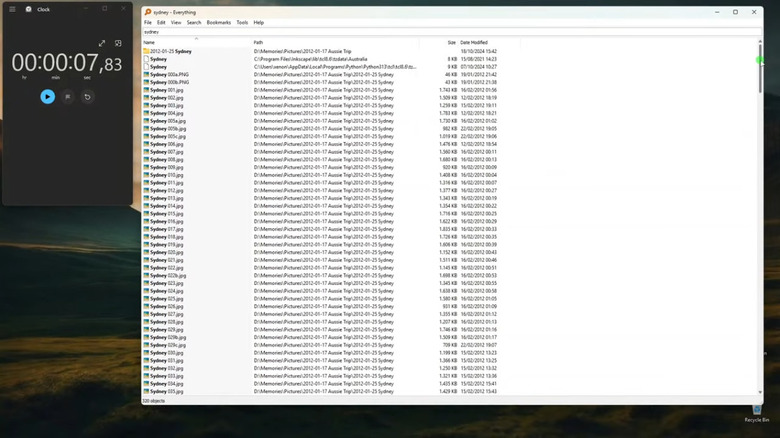
If you have ever typed a file name into the Windows 11 Start menu only to wait three seconds for it to suggest a web result instead of your local document, you know the frustration. The native indexing service is often slow, resource-heavy, and prone to corruption. To solve this, the utility known as Everything is the first thing I install on any new machine.
Everything works by reading the Master File Table (MFT) on NTFS-formatted drives directly. Unlike the standard Windows indexer, which crawls through file contents and slows down your system, Everything only cares about file names and paths. This allows it to index a fresh 1TB drive in about a minute. Once indexed, searching for any file is truly instantaneous. It has a tiny system footprint, often consuming less than 10MB of RAM, making it one of the best productivity apps for Windows 11 when managing massive datasets.
Pro Shortcuts and Configuration
- System-wide Search: Map a hotkey (like Alt + S) to open the Everything window instantly.
- Filter by Type: Use the search syntax
ext:jpgorext:pdfto narrow down thousands of results in real-time. - Instant Path Copy: Right-click any result to copy the full path or open the folder location immediately.
The software is particularly useful for those wondering how to fix slow windows 11 file search without rebuilding the entire OS index. By disabling the native background indexing and relying on this lightweight tool, you can reclaim CPU cycles for your actual work.
Streamlining the UI: Microsoft PowerToys v0.98
Microsoft PowerToys is no longer just a collection of niche tweaks; it is a fundamental expansion of the OS. Developed by Microsoft in collaboration with the community, it provides features that many of us wish were built into the core settings. For power users, the most valuable component is FancyZones. While Windows 11 introduced Snap Layouts, FancyZones takes window management to another level by allowing you to create complex, pixel-perfect grids. This is essential for ultrawide monitor users who need more than just a simple 50/50 split.
Another standout feature is PowerRename. If you are a photographer or a developer dealing with hundreds of files, the native "Rename" function is useless. PowerRename allows for bulk changes using search and replace or regular expressions. The v0.98 release also includes an improved Text Extractor (Win + Shift + T), which uses OCR to grab text from any part of your screen, including images and videos.
Essential PowerToys Modules
- PowerToys Run: A keyboard-centric launcher that acts as a faster, cleaner alternative to the Start Menu. It is great for replacing windows 11 start menu with custom launchers that don't include ads or web suggestions.
- Keyboard Manager: Remap keys and shortcuts at the system level. If you hate the placement of the Copilot key, you can remap it to something useful like Play/Pause.
- Always on Top: Use Win + Ctrl + T to pin any window to the foreground, which is perfect for keeping a calculator or a reference document visible while you work.
Using these microsoft powertoys features for windows 11 power users ensures that your desktop environment adapts to your workflow rather than forcing you to adapt to the OS design.
Security & Privacy Gaps: Ente Auth and Joplin
Windows 11 leans heavily into Microsoft Account integration, which is convenient but creates privacy concerns. For those who prefer local-first storage and transparent security, two tools are indispensable: Ente Auth and Joplin.
Most users rely on their phones for two-factor authentication (2FA), but this can be a bottleneck during a busy workday. Ente Auth is a secure, open-source 2FA app that provides a desktop-compatible code generator. It uses end-to-end encryption to sync your TOTP tokens across devices. Because it is open-source, you can verify how your data is handled, making it one of the most reliable secure open source 2fa apps for windows desktop.

Similarly, Joplin serves as a privacy-focused alternative to cloud-heavy note apps like Evernote or OneNote. It is a local-first application, meaning your notes live on your machine first. You can sync them via OneDrive, Dropbox, or your own server using end-to-end encryption. For professionals, its support for Markdown and browser clipping makes it a powerhouse for organizing research and technical documentation.
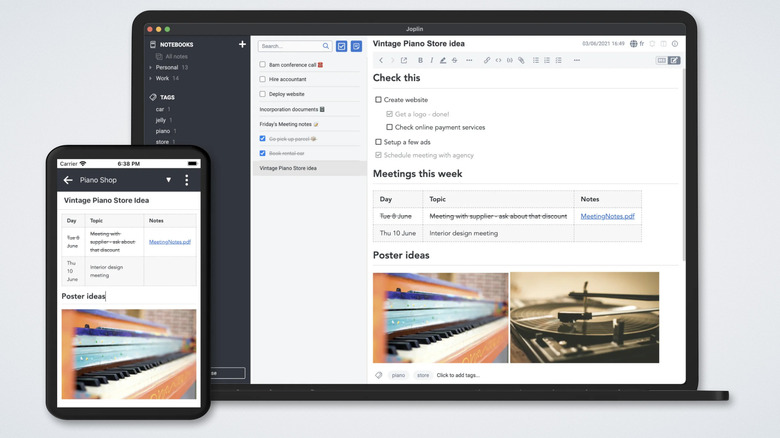
Adopting these open source Windows 11 utilities ensures that your sensitive data remains under your control. By moving away from proprietary authentication and note-taking silos, you build a more resilient digital workflow that isn't dependent on a single corporate ecosystem.
Performance Optimization: WizTree and 7-Zip
Maintaining a clean system is the key to longevity. Many users stick with the built-in Disk Cleanup, but it rarely shows you the full picture of what is eating your storage. This is where WizTree comes in. Traditional disk analyzers like WinDirStat can take minutes to scan a full drive. However, WizTree is capable of scanning storage drives up to 46 times faster than traditional tools by reading the Master File Table directly from NTFS-formatted drives. It provides a visual treemap that makes identifying massive log files or forgotten downloads effortless.
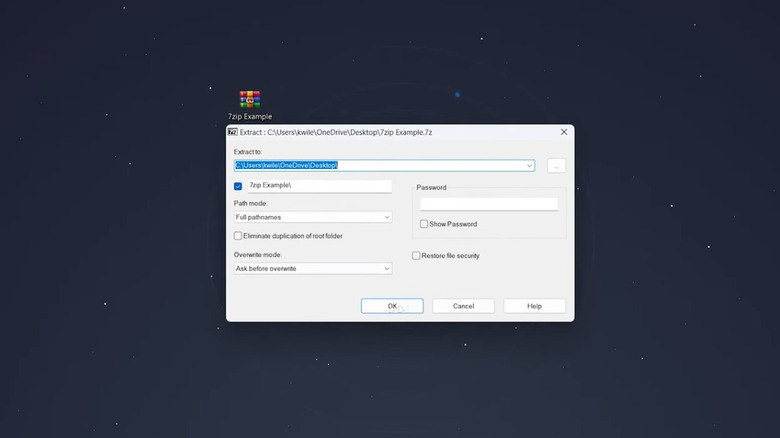
Finally, while Windows 11 recently added native support for RAR and 7z files, 7-Zip remains a mandatory installation. The native support is often slow and lacks the advanced features power users need, specifically AES-256 encryption. If you need to send sensitive documents over email, 7-Zip allows you to create an encrypted archive that is much more secure than the basic zip files generated by Windows. It is one of those essential windows 11 apps for former windows 10 users who are used to a high level of file control.
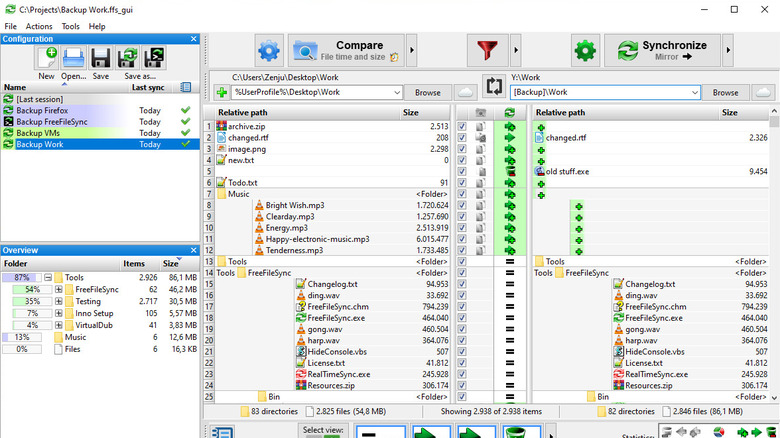
To round out your system maintenance, consider FreeFileSync. It provides a reliable way to mirror your critical data to an external drive or a network-attached storage (NAS) without the sync errors common in cloud-based mirroring. It is a perfect tool for ensuring data redundancy without monthly subscription fees.
Performance Benchmarks to Remember
- Everything Indexing: < 1 second for 1 million files.
- WizTree Scanning: Roughly 2-5 seconds for a standard 512GB SSD.
- 7-Zip Compression: Significantly higher compression ratios using the LZMA2 algorithm compared to standard ZIP.
By integrating these windows 11 power tools for productivity 2026 into your daily routine, you can eliminate the small "micro-frustrations" that add up to hours of lost time over a year. From instant search results to robust security, these utilities give you the power to make Windows 11 work for you, rather than the other way around.
FAQ
What are the best free tools for Windows 11?
The best free tools currently include Everything for instant file searching, Microsoft PowerToys for advanced UI customization, and 7-Zip for file compression and encryption. For security, Ente Auth is a top choice for 2FA, while WizTree is the gold standard for disk space analysis.
Are free Windows 11 utilities safe to download?
Generally, yes, provided you download them from official sources or reputable repositories like GitHub. The tools mentioned in this guide are widely vetted by the power user community and many are open-source, allowing for transparent security audits. Always ensure you are on the developer's official domain before clicking a download link.
How can I improve Windows 11 performance for free?
You can improve performance by replacing heavy native services with lightweight alternatives. For example, using Everything instead of the standard Windows Search indexer saves CPU cycles. Additionally, using WizTree to regularly identify and remove large, unnecessary files can prevent your SSD from slowing down as it reaches capacity.
What are the must-have free utilities for a new PC?
For a fresh installation, I recommend starting with a browser, then 7-Zip, Everything, and Microsoft PowerToys. These tools provide the foundational functionality that the base OS lacks. Following those, Ente Auth for your security accounts and FreeFileSync for your initial backup strategy are essential.
Where can I find open-source software for Windows 11?
The best places to find high-quality open-source software are GitHub and platforms like FossHub or SourceForge. Additionally, the Windows Package Manager (winget) allows you to install many of these tools via the command line, ensuring you are getting the latest version directly from verified repositories.