Quick Facts
- Expected Lifespan: High-quality HDMI cables can last 10 years or more if they are not frequently unplugged or bent.
- Top Failure Cause: The connector head houses 19 soldered connections that often fail due to physical strain or poor manufacturing.
- Visual Warning: Digital noise appearing as white dots or sparkles is the most common early sign of signal degradation.
- The 60-Second Rule: Power cycling your hardware for one minute can often fix HDCP handshake issues without needing a new cable.
- Gaming Impact: A bad HDMI cable can cause input lag and resolution locks, preventing high-end GPUs from reaching their full potential.
- Market Scale: With 14 billion HDMI-enabled devices shipped since 2002, cable quality has become the primary bottleneck in modern home theaters.
Identifying a bad HDMI cable early can save you from frustrating signal drops and screen flickering. While most high-quality cables last 10+ years, physical wear or outdated bandwidth can cause failure. Common symptoms of a bad HDMI cable include screen flickering, digital noise or sparkles, and intermittent signal drops. If your display is locked at a lower resolution or has visual artifacts in gaming, your cable likely has signal degradation or lacks the bandwidth capacity required for your hardware.
There is nothing more frustrating than sitting down for a marathon gaming session or a movie night only to be met with a blinking screen or mysterious white dots dancing across your 4K TV. As someone who has tested hundreds of GPUs and monitors, I can tell you that we often blame the expensive hardware first. We check the drivers, we check the game settings, and we stress about our graphics card dying. However, the culprit is frequently the simplest and cheapest component in the chain: the cable.
Even though HDMI is a digital standard—meaning it is usually a "works or it doesn't" situation—there is a middle ground of signal degradation that can drive any tech enthusiast crazy. Understanding the faulty HDMI cable symptoms early can save you hours of unnecessary software troubleshooting.
Symptom 1: Visual Artifacts and Digital Noise
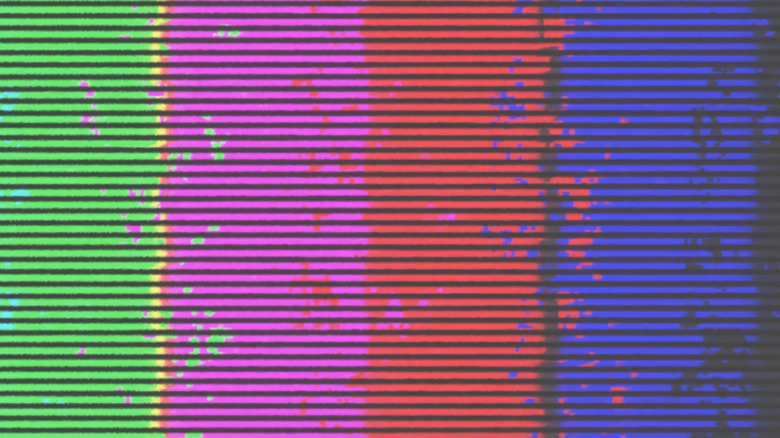
In the old days of analog cables, a bad connection meant a fuzzy or "snowy" picture. With digital signals, it looks a bit different. One of the most common symptoms of a bad HDMI cable is the appearance of digital noise. Users often describe this as sparkles or tiny white dots that flicker across the screen, especially in dark areas of the image.
This happens when the data packets being sent from your console or PC are dropped or corrupted during transmission. If the shielding quality of your cable is poor, it may be susceptible to electromagnetic interference from other electronics nearby. When the bits don't make it to the display correctly, the TV tries to interpret the missing data, resulting in pixelation or those annoying static-like artifacts.
If you are identifying hdmi artifacts and visual glitches in gaming, pay close attention to whether they appear in the same spot every time. If they move randomly, it is almost certainly a cable issue rather than a GPU problem.
Symptom 2: Screen Flickering and Intermittent Signal Drops
If your screen randomly goes black for a second or two and then pops back on, you are dealing with a classic case of bandwidth capacity exhaustion. This is a very frequent hdmi cable causing screen flickering on 4k tv issue. Modern displays, especially those utilizing High Dynamic Range (HDR) and high refresh rates, push massive amounts of data through those thin copper wires.
When a cable is failing or simply lacks the necessary HDMI 2.1 specifications to handle the data load, the connection will drop. The display and the source device then have to perform a new handshake to re-establish the image. This creates a flickering effect that can occur every few minutes or even every few seconds.
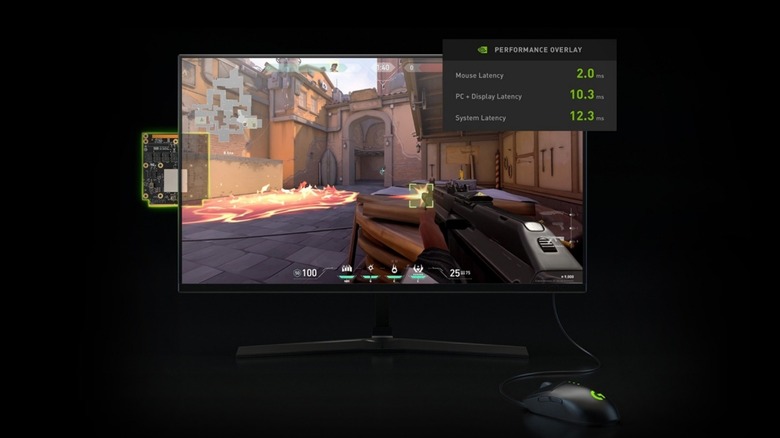
Furthermore, some gamers ask: is my hdmi cable causing input lag? The answer is yes. If a cable is struggling with signal degradation, the error correction protocols on your TV might work overtime to process the incoming data, leading to a noticeable delay between your controller input and the action on screen.
Symptom 3: Audio Cutouts and Sync Issues
We often forget that HDMI is responsible for more than just video. It carries multi-channel uncompressed audio, and because audio data is interleaved with video data, a bad HDMI cable can manifest as sound problems. You might hear intermittent popping, static, or complete audio cutouts while the video remains perfectly clear.
In some cases, the audio might drift out of sync with the video. This happens when data transmission errors force the receiver to constantly re-buffer the audio stream. If you have ruled out your soundbar or AV receiver settings, the cable is the next logical place to look.
Expert Tip: If you are using eARC (Enhanced Audio Return Channel) for high-end formats like Dolby Atmos, you absolutely need a cable with high bandwidth capacity. An older "Standard" HDMI cable will likely fail to transmit these complex audio signals correctly.
Symptom 4: Physical Damage and Connector Wear
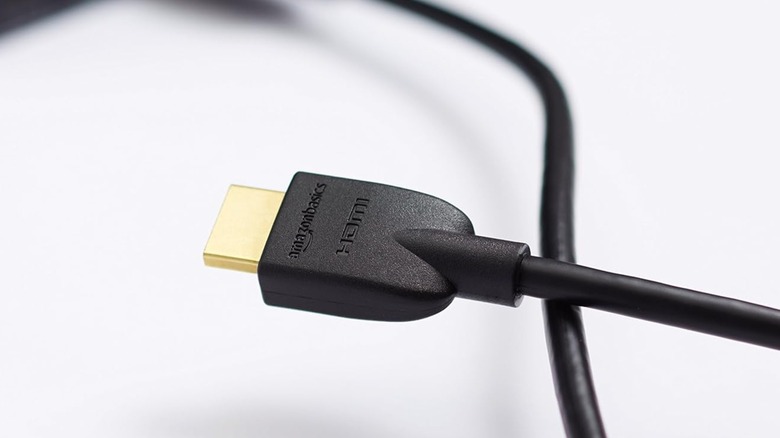
Sometimes the signs are not on the screen, but on the cable itself. The HDMI connector is a delicate piece of hardware. It contains 19 tiny pins, and each one is a potential failure point. If you frequently swap cables between devices, you might see physical signs of hdmi port or cable damage.
Check for:
- Bent Pins: Look inside the connector head to see if any of the gold-plated pins are pushed back or crooked.
- Frayed Insulation: If the outer mesh or plastic is tearing, the internal copper wiring integrity is likely compromised.
- Connector Oxidation: If the metal looks dull or has a greenish tint, oxidation could be preventing a solid electrical connection.
- Heat: If the connector feels excessively hot to the touch during use, it indicates an internal short or excessive resistance.
Most cables fail at the point of strain relief—where the wire meets the plastic plug. If you have to wiggle the cable to get a picture, the internal soldered connections are already broken.
Symptom 5: Resolution Limitations and HDCP Errors
Have you ever plugged in a brand-new PlayStation 5 or a 4K Blu-ray player only to find that your TV is stuck at 1080p? Or perhaps you see an error message saying "HDCP Error"? This is often a sign of a bad HDMI cable or an obsolete one.
The HDCP handshake is a security protocol that prevents unauthorized copying of digital content. If the cable is faulty, this handshake fails, and the source device will either refuse to output a signal or downgrade the resolution to a lower, "safe" version. If you are troubleshooting hdmi no signal but cable is plugged in, the handshake is usually the culprit.
Bandwidth Comparison: Is Your Cable Just Obsolete?
Sometimes the cable isn't "broken," it's just old. Here is how the standards stack up:
| Feature | HDMI 1.4 | HDMI 2.0 | HDMI 2.1 |
|---|---|---|---|
| Max Resolution | 4K @ 30Hz | 4K @ 60Hz | 8K @ 60Hz / 4K @ 120Hz |
| Bandwidth | 10.2 Gbps | 18 Gbps | 48 Gbps |
| HDR Support | No | Basic HDR | Dynamic HDR (HDR10+) |
| Best For | Older 1080p TVs | Standard 4K Streaming | PS5, Xbox Series X, RTX 40-series GPUs |
Diagnostic Pro-Tip: The Screen Recording Hack
This is my favorite trick for determining if a glitch is caused by your hardware or your cable. If you see flickering or digital noise on your monitor, start a screen recording using software like OBS, Nvidia ShadowPlay, or the built-in Windows Game Bar.
Watch the recorded footage back. If the recording is perfectly clean but you saw glitches while playing, the issue is external—either the cable or the monitor's input port. If the glitches appear in the recording itself, then the problem is internal, likely related to your GPU drivers or the graphics card hardware. This is the most effective way to perform HDMI cable troubleshooting without spending a dime.
Troubleshooting Checklist: From Easy to Replacement
Before you throw your cable in the trash, run through this list to confirm the source of the problem.
- Reseat the Connection: Unplug both ends of the cable and plug them back in firmly. Sometimes dust or a slight tilt in the port causes HDMI signal issues.
- The 60-Second Power Cycle: Turn off the TV and the source device. Unplug the HDMI cable and the power cords for both. Wait 60 seconds, then plug everything back in. This forces a fresh HDCP handshake.
- Switch Ports: Plug the cable into a different HDMI input on your TV. This helps you distinguish between a bad HDMI port vs bad cable.
- Test with a Different Device: Connect the cable to a laptop and a different monitor. If the problem follows the cable, you’ve found the culprit.
- Check Settings: Ensure your TV's HDMI port is set to "Enhanced" or "Ultra HD Deep Color" mode, as some displays disable high-bandwidth features by default.
FAQ
What are the signs of a failing HDMI cable?
The most common signs include intermittent screen flickering, visual artifacts like sparkles or white dots, and audio cutouts. You might also notice that you cannot select higher resolutions or refresh rates that your hardware should support.
How can I tell if my HDMI cable is bad or my TV?
Try connecting the cable to a different HDMI port on the TV. If the problem persists across all ports, try a different device with the same cable. If the issue still occurs on a different screen, the cable is bad. If the problem only happens on one specific TV port, the port itself may be damaged.
Can a faulty HDMI cable cause screen flickering?
Yes, screen flickering is a primary symptom of a faulty cable. This often happens because the cable cannot maintain the bandwidth required for the signal, causing the connection to drop and reset repeatedly.
Can a bad HDMI cable cause sound issues?
Absolutely. Since HDMI carries both audio and video data, a damaged cable can lead to popping sounds, static, or the audio being completely out of sync with the visual.
How do I test an HDMI cable for faults?
The easiest way is the swap test. Use a cable that you know is working perfectly and see if the issue disappears. You can also use the screen recording hack to see if the visual glitches are being generated by your computer or by the physical connection.
When should I replace my HDMI cable?
You should replace your cable if you see physical damage like bent pins or fraying, or if you experience persistent signal drops that aren't fixed by a power cycle. Additionally, if you upgrade to a 4K/120Hz display or a new console, you may need to upgrade to a certified HDMI 2.1 cable to support the higher bandwidth.
Choosing Your Next Move
If you have gone through the troubleshooting steps and confirmed that your cable is the weak link, don't just grab the cheapest replacement you find in a bargain bin. For modern gaming and high-end entertainment, look for cables labeled "Certified Ultra High Speed." These are tested to handle 48Gbps, ensuring they meet the latest HDMI 2.1 specifications and will last you for years to come.
Remember, a cable is a passive component, but it is the bridge for all your high-end gear. Investing in a quality connection is the final step in ensuring your gaming experience is as smooth as the developers intended.