Quick Facts
- Master Shortcut: Press the three dots (...) button on your remote for instant access to the settings overlay.
- Peak Brightness: The second-generation Sky Glass display achieves a peak HDR brightness of approximately 1,055 nits on a 10% window.
- Audio Setup: Gen 2 models feature an integrated seven-speaker Dolby Atmos sound system with dual subwoofers.
- Dialogue Fix: Use the specialized audio settings such as Enhanced Speech Quality to boost vocal frequencies.
- Late Night Viewing: Enable Night Mode to compress dynamic range and prevent sudden loud commercial spikes.
- Speed Requirement: Ensure a minimum stable connection of 30Mbps for consistent 4K UHD streaming without buffering.
To optimize Sky Glass settings, press the three dots button on your remote to open the options menu or navigate to Settings via the Home screen. From there, select Picture & Sound to access viewing modes like Movie, Sport, or Vivid. You can also manually adjust brightness, contrast, and local dimming to improve display performance in different lighting conditions.
Visual Calibration: Fixing Blooming and Halo Effects
When you first unbox a Sky Glass, the default configuration is often set to draw your eye with high saturation, but for the enthusiast, this rarely translates to the best viewing experience. The panel uses an LCD screen with local dimming zones, which are designed to shut off parts of the backlight to create deeper blacks. However, if the backlight intensity is too high, you might notice a glowing effect around bright objects on dark backgrounds, known as blooming or halo effects.
To combat this, you should look into your Sky Glass display adjustments. Start by moving away from the Vivid or Extra Vivid modes. These modes push the backlight to its limit and often result in pixelated blacks and lost detail in the shadows. Instead, switching to Movie mode or Custom mode allows you to manually lower the backlight intensity. By reducing the backlight, you allow the local dimming zones to work more effectively, which significantly improves the black level depth and reduces that annoying light bleed during dark cinematic scenes.
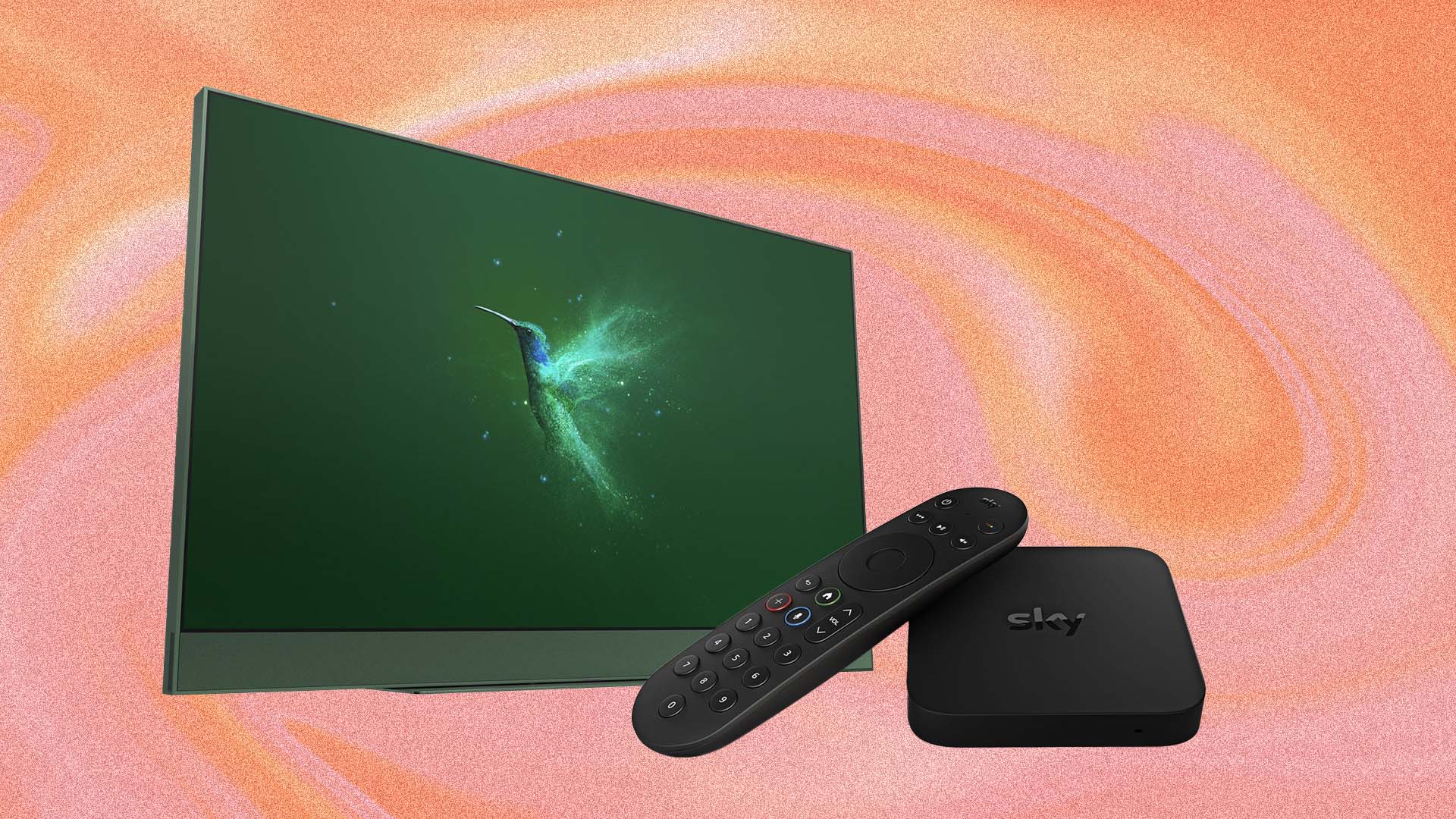
Another critical factor in Sky Glass picture calibration is managing how the TV reacts to your environment. The TV includes an auto-brightness sensor meant to adjust the screen based on ambient light conditions. While convenient, this sensor can sometimes be too aggressive, dimming the screen too much in a moderately lit room or failing to provide enough punch when the sun hits the glass. I recommend disabling the auto-backlight feature in the settings menu and setting a fixed level that suits your specific room layout.
For those watching high-quality content, Sky Glass offers robust HDR10 support and Hybrid Log-Gamma (HLG) for live broadcasts. To ensure you are seeing the full range of colors, check the color temperature settings. Choosing a Warm or Neutral setting usually provides a more accurate representation of what the director intended, avoiding the overly blue tint often found in the standard out-of-the-box configuration.
| Viewing Mode | Best For | Characteristics |
|---|---|---|
| Auto | General Content | Automatically adjusts based on the genre of the program. |
| Movie | Films & Dramas | Prioritizes color accuracy and turns off unnecessary motion smoothing. |
| Sport | Football & Racing | Increases brightness and adjusts motion handling for fast movement. |
| Vivid | Bright Rooms | High contrast and saturation to punch through heavy glare. |
| Music | Concerts/Videos | Focuses on audio processing while maintaining balanced visuals. |
| Entertainment | Documentaries | A balanced middle ground for everyday TV shows. |
| Custom | Enthusiasts | Full control over brightness, contrast, and local dimming intensity. |
Audio Optimization: Clear Dialogue and Immersive Sound
One of the standout features of Sky Glass is the integrated soundbar, which eliminates the need for messy wires and external speakers. However, the hardware differs depending on which version you own. The original Sky Glass featured a six-speaker 3.1.2 configuration, but the Sky Glass Gen 2 features an integrated seven-speaker Dolby Atmos sound system that includes dual subwoofers for better low-end response.
If you find that dialogue sounds muffled or drowned out by background music, you need to dive into the Sky Glass soundbar optimization settings. Sky has included a specific toggle called Enhance Speech. This feature uses spatial audio processing to isolate and boost the frequencies associated with the human voice. It is a game-changer for modern dramas where actors often whisper or soundtracks are overly loud.
For those who enjoy late-night gaming or movie marathons, the Night Mode is an essential tool. This setting compresses the dynamic range of the audio. In simpler terms, it makes the quiet sounds a bit louder and the loud sounds—like explosions or frantic gunfire—significantly quieter. This prevents the need to constantly ride the volume button to avoid waking up the rest of the household.
If you are experiencing a slight lag between the picture and the sound, navigate to the audio delay adjustment menu. This allows you to sync the audio perfectly with the on-screen action, which is vital for maintaining immersion. Note that while the main Sky Glass units support spatial audio, the Sky Glass Air models (the smaller puck-based systems) may not support all the same Atmos features, so always check your specific hardware capabilities in the system info tab.
Advanced Adjustments for Sports and High Glare
Sports fans have specific needs when it comes to Sky Glass settings. When watching fast-moving content like football or Formula 1, the refresh rate and motion handling become the most important factors. You may want to experiment with the motion smoothing settings found in the advanced menu. While movie purists usually turn this off to avoid the "soap opera effect," a small amount of motion processing can help keep the ball or the car in sharp focus as it zips across the screen.
When looking for the best Sky Glass settings for football and sports, I suggest starting with the Sport viewing mode but then tweaking the brightness. Because sports are often broadcast in high-definition or 4K with bright stadium lighting, you can afford to push the panel a bit harder. However, be careful not to over-saturate the greens of the pitch, as this can lead to a loss of texture in the grass.
For rooms that suffer from high glare, such as those with large floor-to-ceiling windows, the standard settings may result in a washed-out image. In these scenarios, Sky Glass settings for rooms with high glare should prioritize peak brightness. The Gen 2 model is much better equipped for this, as the 1,055 nits peak brightness provides enough luminance to remain visible even in direct sunlight. If you are still struggling with reflections, try tilting the TV slightly or using a wall mount that allows for angle adjustments to redirect the glare away from your seating position.
Troubleshooting Connectivity and Hardware Limits
Since Sky Glass is a streaming-first platform, your picture and sound quality are heavily dependent on your home network. Even with perfect Sky Glass settings, a weak Wi-Fi signal will lead to a lower streaming bitrate, causing the image to look soft or blocky. For 4K UHD content, Sky recommends a minimum of 25Mbps, but I suggest having at least 30Mbps to account for other devices on your network.
Step-by-Step Connection Check:
- Navigate to Settings and select Network.
- Run the Connection Test to see your current download speed.
- If the speed is low, try using an Ethernet cable for a wired connection.
- Ensure your firmware optimization is up to date by checking for system updates in the System Management menu.
If you are a hardcore gamer using a PlayStation 5 or Xbox Series X, you should be aware of some hardware limits. While Sky Glass supports 4K, it does not feature a 120Hz refresh rate or Variable Refresh Rate (VRR), which are staples of high-end gaming monitors. To get the best experience, ensure HDMI CEC is enabled so your console can communicate directly with the TV, and use the Game mode to minimize input lag.
For users who already own a high-end OLED or QD-OLED TV, the Sky Glass panel might feel like a step down in terms of pure contrast. In this case, you might consider the Sky Stream puck as an alternative. It provides the same interface and content but allows you to keep your existing premium display hardware. However, if you love the all-in-one aesthetic of Sky Glass, following this guide for Sky Glass settings for cinematic picture quality will help you squeeze every bit of performance out of the integrated LCD panel.
FAQ
How do I access the settings menu on Sky Glass?
The fastest way to access your options is by pressing the three dots (...) button located just below the directional pad on your Sky remote. This opens a quick-access sidebar. Alternatively, you can scroll to the very bottom of the Home screen to find the full Settings menu for more in-depth adjustments.
What are the best picture settings for Sky Glass?
For most users, the Movie mode provides the most accurate colors and contrast. I recommend turning off the Auto Backlight feature and manually setting the brightness to around 60-70% for a dark room. Ensure that local dimming is set to high to maintain the best possible black levels and minimize blooming.
How do I change the sound settings on Sky Glass?
Press the three dots button on your remote while watching a program to bring up the sound menu. From here, you can toggle features like Enhance Speech or Night Mode. For more advanced options, such as audio delay or Dolby Atmos output settings, go to the main Settings menu from the Home screen and select Picture & Sound.
How to adjust the brightness and contrast on Sky Glass?
Navigate to Settings, then Picture & Sound, and finally select Viewing Mode. Choose the Custom option, which unlocks individual sliders for brightness, contrast, and backlight intensity. Adjusting these manually allows you to tailor the display to your specific room lighting rather than relying on the built-in sensor.
Can I turn off the motion sensor on Sky Glass?
Yes, the motion sensor that wakes the TV when you walk into the room can be disabled. Go to Settings, select Home Protection & Power, and toggle the Wake through motion setting to Off. This is particularly useful if you have pets that frequently trigger the TV to turn on accidentally.