Quick Facts
- Maximum Capacity: Up to 8TB per slot; 16TB total for dual-slot machines like the Dell XPS 17.
- Interface Support: PCIe Gen5 reaching 14,000MB/s is the 2026 standard for high-end workstations.
- Physical Limit: M.2 2280 is the standard; M.2 2230 (handhelds) is currently limited to 2TB.
- The 2TB Barrier: Historically caused by MBR partitioning; modern GPT/UEFI systems have no such limit.
- Durability: Look for 2500+ TBW ratings for 8TB pro-grade drives.
Planning a laptop storage upgrade in 2026 requires understanding physical and logical limits. While many believe 2TB is the ceiling, modern machines can support up to 16TB. In 2026, high-end laptops can support up to 8TB per M.2 2280 slot, with dual-slot machines reaching 16TB of internal storage. While 1TB and 2TB drives are common, upgrading involves verifying PCIe Gen4 or Gen5 interface compatibility and checking for physical clearance.
Identifying Your Laptop's Storage Potential
Before we dive into the purchase of an 8TB internal SSD for laptop expansion, we must first determine if your machine actually allows for physical changes. In the current hardware landscape, the industry is split. On one side, we have modular Windows workstations and gaming rigs; on the other, we have ultra-portables and MacBooks where the storage is often part of the logic board itself.
For Windows users, identifying your laptop SSD slot compatibility is the first order of business. We recommend searching for the specific service manual of your model on the manufacturer’s support site. This document will reveal whether the internal drive is socketed (removable) or soldered. While most mid-range and high-end Windows laptops utilize M.2 NVMe slots, some thinner models restrict you to single-sided SSDs due to extremely tight chassis tolerances. If you own a powerhouse like a Dell Precision or a high-end Razer Blade, you might even find laptops with dual M.2 SSD slots for 16TB storage, allowing for massive RAID configurations or simple capacity doubling.
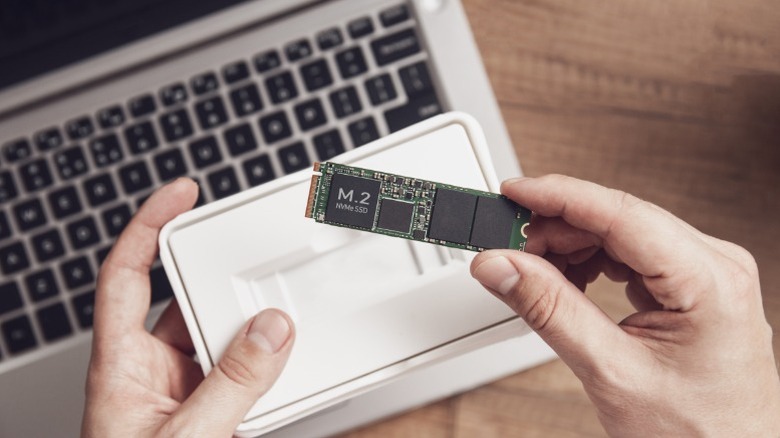
Ryan’s Tip: Always verify the M.2 form factor. While 2280 (80mm long) is the standard for most laptops, many modern handhelds and ultra-compact devices use the shorter 2230 or 2242 sizes, which currently face lower maximum internal ssd capacity for laptops 2026 compared to their full-length counterparts.
| Hardware Checklist | Verification Method |
|---|---|
| Socket Type | Check service manual for M.2 M-Key |
| Slot Count | Verify if a second slot is available for expansion |
| NAND flash density | Determine if the motherboard supports double-sided modules |
| Interface Speed | Confirm if the slot is PCIe Gen4 or the newer PCIe Gen5 interface |
| Physical Clearance | Measure the vertical gap between the slot and the bottom panel |
Breaking the 2TB Barrier: MBR vs. GPT
A common question we hear is why 2TB was considered a hard limit for so long. The answer isn't actually a hardware limitation of the SSD itself, but rather an architectural relic of how computers manage data. The historical 2TB storage limit for laptops is primarily a result of the 32-bit Master Boot Record (MBR) partitioning scheme, which can only address a maximum of approximately 2.2 terabytes of data.
To move beyond this ceiling, your system must utilize the GUID Partition Table (GPT) scheme. Upgrading a laptop beyond the 2TB threshold requires initializing the drive with the GPT scheme, which supports theoretical storage capacities of up to 9.4 zettabytes. In 2026, almost every modern laptop uses a UEFI BIOS recognition system that handles GPT by default, but if you are cloning an older installation that was originally set up with MBR, you may find your new 4TB or 8TB drive "stuck" at 2TB until you convert the partition table.
This shift is what allows M.2 NVMe SSD capacity limits to finally catch up with desktop counterparts. When you install an 8TB drive, ensuring the system partition resizing is handled correctly during the OS installation or cloning process is vital to ensure the entire capacity is visible to the user.
Selecting High-Capacity SSDs: 4TB to 8TB Options
Once you've confirmed your laptop storage upgrade is physically possible, you need to choose the right drive. As we push toward 8TB, we enter a territory where components are packed more densely. Most 8TB drives use a double-sided design, meaning there are NAND flash chips on both the top and bottom of the PCB. This adds about 1.5mm to 2.5mm of double-sided SSD thickness, which can be a dealbreaker in "thin and light" laptops.
We often look at the balance of TLC vs QLC endurance. Triple-Level Cell (TLC) drives generally offer better TBW longevity (Terabytes Written) and are preferred for professionals in a content creation workflow. Quad-Level Cell (QLC) drives, like those often found in the best 8TB NVMe SSD brands for laptop expansion like TeamGroup MP44 or certain Sabrent Rocket models, provide higher capacity at a lower price point but might have slower sequential transfer speeds once the DRAM cache performance is exhausted during massive file transfers.
| Feature | 2TB Standard Drive | 4TB Performance Drive | 8TB High-Capacity Drive |
|---|---|---|---|
| Typical NAND | TLC | TLC / QLC | Mostly QLC |
| Typical TBW | 1,200 TBW | 2,400 - 3,000 TBW | 1,500 - 6,000 TBW |
| Physical | Single-sided | Single or Double-sided | Usually Double-sided |
| Target Use | General/Gaming | Prosumer/Editing | Data Archiving/4K Video |
For those looking for the ultimate performance, the WD Black SN850X or the newer PCIe Gen5 interface models provide the speed needed for high-end gaming and 8K video editing, though be prepared for these drives to run significantly warmer. If you are upgrading laptop with M.2 2230 vs 2280 SSD for a device like a Steam Deck or ROG Ally, remember that 2230 drives are currently hitting a physical wall at 2TB, so 8TB dreams are still largely reserved for the 2280 form factor.
Installation and Thermal Management
The physical act of a laptop storage upgrade is relatively straightforward, but high-capacity drives introduce a major challenge: heat. High-performance NVMe SSDs generate significant thermal energy, and once they hit the 70°C threshold, they will throttle their speeds to protect the hardware. Effective thermal management for high capacity 8TB laptop SSDs is mandatory, not optional.
When we install these drives, we always look at the heat dissipation efficiency of the laptop's internal design. Because 8TB drives are often double-sided, the chips on the bottom side of the SSD may be pressed directly against the motherboard or a plastic spacer, leaving them with no airflow.
We recommend the following steps for a safe installation:
- Safety First: Use a grounded wrist strap to ensure static discharge prevention.
- Disconnect Power: Always unplug the laptop battery before touching the M.2 slot.
- Check Clearance: Ensure the double-sided SSD thickness doesn't cause the bottom case of the laptop to bulge.
- Apply Thermal Pads: Use high-quality 0.5mm or 1.0mm thermal pads to bridge the gap between the SSD and any metal shielding or the laptop's bottom chassis. This turns the entire bottom of the laptop into a giant heatsink.

Data Migration: OS Cloning and Partitioning
The final hurdle in your laptop storage upgrade is moving your data. You have two choices: a clean install of Windows or cloning your existing drive. For most users, cloning is the preferred path as it preserves applications and settings.
Using reputable disk cloning utilities like Macrium Reflect or Acronis Cyber Protect Home Office is the gold standard here. These tools allow you to "drag and drop" partitions from your old 1TB or 2TB drive to the new 8TB module. However, you must pay attention to the system partition resizing step. If you simply clone the drive without adjusting the partition size, Windows will see your new drive as an 8TB disk with a 2TB partition and 6TB of "unallocated space."
If your drive is encrypted with BitLocker, we strongly advise suspending or disabling it before starting the cloning process. Attempting to clone an encrypted drive can lead to boot loops or data loss if the recovery keys are not handled correctly by the cloning software. Once the clone is complete and the new drive is successfully booting, you can re-enable BitLocker to maintain your security.
FAQ
Can I upgrade the storage on my laptop?
In most cases, yes, provided your laptop is a Windows-based machine with an accessible M.2 slot. Most gaming laptops and mobile workstations are designed with upgradeability in mind. However, if you own a MacBook manufactured after 2016, the storage is likely soldered to the motherboard, making an internal upgrade impossible.
How do I know if my laptop storage is upgradeable?
The most reliable method is to consult your manufacturer's service manual or check a hardware database like Crucial's Advisor tool. You can also open the bottom panel of your laptop to visually inspect for an M.2 slot. If the SSD is a small rectangular card held in by a single screw, it is upgradeable.
Does upgrading laptop storage void the warranty?
In the United States and many other regions, the Magnuson-Moss Warranty Act generally protects your right to upgrade components like RAM and storage without voiding the entire warranty. However, any damage caused during the installation process (like snapping a connector or causing a short) will not be covered. Always check your specific manufacturer's policy before proceeding.
Can I add a second hard drive to my laptop?
This depends entirely on the laptop's motherboard design. Many 15-inch and 17-inch laptops feature two or even three M.2 slots. Thinner 13-inch ultraportables usually only have one. If your laptop has an empty slot, you can add a second drive without removing your original one, allowing for easy expansion of your total capacity.
How much storage do I actually need for my laptop?
For general productivity and web browsing, 512GB to 1TB is sufficient. Gamers should aim for at least 2TB due to the massive install sizes of modern titles. For professionals involved in 4K video editing or large-scale data science, moving to 4TB or 8TB becomes a necessity to avoid the bottleneck of slow external drives.