Quick Facts
- Performance Gain: Switching to a SATA SSD provides a 45% reduction in application boot times and system navigation lag.
- Storage Capacity: Supports external USB hard drives with capacities up to 8 TB for massive local media libraries.
- Format Requirements: External drives must be formatted to exFAT to support individual movie files larger than 4GB.
- Streaming Capability: Full support for Plex, Netflix, Disney+, and YouTube, with 4K output exclusive to the Pro model.
- Efficiency: Consumes between 55 and 89 watts during media playback, making it a viable alternative to high-powered PCs.
- Remote Integration: HDMI CEC support allows users to control the entire PS4 interface using a standard television remote.
To transform a PS4 into a media center, download the Media Player app for local USB and DLNA playback or install streaming services like Netflix and Disney+ via the PlayStation Store. For optimal performance, use a wired Ethernet connection and enable HDMI CEC in the system settings to control the console interface using your standard TV remote.
Boosting Performance with Hardware Upgrades
As we move deeper into 2026, the PlayStation 4 remains a remarkably capable piece of hardware. Sony has sold over 117 million PlayStation 4 consoles worldwide, and many of these units are now finding a second life under living room televisions as dedicated entertainment hubs rather than primary gaming machines. However, if you are pulling a launch-edition console out of the closet, the first thing you will notice is the sluggishness of the user interface. This is primarily due to the aging mechanical hard drive. To truly modernize the machine, the first step in your PS4 media center transformation is a hardware refresh.
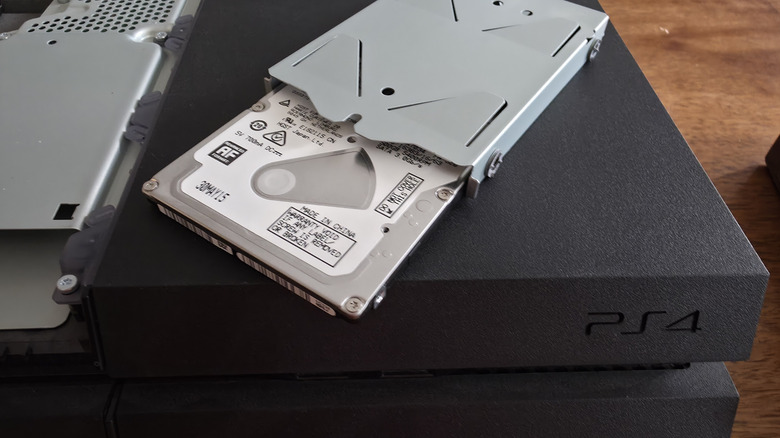
The original 5,400 RPM hard drives were designed for the standards of 2013, not the high-bitrate streaming demands of 2026. By swapping the internal drive for a standard 2.5-inch SATA SSD, such as a Samsung 870 EVO or a Crucial MX500, you can achieve a 45% improvement in app loading speeds. This makes navigating through a heavy Plex library or switching between streaming services feel instantaneous. The physical installation is straightforward: remove the plastic bay cover, unscrew the drive caddy, and swap the drives. You will need a USB stick with the latest PlayStation system software to perform a fresh initialization.
While the console is open, I highly recommend performing some basic thermal maintenance. Dust accumulation is the primary cause of the infamous jet engine fan noise that plagued the PS4 era. Using a can of compressed air to clear the cooling fins and the internal fan is essential for a quiet home theater experience. If you are feeling adventurous, replacing the aging thermal paste on the APU can further ensure fan noise reduction, keeping your movie nights silent and immersive.
Local Playback and USB Media Management
While streaming is the norm, many cinephiles prefer the quality of local file playback. The PS4 remains a powerhouse for this, provided you understand the file system constraints. For any serious PS4 media center setup, you must use the exFAT file system for your external storage. While the console supports FAT32, that older format limits individual files to 4GB, which is insufficient for high-quality 1080p or 4K Blu-ray rips. Following the release of System Software 4.50, the console supports external hard drives up to 8 TB, allowing you to keep an entire lifetime of cinema connected at once.
Once your drive is prepared, the Media Player application is your primary tool. It is available as a free download from the PlayStation Store and handles a surprisingly wide array of containers and codecs. For the best results, stick to MKV or MP4 containers with H.264 or HEVC video streams. The PS4 Pro, in particular, handles 4K HEVC files with HDR10 compatibility, providing a visual experience that rivals modern dedicated streaming sticks.
Beyond digital files, don’t overlook the physical disc drive. The PS4 is an excellent dedicated Blu-ray player. If you have a collection of physical media, the console provides a stable, high-bitrate playback environment with full support for lossless audio pass-through to your soundbar or receiver. Just ensure you have an active internet connection the first time you insert a Blu-ray disc to license the playback software.
Advanced Streaming with Plex and DLNA
For those who want a Netflix-style interface for their own content, a PS4 Plex server setup is the ultimate solution. It is important to clarify that the PS4 acts as the "Client" in this relationship. You will need to have your media hosted on a Plex Media Server, which can be a separate PC, a Mac, or a Network Attached Storage (NAS) device. Once the server is running on your network, download the Plex app on your PS4.
The advantage of Plex over simple USB playback is the rich metadata. It automatically pulls in movie posters, cast lists, and trailers, turning a folder of files into a professional-grade digital library. In 2026, the PS4 Plex app has been highly optimized, supporting most modern subtitle formats and offering smooth scrubbing through long videos.
If you prefer a more lightweight networked solution, the PS4 also offers robust DLNA support through the Media Player application. By enabling media sharing on your Windows PC or using a DLNA server on your router, the PS4 can see your media folders over the local network without the need for a dedicated app like Plex. This is perfect for users who want a no-frills way to beam a quick video from their office computer to the living room TV.
Optimizing the Home Theater Experience
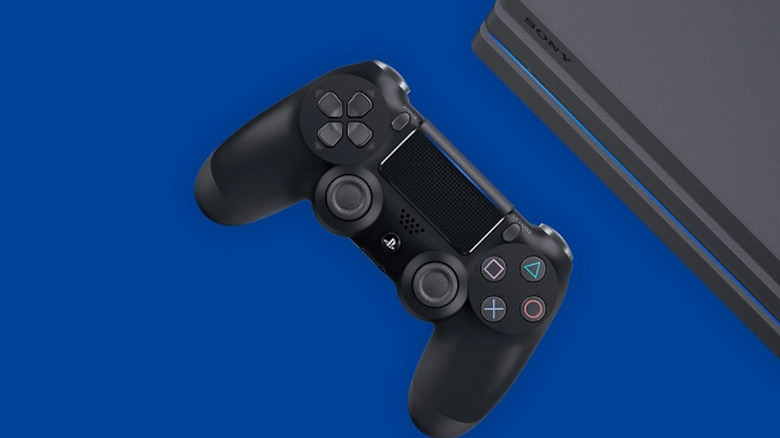
To make the PS4 feel like a seamless part of your home theater, you need to look at the system settings. One of the most overlooked features is HDMI CEC, which Sony calls HDMI Device Link. Enabling this allows the console to communicate with your TV. When you turn on your PS4, your TV will automatically switch to the correct input. More importantly, you can use your standard TV remote to navigate the PS4 menus, meaning you don't have to keep a DualShock 4 controller on the coffee table just to hit "Play" on a movie.
Connectivity is another critical factor. While the PS4 supports Wi-Fi, the older 802.11n module in the original model can struggle with high-bitrate 4K streaming or large MKV files over DLNA. For a stutter-free experience, a wired Ethernet connection is always the gold standard. This ensures that even during peak evening hours, your local stream has the dedicated bandwidth it needs to maintain maximum visual fidelity.
The choice of console also dictates your ceiling for quality. While the PS4 Slim is a fantastic, energy-efficient choice for 1080p bedrooms, the PS4 Pro is the clear winner for the main living room.
| Feature | PS4 Slim | PS4 Pro |
|---|---|---|
| Max Resolution | 1080p | 4K (Checkerboard) |
| HDR Support | HDR10 | HDR10 |
| HDMI Version | HDMI 1.4 | HDMI 2.0b |
| Power Consumption (Media) | ~55 Watts | ~89 Watts |
Pro-Tip: Go to Settings > System and check the box for "Enable HDMI Device Link." This is the single best quality-of-life improvement for using a gaming console as a media hub, as it consolidates your control to a single remote.
The PS4 remains a very efficient device for what it offers. During media streaming or Blu-ray playback, the PlayStation 4 typically consumes between 55 and 89 watts of power, which is significantly lower than a full gaming PC and comparable to many high-end sound systems.
For users who don't require 4K, the PS4 Slim remains a favorite in 2026 due to its compact size and remarkably quiet operation. It fits into tight entertainment centers where a larger Pro model might struggle with airflow.
FAQ
Can a PS4 be used as a media center?
Yes, the PS4 is an excellent media center. By installing apps like Plex, Netflix, and Disney+, or using the native Media Player for USB and DLNA streaming, you can centralize all your entertainment. Its ability to play physical Blu-ray discs and support for external drives up to 8TB makes it a versatile hub for any home theater setup.
What media formats does the PS4 support?
The PS4 Media Player application supports various popular video and audio formats, including MKV, MP4, AVI, and MPEG-2 TS for video. For audio, it handles MP3, AAC, and FLAC files. For 4K video playback, you will need a PS4 Pro and files encoded in HEVC/H.265 or H.264 formats.
Does PS4 support DLNA media servers?
Yes, the PS4 fully supports DLNA media servers. Once you have a DLNA server running on your network (such as through a PC or NAS), the PS4 Media Player app will automatically detect it, allowing you to stream movies, music, and photos directly to your television without any physical cables.
How do I play video from a USB drive on PS4?
To play video from a USB drive, first ensure the drive is formatted to exFAT or FAT32 and that your video files are placed inside a folder (the PS4 cannot read files in the root directory). Plug the drive into one of the front USB ports and open the Media Player app to browse and play your content.
Can you stream 4K video on a PS4?
You can stream 4K video only if you are using a PS4 Pro model connected to a 4K-compatible television with a high-speed HDMI cable. The standard PS4 and PS4 Slim models are limited to a maximum output of 1080p for streaming services and local media playback, though they do support HDR10.
By repurposing your old hardware, you are not just saving money; you are giving a second life to one of the most successful consoles in history. Whether you are building a massive local library on an external drive or setting up a sleek Plex client, the PS4 has the power and the apps to remain a central part of your home entertainment for years to come. If you have questions about which SATA SSD to choose or want to show off your clean, dust-free setup, feel free to drop a comment below!