Quick Facts
- The Hardware Reality: Standard laptop HDMI ports are output-only and cannot receive incoming signals from external devices.
- Essential Tool: An HDMI-to-USB video capture card is required to act as a signal converter between the device and your PC.
- Required Software: OBS Studio is the recommended free, open-source tool for viewing the video feed and managing audio.
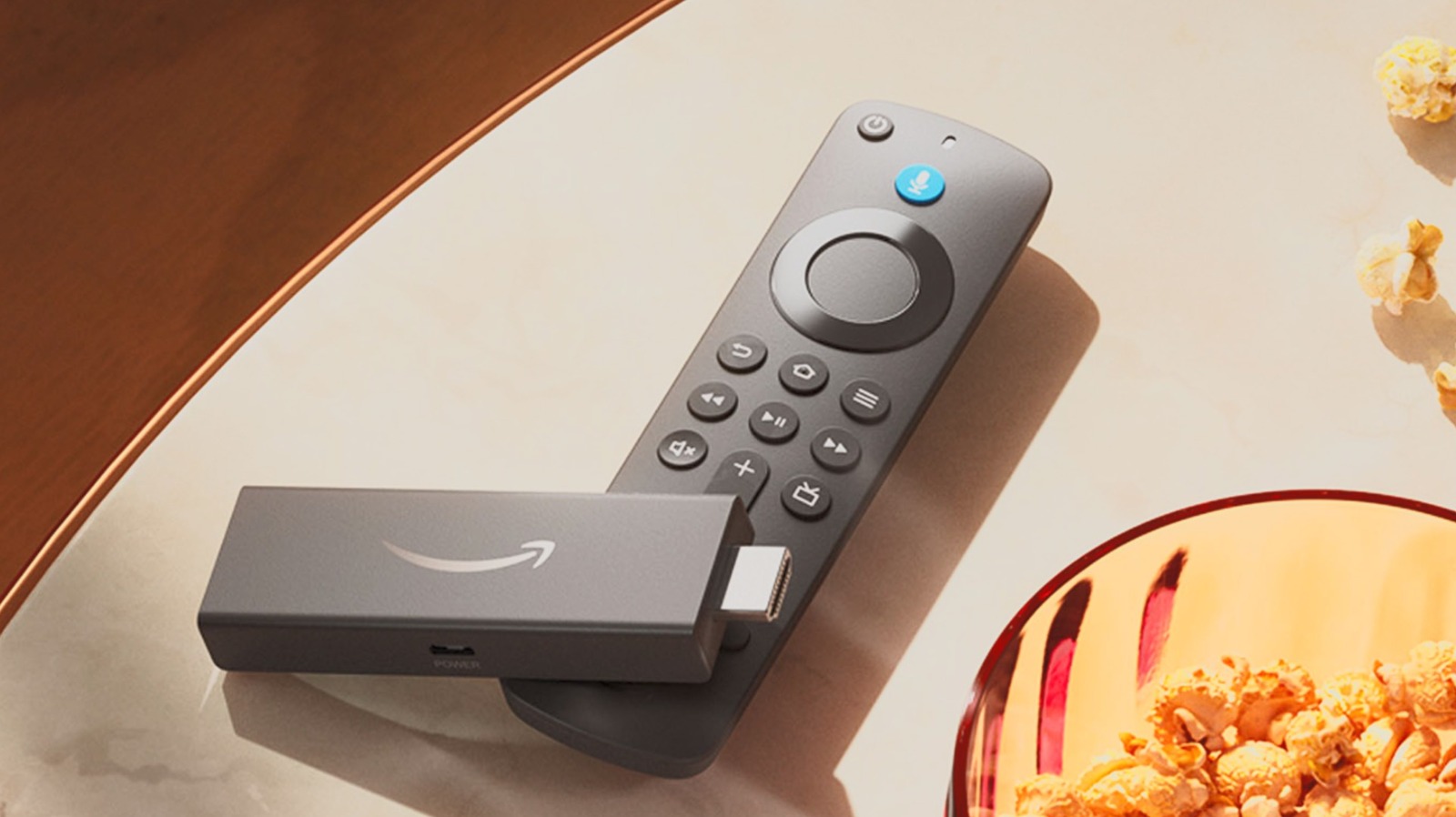
- Power Source: Amazon Fire TV devices require consistent power via a wall adapter or a high-output USB 3.0 port.
- Global Reach: As of November 2024, Amazon has sold more than 250 million Fire TV devices globally since the product line launched in 2014.
- Market Share: Approximately 36% of connected TV users in the United States access streaming content through Amazon Fire TV devices.
- Best Resolution: For the most fluid experience, a capture card supporting 1080p at 60fps is ideal to minimize input latency.
To connect a Fire Stick to a laptop, you must use an external video capture card because laptop HDMI ports are output-only and cannot receive incoming video signals. Plug the Fire Stick into the capture card’s HDMI input, connect the card to your laptop via USB, and ensure the Fire Stick is powered by a wall adapter or a secondary USB port. Once the hardware is connected, use software like OBS Studio to display the Fire Stick feed and enable audio monitoring to hear the content through your laptop speakers.
Why Your Laptop HDMI Port Won't Work Directly
It is the most common question I get from users trying to simplify their travel setup: "Can’t I just plug my streaming stick into the HDMI port on the side of my laptop?" The short answer is a definitive no. To understand why, you have to look at the signal directionality of consumer electronics.
Almost every laptop on the market today—whether it is a high-end workstation or a budget Chromebook—features an HDMI port designed exclusively for video output. This allows you to send your screen signal to a larger monitor, a projector, or a TV. The internal hardware of the laptop is not wired to accept an incoming video source through that same port. It is a one-way street.
This is where the role of an HDMI-to-USB adapter or video capture card becomes critical. Think of this hardware as a signal conversion bridge. The capture card takes the HDMI signal coming out of the media player and translates it into a USB Video Class (UVC) stream. Your laptop then perceives this stream not as a display input, but as a high-quality webcam feed. By treating the streaming stick as a video source rather than an external display, your laptop can finally process and display the content.
Step 1: Choosing the Right Hardware
When you start shopping for a video capture card for Fire Stick use, you will see a massive price range, from $20 "no-name" dongles to $200 professional-grade external boxes. For most users looking for a portable entertainment setup, you don't need to break the bank, but you do need to pay attention to specific technical standards.
The most important spec is the USB version. Cheap cards often use USB 2.0. While they work, they often suffer from significant input latency and compressed image quality. If you want a smooth menu navigation experience and crisp 1080p video, look for a card that utilizes a USB 3.0 interface. This provides the bandwidth necessary for uncompressed video data.
| Feature | Budget Capture Card | Mid-Range / Pro Card |
|---|---|---|
| Price Range | $15 - $30 | $60 - $180 |
| Max Resolution | 1080p @ 30fps | 4K @ 30fps or 1080p @ 60fps |
| Connection | USB 2.0 | USB 3.0 / USB-C |
| Latancy | Noticeable lag | Near-zero lag |
| Build Quality | Plastic / High Heat | Aluminum / Active Cooling |
Another critical factor is powering your device. While some users attempt powering amazon fire stick via laptop usb port, this can lead to instability. Laptops often throttle power to USB ports to save battery, which can cause the media player to reboot during high-action scenes in a movie. Whenever possible, use the included wall adapter to ensure the Fire OS remains stable.
Step 2: OBS Studio Setup for Fire Stick
Once you have your hardware in hand, you need a way to actually see the signal. This is where Open Broadcaster Software (OBS) comes in. It is the gold standard for this process because it is free, supports almost every video capture card for Fire Stick on the market, and gives you granular control over audio and video scaling.
Start by downloading and installing the software. The fire stick on laptop windows 11 setup guide is largely the same as the fire stick to macbook pro setup using obs, as the software interface is cross-platform.
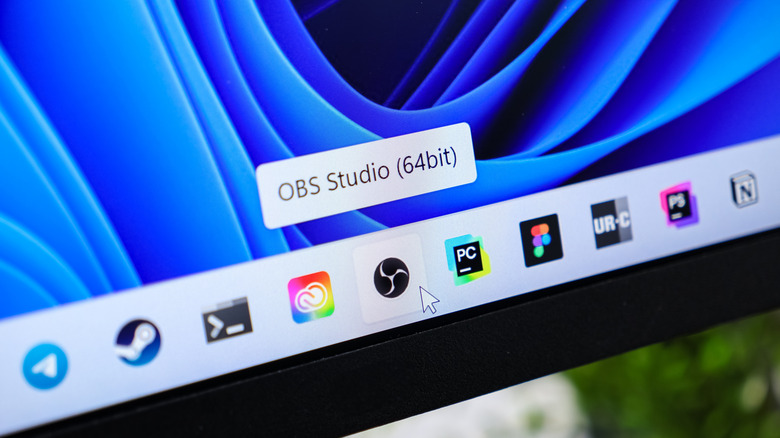
To configure the video source:
- Open OBS Studio.
- Look at the Sources box at the bottom and click the + icon.
- Select Video Capture Device and name it Fire Stick.
- In the Device dropdown menu, select your capture card (it may appear as "USB Video" or "USB3.0 Capture").
- Scroll down to Resolution/FPS Type and set it to Custom.
- Set the Resolution to 1920x1080 and the FPS to Match Output FPS (usually 30 or 60).
Once these steps are finished, you should see the Fire OS home screen appearing in the OBS preview window. If the image looks stretched or small, right-click the preview and select Transform > Fit to screen.
Step 3: Fixing Sound and Lag Issues
The most common frustration for first-time users is getting the video to work but having no audio. By default, OBS captures the audio but doesn't "play" it through your laptop speakers—it expects you to be recording or streaming. You need to manually enable audio monitoring to hear your show.
Pro-Tip: Enabling Audio In the Audio Mixer panel, find your Video Capture Device and click the three dots (or gear icon). Select Advanced Audio Properties. Find your device in the list and change Audio Monitoring from "Monitor Off" to Monitor and Output. Your laptop speakers will now play the sound from the device.
If you are experiencing fixing fire stick lag on laptop screen issues, it is usually tied to hardware encoding or USB bandwidth. Ensure you are plugged into a blue USB 3.0 port rather than a black USB 2.0 port. In OBS settings, you can also go to Output and ensure your Process Priority is set to High to give the video stream the resources it needs.
Troubleshooting: Black Screens and HDCP
If you can see the Fire OS menu but the screen goes black the moment you open Netflix or Prime Video, you are likely encountering an HDCP (High-bandwidth Digital Content Protection) issue. HDCP is designed to prevent people from "ripping" copyrighted content via capture cards.
Most budget-friendly HDMI-to-USB adapter units do not support the hardware handshake required by high-end streaming apps. If you encounter this, you may need a small, powered HDMI splitter. These devices often inadvertently strip the HDCP signal, allowing the video capture card to process the stream. However, many modern mid-range capture cards have evolved to handle this signal conversion more gracefully.
Additionally, if your device is stuck on a loading screen, ensure that the media player is connected to a stable Wi-Fi network. Since your laptop is acting as the monitor, it isn't sharing its internet connection with the stick unless you have specifically set up a mobile hotspot on your PC.
FAQ
Can I use a Fire Stick on my laptop?
Yes, but not through a direct HDMI connection. You must use an external HDMI-to-USB video capture card and software like OBS Studio to display the video feed on your laptop screen.
How do I connect a Fire Stick to a laptop screen?
Connect the media player to the HDMI input of a capture card. Plug the capture card’s USB cable into your laptop. Open OBS Studio, add a Video Capture Device source, and select the card to see the interface.
Does a laptop HDMI port support Fire Stick input?
No. Almost all laptop HDMI ports are designed for output only. They send video data out to external monitors and cannot receive video data from devices like streaming sticks or game consoles.
Can I plug a Fire Stick into a USB port on my laptop?
You can plug it into a USB port for power, but a USB port cannot receive a video signal directly from the HDMI plug of the device. You still need a capture card to bridge the connection.
Do I need a video capture card to use a Fire Stick on a laptop?
Yes. A capture card is the only way to convert the HDMI signal into a format (USB Video Class) that the laptop can recognize and display through software.
Can I watch Fire Stick content on a laptop without the device?
Yes. You can simply visit the websites of streaming services like Netflix, Hulu, or Amazon Prime Video in a web browser. Using the physical device is only necessary if you want the specific Fire OS interface or have apps that are only available on that platform.
Conclusion and Final Thoughts
Setting up a Fire Stick on laptop environment is a fantastic workaround for travelers, students in dorms, or anyone who wants to utilize their high-quality laptop display as a secondary TV. While it requires a bit of an initial investment in a video capture card for Fire Stick and a few minutes of configuration in OBS Studio, the result is a highly portable entertainment hub.
However, as a hardware editor, I always recommend weighing the "cool factor" against practicality. If you are just trying to watch a movie, using a browser is often easier. But if you need to test apps, use specific Fire OS tools, or simply prefer the remote-control experience, following this how to connect fire stick to laptop using capture card guide will give you a professional, low-latency setup that works every time.