Quick Facts
- Feature Name: Gmail Manage Subscriptions
- Official Launch: Google officially launched a new "Manage Subscriptions" feature in July 2025
- Mobile Support: Available on Android, iOS, and the web interface
- Technical Standard: Uses the RFC 8058 One-Click unsubscribe protocol
- Compliance Window: Senders are required to process requests within 48 hours
- Inbox Impact: Stops future incoming emails only; does not delete past messages
- Efficiency: Sorts mailing list identifiers by sender frequency for faster cleanup
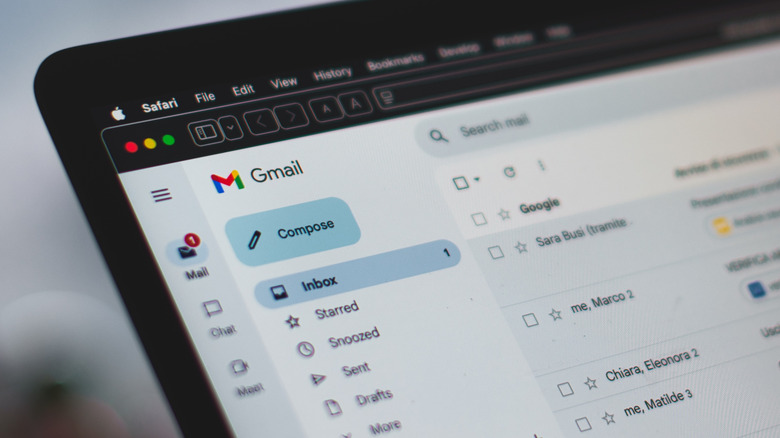
Use the Gmail subscription manager to achieve Inbox Zero. Located in the sidebar, this official tool lets you manage subscriptions and remove newsletters from Gmail instantly. To access the Gmail subscription manager, click the hamburger menu icon in the top-left corner of the Gmail web interface or mobile app and select Manage subscriptions. This feature displays a list of active subscriptions sorted by frequency, allowing you to quickly identify and unsubscribe from the senders who email you most often.
(Direct Answer) How to Access the Gmail Subscription Manager Fast
Getting your digital life in order shouldn't feel like a full-time job. For years, users had to hunt through individual emails for tiny, hidden links or rely on risky third-party apps that required full access to their private data. In 2026, the process is finally centralized. Whether you are on a laptop or scrolling through your phone during a commute, the official Gmail subscription manager desktop access guide is straightforward.
Accessing on Desktop (Web Interface)
On a computer, the navigation is designed to be intuitive. Open your browser and head to the Gmail web interface. On the left-hand sidebar—where you usually find your Sent, Drafts, and Trash folders—you will see a section dedicated to organization. Simply click the hamburger menu (three horizontal lines) if the sidebar is collapsed, then scroll down and click on Manage subscriptions. This opens a dedicated dashboard that scans your Promotions tab and other folders for active mailing list identifiers.
Accessing on Mobile (Android and iPhone)
If you are wondering how to use Gmail manage subscriptions on Android and iPhone, the steps are nearly identical. Open the Gmail app on your mobile device. Tap the hamburger menu icon in the top-left corner of the screen. Scroll past your various labels until you find the Manage subscriptions option. This mobile-friendly view is perfect for a quick five-minute cleanup while waiting in line or sitting on the train.
Bulk Unsubscribe Strategy: Sorting by Sender Frequency
Once you enter the dashboard, the real magic happens through data organization. Instead of a random list of names, Google provides a centralized dashboard that helps you prioritize which newsletters are taking up the most mental space. The interface automatically calculates sender frequency, showing you exactly how many emails you receive from a specific brand or publication per week or month.
To maximize your efficiency, start at the top of the list. By targeting high-volume senders first, you can remove newsletters from Gmail that contribute the most to your daily notification fatigue. However, you might notice that you cannot simply select 50 senders and hit a single delete button. One common question is why Gmail bulk unsubscribe feature requires individual confirmation for every single sender.
The reason is rooted in security and anti-spam protection. Google requires a separate confirmation for each unsubscribe action to prevent malicious scripts or accidental clicks from wiping out your important communications. While it takes a few extra seconds to click confirm for each one, this ensures that your opt-out request is intentional and secure. By using this official Gmail subscription manager, you are making an informed decision about every sender allowed into your digital space.
Unsubscribe vs. Block: When to Use Each Tool
Not every unwanted email should be handled the same way. Understanding the difference between blocking a sender and unsubscribing in Gmail is key to maintaining a healthy inbox and protecting your privacy. When you use the Gmail subscription manager, you are dealing with legitimate companies that follow email marketing compliance rules.
When you click unsubscribe, Gmail sends a POST request to the sender using the RFC 8058 header. This tells the company to take you off their list. However, if an email looks suspicious or like a "phishing" attempt, unsubscribing can actually be dangerous because it confirms to the spammer that your email address is active. In those cases, reporting the email as spam is a better signal to Google Postmaster Tools.
| Action | Best For | Outcome | Technical Result |
|---|---|---|---|
| Unsubscribe | Newsletters & Brands | Stops future emails | Sends a POST request/Opt-out request |
| Block | Individuals/Harassment | Moves mail to Spam | Future mail from sender is hidden |
| Report Spam | Malicious/Phishing | Alerts Google | Lowers sender reputation in Postmaster Tools |
| Archive | Future Reference | Hides from Inbox | Keeps the data searchable |
If you encounter a sender where you see a pop-up to Block instead or Go to website, it indicates the sender may not support the modern one-click unsubscribe standard. In these cases, the Gmail subscription manager cannot complete the request automatically, and you will need to perform a manual opt-out on the sender's external site.
Technical Mechanics: RFC 8058 and the 48-Hour Rule
When you use the official tools, there is a complex technical process happening behind the scenes to ensure your request is honored. Most modern newsletters include an RFC 8058 header, which allows for a One-click unsubscribe experience without the user ever leaving the Gmail app. This standard is part of a broader push for better email marketing compliance across the internet.
A frequent point of confusion for users is how long for Gmail unsubscribe request to take effect. Even after you click the button in the Gmail subscription manager, you might still receive one or two emails from that sender over the next day. This is because bulk-sender rules allow companies up to 48 hours to process the request and sync their internal databases.
Google’s systems are designed to monitor these requests. If a sender repeatedly ignores the 48-hour rule or makes the opt-out process difficult, their reputation with Google Postmaster Tools will drop. This makes it more likely that their future emails will be flagged as spam for all users, not just you. This collective feedback loop is what makes the native Gmail tools so powerful compared to older methods.
Why Native Gmail Tools Are Safer than Third-Party Apps
In the past, many users turned to third-party services like Unroll.me or other cleanup apps to manage their subscriptions. While these tools were convenient, they often came with a hidden cost: your privacy. Many third-party apps require you to grant them full access to read all your emails, which they may then scrape for market research data or sell to advertisers.
By using the official Gmail subscription manager, you keep your data within the Google ecosystem. There is no need to share your login credentials or inbox contents with an outside company. In 2026, security standards like OAuth 2.0 and strict internal data policies mean that the native tool is the most secure way to control email volume.
Another benefit of the native tool is that it doesn't break your inbox. Some third-party apps work by "auto-archiving" or "hiding" emails using filters, which can lead to important messages getting lost. The official Gmail feature addresses the problem at the source by sending a legitimate opt-out request directly to the sender. It’s a cleaner, more permanent solution for anyone trying to find Gmail manage subscriptions feature in 2026 without compromising their personal information.
Remember that while these tools help you stop the flow of new mail, they do not automatically delete old messages. To truly clean your inbox, you may want to delete old messages after using Gmail subscription manager by searching for the sender's name and using the "Select All" function to clear out the archives.
FAQ
How do I manage all my subscriptions in Gmail?
You can manage your subscriptions by opening the Gmail sidebar on your computer or mobile app and selecting the Manage subscriptions option. This dashboard lists your active mailing lists, showing you who sends you the most mail and providing a simple button to opt out of each one individually.
Does Gmail have a built-in subscription manager?
Yes, Google introduced a built-in Gmail subscription manager that consolidates all newsletters and promotional mailing lists into one view. This tool was designed to help users identify high-frequency senders and unsubscribe from them without needing to open every individual email.
How can I clean up my Gmail inbox from old subscriptions?
To clean up your inbox, first use the Manage subscriptions tool to stop new emails from arriving. Once you have unsubscribed from unwanted senders, you can search for those specific senders in your search bar and use the bulk delete feature to remove all their past messages from your archive.
Are third-party subscription managers safe for my Gmail account?
Many third-party subscription managers pose privacy risks because they require full access to read your emails to identify newsletters. Using the official Gmail tool is significantly safer as it keeps your data within Google's secure environment and does not involve selling your information to third-party data brokers.
How do I find subscriptions that do not have an unsubscribe link?
If a subscription does not have a standard unsubscribe link, the Gmail subscription manager may offer an option to Go to website or suggest that you Block the sender instead. If the sender is malicious or refusing to provide an opt-out path, using the Report Spam button is the most effective way to keep their messages out of your inbox.