Quick Facts
- Common Cause: Most voice command failures stem from an unassigned digital assistant during the Gemini migration.
- Critical Fix: Clear the cache for the Google App specifically, as it handles voice processing, not just the Android Auto application.
- Error 8 Solution: Synchronize both your smartphone and vehicle clocks to GPS time to prevent handshake failures.
- Hardware Requirement: High-resolution 4K dashboards in 2026 models require a USB 3.2 Gen 2 cable with foil shielding.
- Volume Tip: Independent 'Voice' volume settings in vehicle menus account for 40% of Android Auto voice command failures.
- Assistant Transition: The ongoing rollout of Gemini through 2026 often leaves the default assistant slot empty after a system update.
To fix Android Auto voice commands, verify that a default digital assistant is assigned by navigating to Settings > Apps > Default Apps > Digital Assistant and choosing either Google Assistant or Gemini. Most voice command failures occur because the assistant slot remains unassigned during the Gemini migration or because the initial setup and microphone permissions were not completed within the Google app.
Understanding the Voice Command Breakdown
There is nothing more frustrating than mid-drive navigation needs being met with total silence or the dreaded "something went wrong" prompt. As someone who tests the latest flagship phones and vehicle infotainment systems weekly, I have seen this issue evolve. In 2026, the landscape of Android Auto voice control troubleshooting has shifted significantly. We are no longer just dealing with bad cables; we are navigating a massive architectural shift in how Google processes human speech.
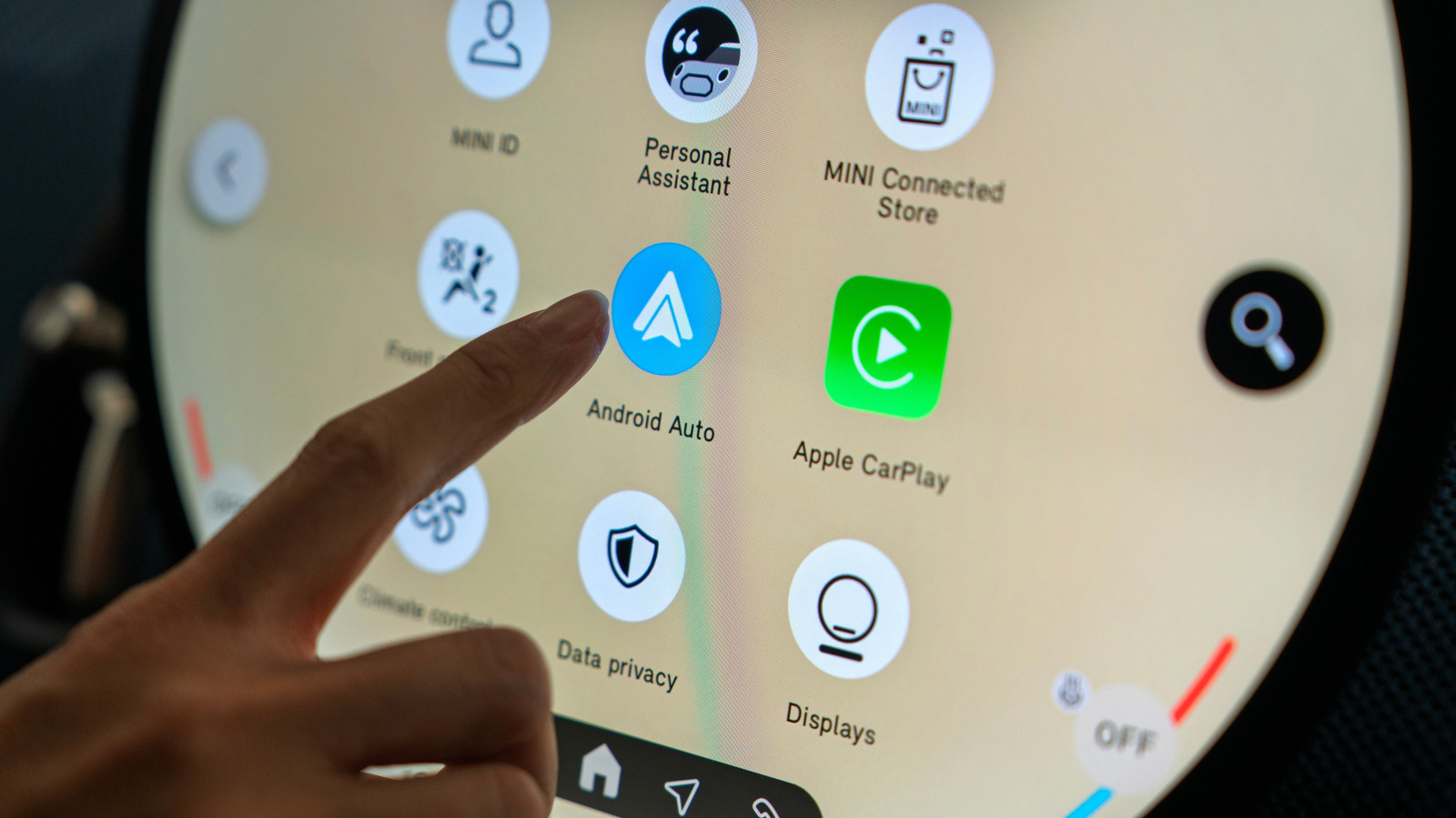
Technical investigations indicate that many Android Auto voice command issues originate from updates to the background Google app, which handles voice processing, rather than the Android Auto application itself. This is a vital distinction. When you press that voice button on your steering wheel, Android Auto acts as a bridge, but the Google app on your phone is the actual engine doing the heavy lifting. If that engine is stalled due to a buggy update or a cache conflict, the bridge leads nowhere.
Furthermore, the transition from Google Assistant to the Gemini AI assistant is identified as a primary cause for voice command and notification errors on Android Auto, with the rollout expected to continue through 2026. This migration often resets default settings, leaving your phone without a "designated driver" for voice tasks.
Basic Troubleshooting: Cache and Permissions
Before diving into complex system resets, we need to address the software hygiene of your device. Updates often leave behind corrupted temporary files that interfere with real-time voice processing.
Clearing the Cache Partition
When you experience Android Auto voice recognition not working, the first step is clearing Google app cache for Android Auto voice recognition. This does not delete your data; it simply flushes out the temporary "brain fog" the app might be experiencing.
- Open your phone Settings.
- Navigate to Apps > See all apps.
- Locate the Google app (this is the most important one).
- Tap Storage & cache and select Clear cache.
- Repeat this process for the Android Auto app and Google Play Services.
Permissions Checklist
Modern Android versions are increasingly strict about privacy. It is common for a system update to reset specific permissions for security reasons. To fix Google Assistant on Android Auto, you must ensure the following permissions are explicitly granted:
- Microphone: Essential for hearing your commands.
- Nearby Devices: This is a common failure point for wireless Android Auto users.
- Notifications: Required for the assistant to read back texts or provide feedback.
- Phone and Contacts: Necessary for voice-activated dialing.
Navigate to Settings > Apps > Android Auto > Permissions and ensure everything is toggled to "Allow" or "Allow only while using the app."
Reverting Buggy Updates
If the problems started immediately after a Google app update, you might be dealing with a version that has a specific conflict with your car's head unit. You can perform a targeted rollback:
- Go to Settings > Apps > Google.
- Tap the three dots in the top right corner.
- Select Uninstall updates.
This reverts the app to the factory version that came with your phone. If your Android Auto voice commands start working again, you should disable auto-updates in the Play Store until a more stable version is released. This process of uninstalling Google app updates to fix Android Auto voice is often the only way to bypass version 16.7+ bugs that have plagued recent users.
Solving the Gemini Transition Conflict
The most significant change in the 2026 mobile ecosystem is the integration of Gemini. While Gemini offers advanced AI features like message summaries, it handles the "handshake" with vehicle infotainment systems differently than the classic assistant.
When your phone updates to include Gemini, the system sometimes fails to set it as the default digital assistant. This leaves Android Auto in a state of limbo where it tries to call an assistant that hasn't been officially "hired" for the job. To resolve this, go to Settings > Apps > Default Apps > Digital Assistant and manually select your preferred service.
If you find that Gemini is too slow or frequently gives the Android Auto voice commands something went wrong fix error, you may want to know how to switch from Gemini back to Google Assistant on Android Auto. Within the Gemini app settings, you can usually find an option to "Switch to Google Assistant" for legacy services. This often restores the snappiness and reliability required for driving environments where 5G signals might be spotty.
Advanced Fixes: Connection Errors and Hardware
Sometimes the issue isn't software logic, but physical or network-level interference. In my time as an editor, I have found that high-resolution displays in modern cars are incredibly picky about data throughput.
Fixing Communication Error 8
This error is a classic "handshake failure." It happens when the security certificates between your phone and your car don't match because their clocks are out of sync. For fixing Android Auto communication error 8 handshake failure, the fix is deceptively simple:
- Enter your vehicle's head unit settings.
- Find the Date and Time settings.
- Ensure the car is set to Sync with GPS or Automatic.
- Do the same on your phone under Settings > System > Date & time.
Even a difference of 30 seconds can cause the encrypted connection to fail, killing your voice commands instantly.
VPN and Network Conflicts
If you are a privacy-conscious user, Android Auto voice commands not working with VPN active is a common complaint. Android Auto requires a direct, local connection to the car's Wi-Fi or USB port. A VPN reroutes that traffic through a remote server, which the car sees as a security threat.
To fix this, you don't need to turn off your protection. Instead, use "Split Tunneling" in your VPN app settings. Add Android Auto, Google, and Google Play Services to the bypass list so they can communicate directly with the vehicle while your browser stays encrypted.
The Hardware Factor: USB and Wireless Interference
As we move toward 4K dashboards, the old USB-A to USB-C cables from five years ago simply don't have the bandwidth. A lack of shielding can also lead to fix Android Auto voice command lag on wireless connections because the phone’s 5GHz signal is competing with the car's own electronic noise.
| Cable Standard | Max Bandwidth | Recommended Use Case |
|---|---|---|
| USB 2.0 | 480 Mbps | Basic navigation on older 720p screens |
| USB 3.2 Gen 1 | 5 Gbps | Standard 1080p infotainment systems |
| USB 3.2 Gen 2 | 10 Gbps | 2026 4K Dashboards and high-fidelity audio |
If you are using a wireless adapter, ensure its firmware is updated. Most manufacturers release monthly patches to mitigate 5GHz interference which is a common culprit for "laggy" voice recognition.
FAQ
Why are voice commands not working on Android Auto?
Most often, this is due to a missing default digital assistant assignment following a system update or the transition to Gemini. It can also be caused by corrupted cache files in the Google app or restricted microphone permissions.
How do I activate the voice assistant in Android Auto?
You can typically activate it by saying "Hey Google," tapping the microphone icon on the touchscreen, or long-pressing the physical "Voice" or "Talk" button on your steering wheel.
How do I change the voice command settings in Android Auto?
On your phone, navigate to Settings > Connected Devices > Android Auto. From there, you can adjust "Hey Google" detection, customize how the assistant handles messages, and manage your voice privacy settings.
How do I set up voice commands on Android Auto?
Ensure your phone is connected to the car via a high-quality cable or wireless link. Complete the initial setup wizard on your phone screen, which will ask you to grant microphone and contact permissions. Finally, go to the Google app settings to train your voice model for better recognition accuracy.

Final Expert Recommendation
Fixing Android Auto voice commands usually comes down to ensuring the Google app is healthy and the Digital Assistant is properly assigned. If you have tried clearing the cache and checking permissions but still face issues, look closely at your car's independent volume settings. Many vehicles have a specific "Voice" volume slider that is separate from "Music" and "Navigation" volumes. If this is turned down to zero, the assistant may be working perfectly—you just can't hear it.
We are seeing a massive shift in how AI interacts with our vehicles. As Gemini becomes the standard, these initial growing pains are expected. If you encounter a specific error code not covered here, feel free to reach out with your vehicle model and phone version; in the world of smart devices, the smallest detail often holds the key to the solution.