Quick Facts
- Thunderbolt 5 Speeds: Newest MacBook Pro models support up to 120Gbps, nearly tripling the throughput of previous generations.
- Fast Charging: Modern 16-inch MacBook Pro models can reach 50% battery in just 30 minutes using 140W adapters.
- Display Limits: Entry-level Apple Silicon chips typically support one external monitor, but this can be bypassed using specific adapters.
- Hub vs. Dock: Hubs are for portability and basic peripherals, while docking stations provide dedicated power for full desktop setups.
- Daisy-Chaining: Thunderbolt allows you to connect multiple devices in a series through a single port on your laptop.
- Power Delivery: MacBook ports provide bidirectional power, meaning they can charge the laptop or provide power to external drives and phones.
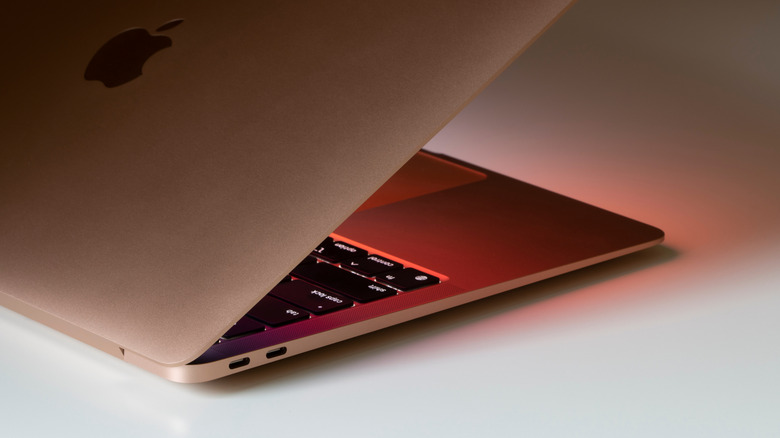
MacBook USB-C ports serve as versatile hubs for charging, high-speed data transfer, and display output. Beyond powering the laptop via Power Delivery (PD), these ports support data speeds up to 120Gbps with Thunderbolt 5. They allow you to connect essential peripherals such as external SSDs, microphones, and Ethernet adapters, effectively transforming a minimalist laptop into a comprehensive workstation.
1. Power Optimization: Mastering Fast Charging and PD 3.1
The era of proprietary charging bricks is largely over, but not all USB-C ports or cables are created equal. To get the most out of your setup, you need to understand the relationship between your MacBook's power requirements and the protocols used to deliver that energy. Modern MacBooks utilize Power Delivery 3.1 (PD 3.1), which allows for much higher wattages than standard USB charging.
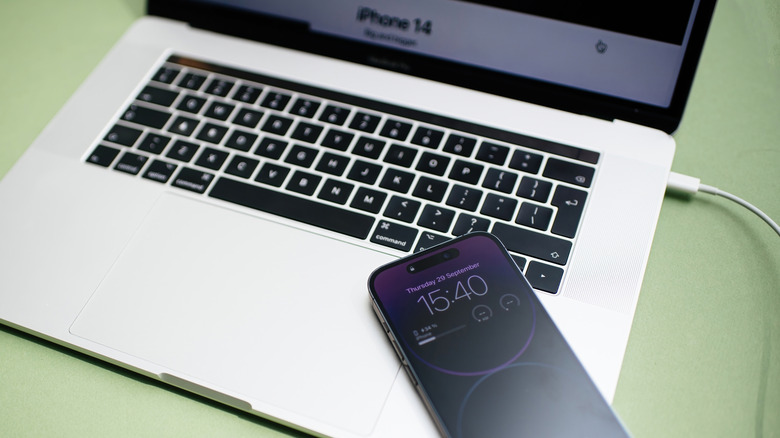
For example, a 16-inch MacBook Pro can fast-charge from zero to 50 percent battery capacity in approximately 30 minutes when using a 140W USB-C Power Adapter and a compatible charging cable. If you are using a lower-wattage brick or a cable not rated for 140W, you will revert to standard charging speeds. Interestingly, the MacBook USB-C uses extend beyond just taking in power; you can use these ports for charging devices with MacBook USB-C, such as your iPhone or AirPods, even when the laptop is not plugged into a wall outlet.
When building a setup, be aware of the "wattage gap." Most portable USB-C hubs consume about 15W of power just to run their internal circuitry. If you plug a 67W charger into a hub that is connected to your MacBook Air, your laptop might only receive 52W. This is why knowing how to fast charge MacBook Air M4 with USB-C often involves connecting the power source directly to one port while using the others for data.
Wattage Cheat Sheet
| MacBook Model | Recommended Wattage | Fast Charge Support |
|---|---|---|
| MacBook Air (M2/M3/M4) | 30W - 70W | Yes (with 67W+ adapter) |
| MacBook Pro 14-inch | 67W - 96W | Yes (with 96W+ adapter) |
| MacBook Pro 16-inch | 140W | Yes (requires PD 3.1) |
2. Visual Mastery: Connecting External Monitors to MacBook
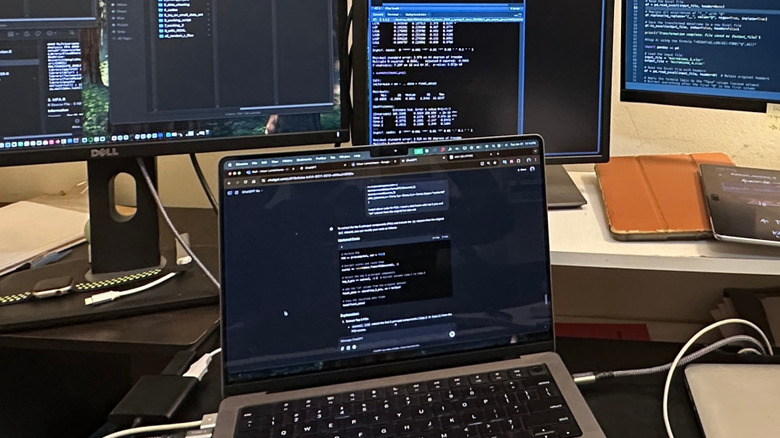
One of the most powerful MacBook USB-C uses is the ability to drive high-resolution displays through a single cable. This is made possible by DisplayPort Alt Mode, which allows the USB-C port to carry video signals alongside data and power. However, the number of displays you can connect depends heavily on your specific Apple Silicon chip.
To connect external monitors to MacBook setups with the base M1, M2, or M3 chips, Apple officially supports only one external display. If you need a more expansive view, you can use DisplayLink technology or a specialized MacBook USB-C docking station that includes its own video processing hardware. For those with higher-end hardware, connecting dual 4K monitors to MacBook Pro with USB-C is a native feature on M-series Pro and Max chips. The M4 Max, for instance, can handle up to four external displays simultaneously.
When using Clamshell mode setup—where your laptop is closed and tucked away—your USB-C port becomes the lifeblood of your workstation. It carries the video to your monitors while receiving power and connecting your keyboard and mouse. For the best experience, ensure your cables are rated for the resolution and refresh rate you desire, especially if you are pushing 5K or 6K resolutions.
3. The Speed Frontier: Thunderbolt 5 and Data Transfers
If you are a creative professional, data transfer throughput is likely your biggest bottleneck. This is where the distinction between "standard" USB-C and Thunderbolt becomes critical. While they share the same connector shape, the technology inside is worlds apart. Thunderbolt 4 ports on modern MacBooks provide a bidirectional bandwidth of up to 40 Gbps, which is four times the speed of the standard USB 3.1 Gen 2 protocol.
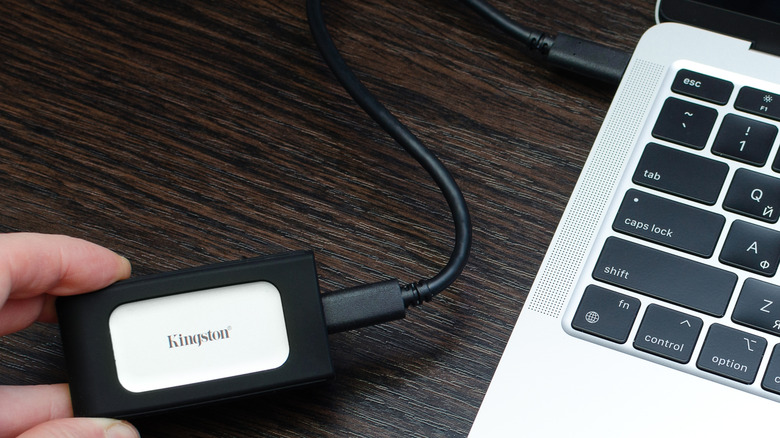
With the introduction of the M4 Pro and M4 Max, we are seeing the arrival of Thunderbolt 5 bandwidth. This new standard offers up to 120Gbps in Bandwidth Boost mode, making it the ultimate tool for transferring large files from MacBook to external SSD via USB-C. This speed is essential for video editors working with 8K raw footage or developers compiling massive codebases directly from external drives.
When choosing a Thunderbolt 5 dock for M5 Max MacBook Pro or current high-end models, look for backwards compatibility. Thunderbolt is designed to work with older generations, but you will only get the maximum speed if every link in the chain—the port, the cable, and the drive—supports the same high-speed protocol.
4. Workstation Transformation: Hub vs. Docking Station
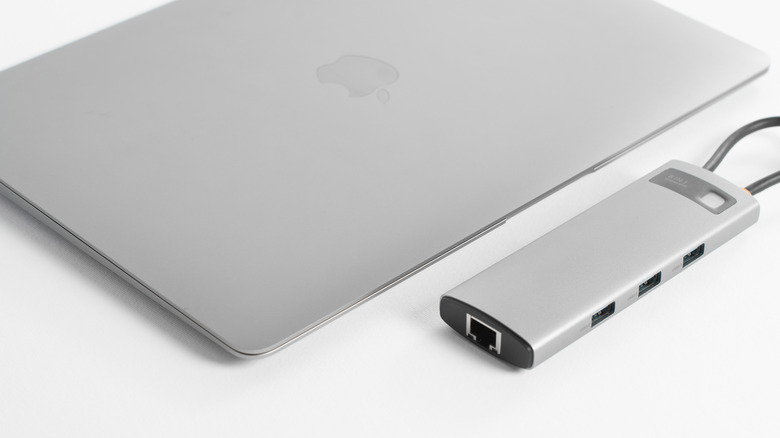
Choosing the right hardware for peripheral expansion can be confusing. The primary difference between a USB-C hub and a MacBook USB-C docking station lies in power and performance. For the digital nomad, essential USB-C accessories for MacBook Air portable setups usually include a compact aluminum hub that fits in a pocket. These hubs are bus-powered, meaning they draw their energy directly from your laptop.
In contrast, a docking station is a semi-permanent fixture for your desk. It has its own dedicated power supply, which allows it to charge your MacBook at full speed while supporting multiple high-resolution monitors and several high-speed USB-A and USB-C peripherals. It is the "single cable solution" that many pros crave—you walk into your office, plug in one cable, and your entire workstation comes to life.
Hub vs. Docking Station Comparison
| Feature | USB-C Hub | Docking Station |
|---|---|---|
| Portability | High (Small and light) | Low (Large and heavy) |
| Power Source | Bus-powered (from laptop) | External power brick |
| Best Use Case | Travel and light use | Permanent desk setup |
| Display Support | Usually 1-2 monitors | Up to 4 monitors (Thunderbolt) |
| Charging | Pass-through (slower) | Dedicated fast charging |
When evaluating MacBook USB-C hub vs docking station differences for setup, consider your workflow. If you move between locations frequently, a hub is your best friend. If you have a dedicated office, a docking station provides a much more stable and powerful experience.
5. Universal Expansion: Ethernet and Legacy Peripherals
Despite the push toward a wireless future, professional environments often require wired stability. One of the most underrated MacBook USB-C uses is providing a stable, high-speed internet connection through an Ethernet adapter. While Wi-Fi 6E is fast, it cannot match the low latency and consistent speeds of a 2.5GbE or 10GbE wired connection, which is vital for network-attached storage (NAS) workflows and competitive gaming.
Furthermore, these ports offer incredible Backwards compatibility. If you have legacy USB-A hardware—like an older mechanical keyboard, a reliable MIDI controller, or an older printer—a simple USB-C to USB-A adapter or a multi-port hub brings these devices into the modern era without any loss in functionality.
The Apple Silicon integration ensures that these peripherals are recognized instantly, often without the need for additional drivers. From connecting professional audio interfaces to simple flash drives, the USB-C port is the universal key that unlocks your MacBook's full potential in any creative or professional environment.

FAQ
What can you do with a MacBook USB-C port?
A MacBook USB-C port is a multi-functional interface that can handle high-speed data transfers, transmit video to external monitors, and provide or receive power. You can use it to connect everything from fast SSDs and Ethernet adapters to audio interfaces and secondary displays.
Can I charge my MacBook through any USB-C port?
Yes, on all modern MacBooks, every USB-C or Thunderbolt port can be used to charge the laptop. However, for the fastest charging speeds on larger models like the 16-inch MacBook Pro, you should use the designated MagSafe 3 port or a USB-C port with a high-wattage PD 3.1 adapter.
What is the difference between USB-C and Thunderbolt on a Mac?
USB-C refers to the physical shape of the connector, while Thunderbolt is the data protocol that runs through it. Thunderbolt ports offer significantly higher bandwidth (up to 40Gbps or 120Gbps), support for multiple displays, and more consistent power delivery compared to standard USB-C ports found on non-Apple hardware.
Can I connect a monitor to my MacBook via USB-C?
Absolutely. Most modern monitors support USB-C input directly, carrying video, data, and power over a single cable. If your monitor uses HDMI or DisplayPort, you can use a USB-C to HDMI adapter or a dedicated dock to bridge the connection.
Does USB-C support fast charging on MacBooks?
Yes, as long as you use a high-wattage power adapter and a cable rated for the appropriate power level. For example, using a 140W adapter with a compatible cable can charge a 16-inch MacBook Pro from 0% to 50% in about 30 minutes.