Quick Facts
- Security Standard: WPA3 Personal is the recommended wifi router settings standard for all modern home networks.
- Network Naming: Use a single, unified SSID for 2.4GHz, 5GHz, and 6GHz bands to enable seamless band steering.
- Frequency Tuning: Set the 2.4GHz band to a 20MHz channel width to minimize interference with Bluetooth devices.
- Visibility: Keep your network name visible; hiding your SSID can lead to privacy leaks and increased battery drain on mobile devices.
- Update Policy: Enable automatic firmware updates to ensure your network stays protected against the latest security threats.
- Roaming Threshold: Apple devices search for a new access point only when the signal strength drops below -70 dBm.
For the best experience, configure your wifi router settings to use WPA3 Personal security, a single unified SSID for all bands, and a 20MHz channel width on the 2.4GHz frequency. These adjustments ensure that your iPhone, Mac, and iPad maintain the most stable and secure connection possible within your home environment.
Getting your wifi router settings right is the foundation of a reliable smart home. As an editor specializing in IoT and home automation, I often see users struggling with dropped connections or slow speeds, only to find that their recommended wifi router settings for apple devices are out of sync with what the hardware actually needs. Your router acts as the conductor of your digital orchestra; if it is not configured correctly, even the fastest fiber connection will feel sluggish.
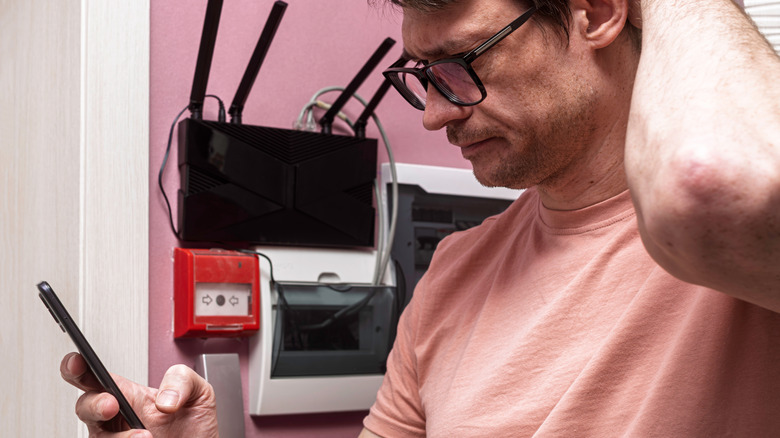
Security Protocol: Switch to WPA3 Personal
The most critical change you can make today involves your network security protocol. For years, WPA2 was the gold standard, but the landscape has shifted. Apple now strongly suggests that users move to WPA3 Personal, which is the latest and most secure wireless encryption standard available. Since 2020, the WPA3 security protocol has been a mandatory requirement for all newly developed Wi-Fi CERTIFIED devices, making it the baseline for modern connectivity.
Switching to wpa3 personal for better home security provides enhanced protection against "brute-force" attacks where hackers try to guess your password. It utilizes a more robust device authentication process and ensures that even if a password is weak, the encryption remains difficult to crack. If you have a mix of brand-new iPhones and slightly older smart home gadgets, you should look for the WPA2/WPA3 Transitional mode in your router security settings. This allows newer devices to use the advanced security of WPA3 while maintaining compatibility for legacy hardware using WPA2.
One thing you must avoid at all costs is legacy protocols like WEP or TKIP. These are obsolete and highly vulnerable. If your router is still using TKIP, it will likely trigger a Privacy Warning on your iOS device. Modern Apple hardware expects AES encryption, which is faster and significantly more secure. By ensuring your router uses AES and WPA3, you are building a fortress for your data.
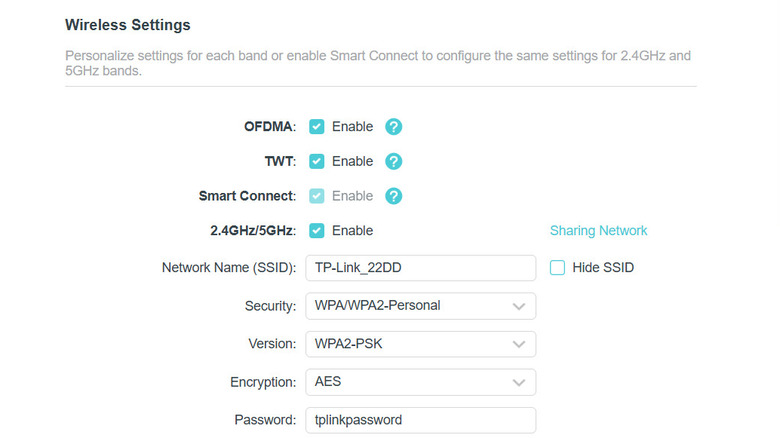
Network Naming: Use One SSID for All Bands
There is a common myth in the home networking world that you should give your 2.4GHz and 5GHz bands different names, such as "MyHome_2G" and "MyHome_5G." However, Apple recommends the exact opposite. For optimal results, you should use a single SSID across all radio frequency bands. This allows your devices to handle access point management and band steering automatically.
When you use one name, your iPhone or MacBook can intelligently decide which band offers the best performance at any given moment. If you are close to the router, it will likely jump on the 5GHz or 6GHz band for maximum speed. As you move further away or behind a wall, it will seamlessly switch to the 2.4GHz band, which has better range and penetration. This is particularly important because Apple mobile devices are programmed to stay connected to a current access point and will not initiate a scan for a new network until the received signal strength indicator (RSSI) falls below -70 dBm.
If the names are different, the device might cling to a weak 5GHz signal even when a much stronger 2.4GHz signal is available, simply because it does not recognize them as the same network. By understanding why you should use one ssid for all wifi bands, you eliminate the need for manual intervention and ensure your mesh networking or standalone router works as intended.
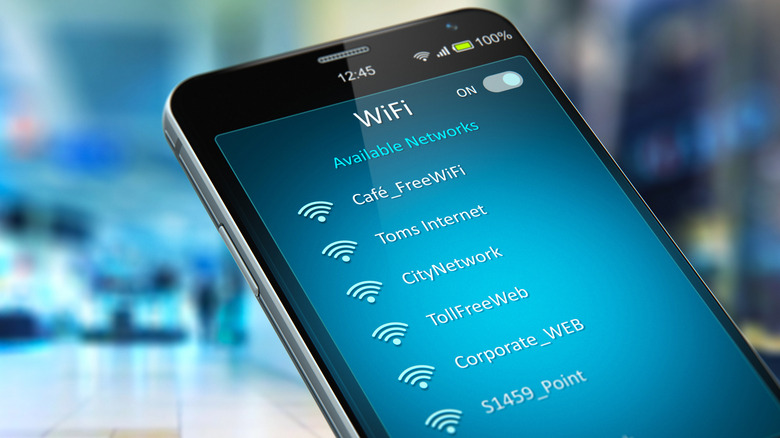
Bandwidth Management: Optimizing Channel Width
Managing your bandwidth allocation is about more than just raw speed; it is about reducing wireless interference. In a crowded neighborhood, everyone is fighting for the same "airtime." This is where optimizing wifi channel width becomes essential.
For the 2.4GHz band, Apple recommends a strict 20MHz channel width. While some routers offer a 40MHz option for "increased speed," this often backfires. The 2.4GHz spectrum is very narrow, and a wider 40MHz channel is much more likely to overlap with neighboring networks or be disrupted by Bluetooth accessories. Apple suggests using a 20 MHz channel width for the 2.4 GHz band to improve signal quality and reduce performance issues caused by interference from common household electronics.
For the higher bands, the rules change. You want to give your devices as much room as possible to breathe.
| Frequency Band | Recommended Channel Width | Benefit |
|---|---|---|
| 2.4 GHz | 20 MHz | Reduces interference from Bluetooth and neighboring Wi-Fi. |
| 5 GHz | Auto or 20/40/80 MHz | Maximizes throughput for high-speed streaming and gaming. |
| 6 GHz | Auto or Enable all | Provides the widest lanes for Wi-Fi 6E/7 compatible devices. |
When you are optimizing 5ghz and 6ghz channel width for speed, setting it to "Auto" is usually the safest bet. It allows the router to scan the environment and choose the widest available clear channel. One pro-tip for MacBook users: avoid forcing 160MHz on the 5GHz band if you live near an airport, as this can trigger DFS (Dynamic Frequency Selection) scans that cause your connection to drop temporarily while the router checks for radar signals. Using the best 2.4ghz channel width for wifi reliability is the secret to keeping your smart home sensors and older IoT devices online 24/7.
Network Visibility: Stop Hiding Your SSID
It is a common misconception that hiding your Wi-Fi network name makes it more secure. In reality, hiding your SSID offers no real security benefit and can actually compromise your privacy. When a network is hidden, your iPhone or Mac must constantly broadcast its name while searching for it, effectively telling everyone in the vicinity exactly which network you are looking for.
There are several reasons not to hide your wifi ssid network. First, it leads to significant battery drain. Because your device has to work harder to find and stay connected to a hidden network, the wireless chip stays active for longer periods. Second, it can lead to a "Privacy Warning" in your Wi-Fi settings. Apple hardware is designed to prioritize visible networks because they follow standard connectivity protocols that do not require the device to reveal its preferred networks to the public airwaves.
Furthermore, hidden networks can cause issues with signal reliability. If your router is not broadcasting its name, your devices may take longer to reconnect when you wake them from sleep or return home. For a seamless smart home experience, keep your SSID visible and rely on strong WPA3 encryption for your actual security.
Automation and HomeKit: Firmware and IoT Security
The final piece of the puzzle is maintenance and ecosystem integration. A smart home is only as secure as its weakest link, which is why the importance of automatic router firmware updates cannot be overstated. Manufacturers frequently release patches that close security holes or improve compatibility with new versions of iOS and macOS. If your router has a "check for updates automatically" toggle, make sure it is turned on.
If you are deep into the Apple ecosystem, you might also consider managing apple home accessory security settings through a HomeKit-enabled router. These routers allow you to firewall your smart home gadgets. You can restrict a smart bulb or camera so it can only communicate with your Home Hub (like an Apple TV or HomePod) and not the open internet. This prevents a compromised IoT device from being used as a gateway into your personal data.
When setting up your router, ensure that Dynamic Host Configuration Protocol (DHCP) is enabled and that you are using a reliable Domain Name System configuration. While most users stick with their ISP's default DNS, switching to a private or high-performance DNS like Cloudflare (1.1.1.1) or Google (8.8.8.8) can often speed up the initial "lookup" time when you click a link or open an app. Additionally, ensure that Network Address Translation (NAT) is active to provide a basic layer of protection for all devices behind your router.
By taking the time to audit these wifi router settings, you transform your home network from a source of frustration into a high-performance utility. Whether you are streaming 4K video on your Apple TV or managing a hundred smart home sensors, these Apple-recommended configurations provide the stability and speed modern life demands.
FAQ
How can I secure my home wifi network?
To secure your network, the most effective step is to use WPA3 Personal encryption with a strong, unique password. Additionally, ensure that your router firmware is set to update automatically to protect against new vulnerabilities. You should also disable legacy protocols like WEP and avoid hiding your network name, as these actions can lead to security and privacy risks.
Should I choose 2.4 GHz or 5 GHz for my router?
You do not need to choose one over the other. Apple recommends enabling both bands and giving them the exact same network name (SSID). This allows your devices to automatically select 5 GHz for high-speed tasks when you are close to the router and switch to 2.4 GHz for better range when you move further away.
How do I update my router firmware?
Most modern routers can be updated through their official mobile app or a web-based admin panel. Look for a section labeled "System," "Advanced," or "Software Update." The best practice is to enable "Automatic Updates" so the router can download and install security patches overnight without requiring manual intervention.
What is the best security protocol for a wifi router?
The best and most modern protocol is WPA3 Personal. If you have older devices that do not support WPA3, you should use WPA2/WPA3 Transitional mode. This provides the highest level of security for your new Apple devices while ensuring that older gadgets can still connect using WPA2 AES encryption.