Quick Facts
- Current Status: Enabled by default starting with the iOS 26.4 firmware update.
- Security Shift: Mandates biometric authentication for sensitive actions, completely removing the passcode fallback option.
- Core Mechanism: Implements a 60-minute security delay for high-risk account changes performed outside of familiar locations.
- Prerequisites: Requires Two-factor authentication, Find My network, and Significant Locations to be active on the device.
- Target Threat: Specifically designed to stop identity theft following shoulder surfing incidents in public spaces.
- Platform Availability: Currently exclusive to iPhone models; iPadOS support is expected in future iterations.
Stolen Device Protection is a robust security feature that ensures even if a thief manages to observe and steal your passcode, they cannot change your Apple Account password or access your saved credentials. By requiring mandatory Face ID or Touch ID authentication and implementing an iPhone security delay of one hour for sensitive changes in unfamiliar locations, it creates a critical barrier against total account takeover and identity theft.
The End of the Passcode Fallback: Why It Matters
For years, the humble screen passcode was the master key to our digital kingdoms. While biometric security like Face ID made unlocking our phones more convenient, the passcode remained a persistent backdoor. If the camera failed to recognize your face, you could simply type in four or six digits. Thieves caught on to this vulnerability, leading to a rise in social engineering tactics.
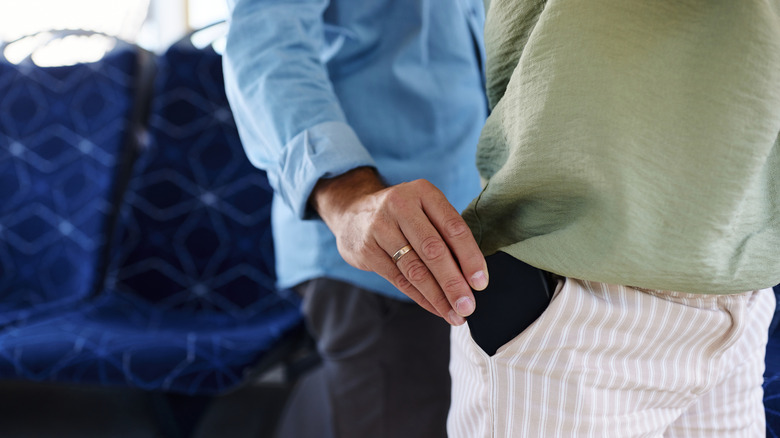
In high-traffic urban areas, shoulder surfing has become a professionalized crime. A thief watches you enter your passcode at a bar, a train station, or a cafe, and then physically snatches the device. Within seconds, they can use that passcode to change your Apple Account password, lock you out of Find My, and begin draining your financial accounts. According to the Metropolitan Police, mobile phone theft in London has surged, with a device being stolen approximately every six minutes in 2024.
Research further shows that this is not just a general mobile issue but an Apple-centric one. Data indicates that iPhones are the primary target for smartphone thieves, accounting for an estimated 80% of all mobile phone thefts. The high resale value and the potential for data exploitation make them lucrative targets.
By making Stolen Device Protection the default, Apple is effectively killing the passcode fallback for your most sensitive data. If you are away from home and try to access your iCloud Keychain or transfer an eSIM to a new device, the phone will no longer offer the option to use a passcode if biometrics fail. You must provide a successful Face ID or Touch ID scan. This simple shift ensures that device encryption and sensitive data protection remain intact even if your numeric code is compromised.
Managing iPhone Security Settings: The One-Hour Delay Explained
One of the most significant hurdles for a thief—and occasionally a source of confusion for legitimate users—is the iPhone security delay. This feature introduces a mandatory 60-minute waiting period for the most critical security actions when the device is detected in an unfamiliar location.
The logic is simple but effective: it buys the victim time. If your phone is snatched, you typically realize it within minutes. The one-hour delay prevents a thief from immediately changing your password or turning off security features, giving you a window to log into another device and use the Find My network to mark your device as lost or remotely wipe it.
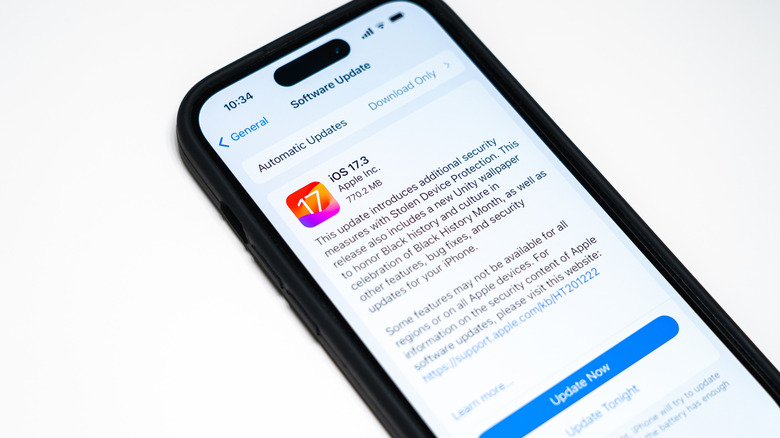
Starting with the iOS 26.4 update, the Stolen Device Protection feature is enabled by default for all users, meaning you don't have to go looking for it to stay protected. However, understanding how to interact with this delay is vital for managing iPhone security settings without frustration.
| Action Type | Authentication Requirement | Security Delay Applied? |
|---|---|---|
| Accessing saved passwords (iCloud Keychain) | Biometric Only | No |
| Using stored payment methods in Safari | Biometric Only | No |
| Erasing all content and settings | Biometric Only | No |
| Changing Apple Account password | Biometric Only | Yes (60 Minutes) |
| Updating Face ID or Touch ID settings | Biometric Only | Yes (60 Minutes) |
| Turning off Find My or Stolen Device Protection | Biometric Only | Yes (60 Minutes) |
If you attempt to perform a Tier 2 action (like changing your password) while at a local coffee shop, the device will prompt you for a biometric scan, start a one-hour timer, and then require a second biometric scan once the hour has passed. This two-step verification process ensures that the person holding the device is actually the owner and is willing to wait out the security protocol.
Technical Setup: Familiar Locations & Significant Locations
The intelligence behind this system relies on Geofencing technology. Your iPhone tracks where you spend the most time—usually your home and your workplace—and classifies these as Significant Locations. When you are within these bounds, the security delay is bypassed, allowing you to make changes quickly and conveniently.
However, for this to work correctly, several background settings must be configured. If you find that the phone is asking for a delay even when you are sitting in your living room, you may need to troubleshoot your location settings.
To ensure your device is correctly identifying your surroundings and managing iPhone security settings after ios 26.4 update, follow this checklist:
- Enable Location Services: Go to Settings > Privacy & Security > Location Services and toggle it on.
- Activate Significant Locations: Navigate to Settings > Privacy & Security > Location Services > System Services > Significant Locations. Ensure this is enabled so the phone can learn your routine.
- Confirm Find My Status: Stolen Device Protection cannot function without the Find My network. Ensure Find My iPhone is turned on in your Apple Account settings.
- Verify Two-factor authentication: Your account must be secured with 2FA for these advanced iOS biometric security features to remain active.
The iphone stolen device protection familiar locations guide is essentially built into the operating system's learning algorithm. It typically takes a few days of consistent presence in a new location (like a new apartment or office) before the system recognizes it as "safe." During this learning period, you should expect the one-hour delay to trigger for any sensitive modifications.
Remaining Vulnerabilities & Industry Shifts
While this update is a massive leap forward in identity theft prevention, it is not a silver bullet. It is important to note that Stolen Device Protection does not cover every single interaction. For instance, Apple Pay may still allow a passcode fallback in certain retail scenarios where biometrics fail, though this is becoming rarer as the hardware improves.
Furthermore, while your Apple Account is locked down, individual apps may still have their own security protocols. If a thief has your device passcode, they might still be able to open apps that aren't individually protected by Face ID, such as certain social media platforms or notes that aren't locked. System security hardening is an ongoing process, not a one-time fix.
The industry at large is following Apple’s lead. We are seeing similar shifts in the Android ecosystem, with rumors of an Android Theft Detection Lock appearing in Android 16. This feature aims to use AI to detect the physical motion of a phone being snatched from a user's hand and immediately lock the screen.
Even with these advancements, the best defense remains situational awareness. In my time testing the iOS 26.4 beta firmware, I've found that the peace of mind provided by Stolen Device Protection far outweighs the occasional inconvenience of the one-hour wait. It changes the power dynamic: the thief may have the hardware, but they no longer have the keys to your life.
FAQ
What is Stolen Device Protection and how does it work?
Stolen Device Protection is an iOS feature that adds a layer of security when your iPhone is away from familiar locations. It requires Face ID or Touch ID for sensitive actions, such as accessing passwords or erasing the phone, and removes the option to use a passcode. For high-security changes like updating an Apple Account password, it also mandates a one-hour waiting period followed by a second biometric scan.
How long is the security delay for changing sensitive settings?
The security delay is exactly 60 minutes. This waiting period is required if you are in an unfamiliar location and attempt to perform high-risk actions like changing your device passcode, updating Apple Account security settings, or turning off the Stolen Device Protection feature itself.
Does Stolen Device Protection protect my data if my phone is stolen?
Yes, it significantly improves data protection. By requiring biometrics for iCloud Keychain access and preventing immediate password changes, it stops a thief from locking you out of your account or viewing your stored credentials. However, it does not prevent a thief from seeing information that is visible on the lock screen or within apps that do not have their own secondary biometric locks.
How do I turn on Stolen Device Protection on my phone?
Starting with iOS 26.4, this feature is enabled by default. If you need to check the status or manage it manually, go to Settings, select Face ID & Passcode, enter your passcode, and look for the Stolen Device Protection section. From there, you can toggle the feature on or off and choose whether the security delay should apply always or only when away from familiar locations.
What is the difference between Find My and Stolen Device Protection?
Find My is primarily a tracking and recovery tool used to locate a lost or stolen device on a map and remotely lock or erase it. Stolen Device Protection is a preventative security layer that stops a thief from changing your account settings or accessing your passwords even if they have already physically stolen the device and know your lock screen passcode.
Conclusion & Call to Action
The transition to making Stolen Device Protection a default feature marks a turning point in mobile security. We are moving away from a world where a simple numeric code could undo years of digital privacy. While the one-hour iPhone security delay might feel like a hurdle when you are trying to set up a new phone at a dealership or a third-party repair shop, it is the most effective deterrent we have against the rising epidemic of phone theft.
By ensuring that Face ID and Touch ID are the only ways to access your most sensitive data, Apple has effectively neutralized the primary goal of the modern street thief: account takeover. If you haven't already, I highly recommend checking your settings to ensure your Significant Locations are properly calibrated so that this feature works seamlessly with your lifestyle. Staying secure doesn't have to be a burden; it just requires the right defaults.