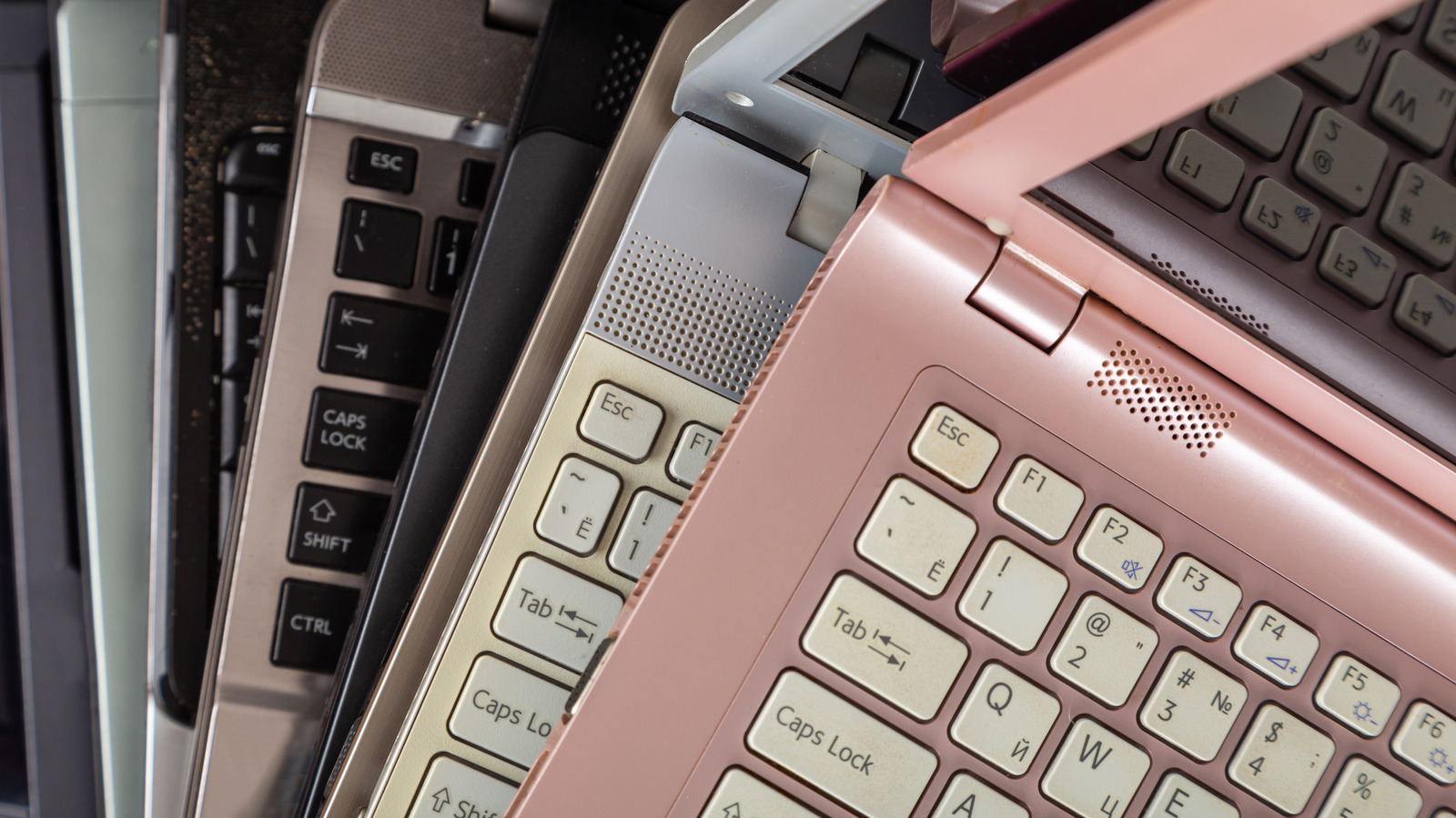
Quick Facts
- Top Performance Boost: High-speed external NVMe SSDs (reaching up to 1,000MB/s)
- Best for Stability: Active cooling pads to prevent thermal throttling at the 70°C threshold
- Connectivity Solution: Powered USB-C or Thunderbolt hubs to resolve port wear and power draw issues
- Internet Upgrade: Plug-and-play WiFi 6E adapters for access to the less congested 6GHz band
- Productivity Gain: Portable secondary monitors to double digital screen real estate
- Lifespan Extension: These peripherals can add 3 to 5 years of functional life to legacy hardware
- Installation Difficulty: 100% plug-and-play with no internal hardware modification required
The most effective external laptop upgrades include cooling pads to prevent thermal throttling, external SSDs for faster storage, and USB hubs for expanded connectivity to revive older PCs without complex internal work. These laptop life extension gadgets significantly improve system responsiveness by addressing the primary bottlenecks that cause legacy hardware to feel sluggish, ensuring your device remains productive in a modern workflow.
1. High-Speed External SSDs: Curing the Storage Bottleneck
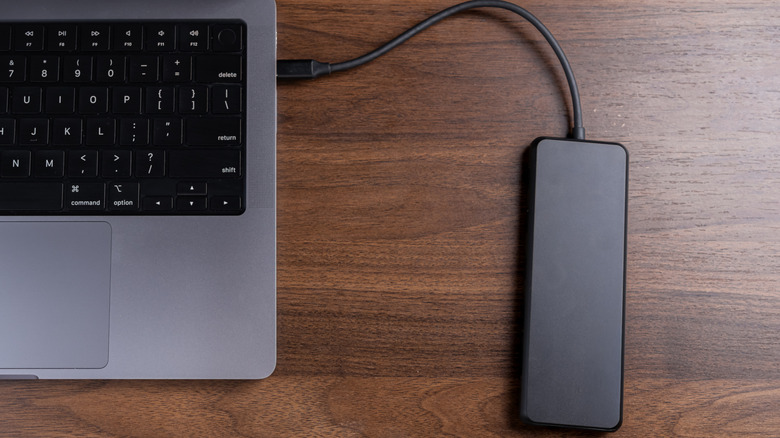
If your laptop takes several minutes to boot or stutters when opening large files, the culprit is likely a mechanical hard drive or an early-generation SATA SSD. One of the most impactful external laptop upgrades you can make is moving your active project files or even your entire operating system page file to a high-speed external drive. While you might not want to open the case to swap the internal drive, modern external hardware for laptops allows you to bypass internal speed limits using high speed external ssd for old laptop storage boost.
Many legacy laptops feature USB 3.0 or 3.2 ports. While these aren't as fast as the latest Thunderbolt 4, they still offer significant data transfer bandwidth compared to an aging internal HDD. Modern external solid-state drives (SSDs) using USB 3.2 or Thunderbolt 3 interfaces can reach data transfer speeds of up to 1,000 MB/s, which is approximately 10 times faster than traditional external hard disk drives (HDDs).
To maximize the impact on your system responsiveness, consider the following performance comparison:
| Drive Type | Typical Read/Write Speed | Impact on Laptop Feel |
|---|---|---|
| Internal 5400 RPM HDD | 80 - 120 MB/s | Sluggish, high latency, long boot times |
| Internal SATA SSD | 450 - 550 MB/s | Respectable, but limited by SATA III bus |
| External NVMe SSD (USB 3.2) | 800 - 1,050 MB/s | Snappy, near-instant file access, great for 4K video |
By using a high speed external ssd for old laptop storage boost, you effectively eliminate the data bottleneck. I recommend professional users move their "temp" or "scratch" disks for software like Photoshop or Premiere Pro to the external drive. This allows the internal drive to focus solely on the OS while the external drive handles the heavy lifting of data transfer bandwidth. This approach bridges the gap caused by legacy hardware compatibility issues, giving an old machine a fighting chance against modern software requirements.
2. Active Cooling Pads: Fighting Thermal Throttling
Heat is the silent killer of performance. As laptops age, their internal thermal paste dries out and dust accumulates in the tiny fins of the heat sink. This leads to a phenomenon called thermal throttling. When your CPU hits a specific temperature—often around the 70°C to 80°C mark—the system intentionally slows down the clock speed to prevent permanent hardware damage. This results in sudden lag spikes during intensive tasks.
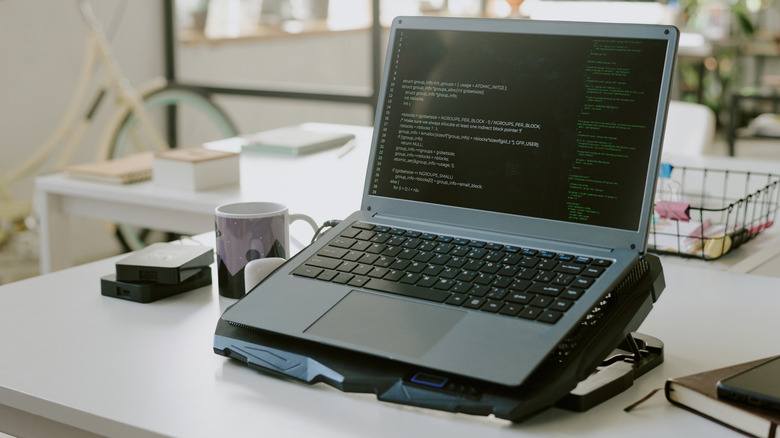
The most cost-effective way to mitigate this is by using low cost laptop cooling pads for overheating fix. These devices utilize large, quiet fans to force air into the laptop's intake vents, assisting the struggling internal fans. By improving heat dissipation, you can keep the CPU below the throttling threshold for longer periods, maintaining peak performance during video calls or spreadsheet crunching.
Compatibility Check: Finding the Right Pad
- Fan Placement: Ensure the fans on the cooling pad align with the intake vents on the bottom of your laptop.
- USB Passthrough: Since older laptops have limited ports, look for a pad that offers an extra USB port so you don't lose connectivity.
- Angle Adjustment: Beyond cooling, these pads improve ergonomics by tilting the keyboard to a more comfortable typing angle.
Using low cost laptop cooling pads for overheating fix is particularly effective for "thin and light" laptops from the mid-2010s that were notorious for poor airflow. Even a 5-degree reduction in operating temperature can be the difference between a smooth experience and a frustratingly slow one.
3. Powered USB Hubs & Docking Stations: Port Expansion for Productivity
As we keep our laptops longer, the physical ports—USB-A, HDMI, and charging jacks—undergo significant wear and tear. Furthermore, older laptops often lack the port variety needed for modern peripherals. The global laptop accessories market, which includes performance-enhancing gadgets such as docking stations and external storage, reached an estimated valuation of $45.27 billion in 2024. This growth is driven largely by users looking to expand the utility of their current devices.
When looking for external hardware for laptops, the best powered usb hubs for legacy laptops 2026 are those that come with their own dedicated AC adapter. Non-powered hubs draw electricity directly from your laptop's motherboard. If you plug in an external SSD, a webcam, and a mouse into a single non-powered port, you might experience disconnects or even damage to the motherboard due to excessive power draw.
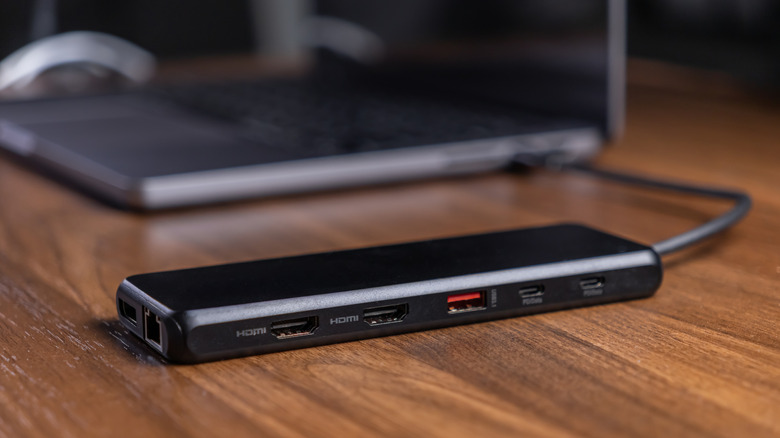
A powered hub facilitates essential port expansion while protecting your legacy hardware. It acts as a central workspace optimization station; you can leave your monitor, keyboard, and external drives plugged into the hub and simply connect one or two cables to your laptop when you sit down to work. This reduces the daily friction of setup and minimizes the risk of port failure on your aging machine.
4. USB WiFi 6E/7 Adapters: Boosting Internet Speeds
One of the most overlooked components of an old laptop is the internal networking card. If your laptop was made before 2019, it likely supports WiFi 5 (802.11ac) at best. In a world of fiber-optic internet and crowded apartment complexes, these older cards struggle with interference and lower top-end speeds. You can have the fastest internet plan in the world, but if your laptop's internal card is the bottleneck, you'll never see those speeds.
A plug-and-play setup using usb wifi 6e adapters for faster laptop internet is a game-changer. These small dongles bypass your internal card entirely. WiFi 6E is particularly special because it opens up the 6GHz band, which is essentially an "express lane" for data, free from the congestion of older 2.4GHz and 5GHz devices like microwaves and older routers.
The benefits of upgrading your networking via laptop performance peripherals include:
- Lower Latency: Essential for stable Zoom calls and online gaming.
- Higher Throughput: Faster downloads and smoother 4K streaming.
- Better Range: Modern external adapters often have superior antenna designs compared to the cramped internal wires of an old laptop.
By choosing usb wifi 6e adapters for faster laptop internet, you ensure your older machine can handle the high-bandwidth demands of the modern web without needing a technician to open the screen assembly to replace internal antennas.
5. Portable External Monitors: Modernizing the Workspace
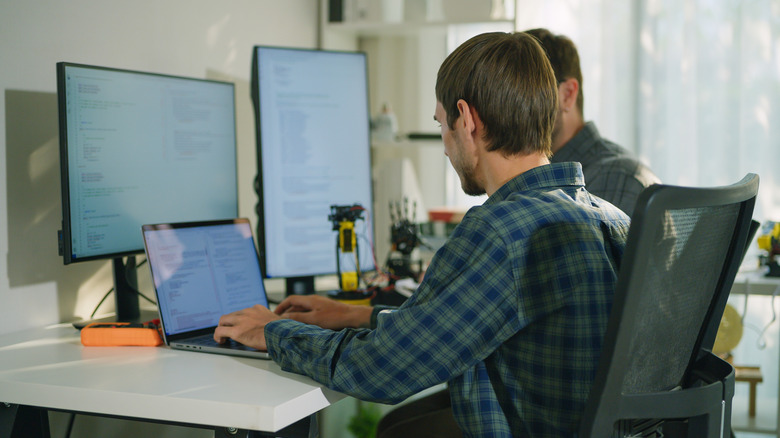
Screen real estate is the ultimate productivity multiplier. If you are still working on a 13-inch or 15-inch laptop with a 1080p (or worse, 768p) resolution, you are constantly wasting time alt-tabbing between windows. Adding portable external monitors for dual screen laptop setup can instantly modernize your multi-screen workflow.
Modern portable monitors are incredibly thin and often power themselves through a single USB-C cable (or a combination of HDMI and USB-A on older systems). This workspace optimization allows you to have your research open on one screen and your document on the other, mimicking the desktop experience of a high-end workstation.
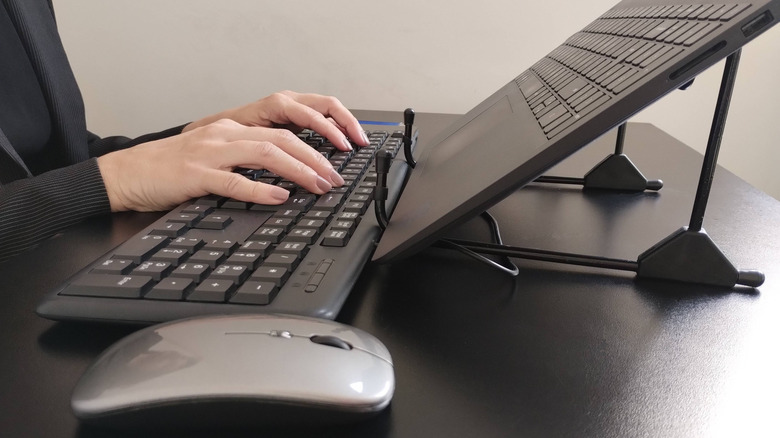
Don't underestimate the power of external input devices either. External keyboards account for approximately 21% of the laptop accessories market share as of 2024, reflecting a high consumer demand for ergonomic and productivity-focused peripherals. Combining a portable external monitors for dual screen laptop setup with a dedicated keyboard and mouse transforms your laptop from a "lap device" into a true "computing hub."
FAQ
Can you upgrade laptop hardware externally?
Yes, you can significantly upgrade a laptop's performance through external laptop upgrades. While you cannot typically replace the CPU or GPU externally (with some expensive exceptions), you can bypass slow internal storage with external SSDs, improve networking with USB WiFi adapters, and prevent performance drops using active cooling solutions. These peripherals provide a performance boost comparable to internal upgrades but with zero risk of damaging the internal components.
How can I increase my laptop's speed with external devices?
The most effective way is to use a high-speed external SSD. By moving your "page file" or high-demand applications to a drive with high data transfer bandwidth, you reduce the time the CPU spends waiting for data. Additionally, using an active cooling pad prevents thermal throttling, ensuring your processor stays at its maximum clock speed rather than slowing down due to heat.
Is it possible to add an external graphics card to a laptop?
It is possible, but with caveats. Using external gpu enclosures for boosting old laptop performance requires a high-bandwidth connection, usually Thunderbolt 3 or Thunderbolt 4. If your laptop is very old and only has standard USB-A ports, an eGPU is generally not an option. However, for mid-age laptops with Thunderbolt support, an eGPU can turn a business laptop into a gaming powerhouse, though the enclosure and card often cost as much as a new budget laptop.
What are the benefits of using an external SSD for a laptop?
An external SSD provides faster data access speeds than internal mechanical drives, leading to faster application launches and file transfers. It also offers a portable storage solution that doesn't rely on the laptop's power-hungry internal disk, which can slightly improve battery life. Furthermore, it allows you to keep your internal drive clean, which can help maintain overall system responsiveness.
Are external cooling pads effective for laptop performance?
Yes, especially for legacy hardware where internal cooling has degraded. By providing a constant flow of cool air to the intake, a cooling pad helps the system stay below the critical temperature where the CPU begins to throttle its speed. This doesn't "overclock" your laptop, but it allows the laptop to maintain its intended "Turbo" speeds for a much longer duration during heavy workloads.
Conclusion
Reviving an old PC doesn't always require a screwdriver and a prayer. By strategically selecting external laptop upgrades, you can tackle the specific symptoms of aging—slowness, heat, and limited connectivity—with minimal effort. From the incredible speed of high-speed SSDs to the ergonomic and productivity benefits of portable monitors, these gadgets offer a high return on investment.
Beyond the immediate performance gains, there is a significant sustainability benefit to this approach. Choosing laptop life extension gadgets helps reduce E-waste by keeping your current device functional for 7 years instead of the typical 4-year upgrade cycle. Investing a few hundred dollars in quality external hardware for laptops can defer a multi-thousand-dollar purchase while providing a workspace that feels modern, snappy, and capable of handling 2024's digital demands. Give your old laptop a second lease on life; the hardware is likely more capable than you think, it just needs a little external help.