Quick Facts
- Top Productivity Hack: Using Ask Photos for natural language library queries to find specific memories or information without scrolling.
- Storage Update: The AI Pro plan now includes 5TB of cloud storage as of 2026 to accommodate high-resolution media.
- Best for Content Creators: Use Highlight Video templates to automatically generate clips for social media with synced music.
- Security Must-Have: Cloud-synced Locked Folders now allow you to access sensitive documents across all your authenticated devices.
- Time Saver: Batch OCR capabilities enable users to transcribe handwritten notes and search for text inside receipts or signs instantly.
- Efficiency Milestone: Automated Photo Stacks help declutter the nearly one-third of most users' photo galleries that are composed of duplicate images.
In 2026, the best Google Photos hacks focus on leveraging Gemini-powered AI features like Ask Photos to organize your Google Photos library through natural language, while automated tools for storage management and OCR streamline your content creation workflow. By moving beyond simple storage and embracing these Google Photos AI features, you can transform your smartphone gallery into a high-functioning searchable database and a professional-grade creative studio.
As someone who spends most of my day testing the latest mobile hardware and software, I have watched Google Photos evolve from a simple cloud backup tool into something much more sophisticated. As of its 10th anniversary in May 2025, the platform reached a massive milestone of over 1.5 billion monthly users and more than 9 trillion photos and videos stored on its servers. With that much data, manual organization is no longer realistic.
Whether you are an Android power user or an iPhone loyalist, mastering these productivity-focused Google Photos hacks will change the way you interact with your digital life.
1. Master Conversational Search with 'Ask Photos' Gemini
For years, we relied on simple keyword searches like "dog" or "beach." But in 2026, the search experience has shifted entirely toward natural language queries. The March 2026 update made the Gemini-powered Ask Photos feature free for everyone, allowing you to treat your gallery like a personal assistant that understands context.
Instead of hunting for a specific date, you can ask, "Where did we stay last summer?" or "Find my receipts from the Paris trip." The AI analyzes the metadata, location tags, and visual cues to surface exactly what you need. It can even answer complex questions by looking at your photos, such as "What was the name of that restaurant with the blue door we visited in Kyoto?"
Pro Tip: Gemini Prompts Try these natural language queries to save time:
- "Show me the best photos of my daughter at the park from 2025."
- "What is my frequent flyer number? (Finds the screenshot of your airline app)."
- "Summarize the notes from the whiteboard meeting on Tuesday."
This level of smart searching is part of why Google Photos users perform more than 370 million searches every single month. It eliminates the need for manual tagging and allows you to find vital information in seconds.
2. Transcribe and Search Handwritten Notes Instantly
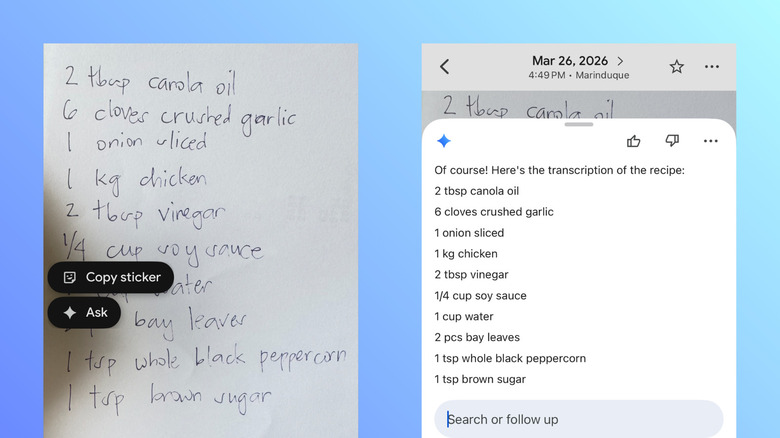
One of the most underutilized Google Photos hacks for professional productivity is the advanced Optical Character Recognition (OCR) powered by Gemini. While we once used Google Lens for basic text grabbing, the current integration is seamless and far more accurate, especially for cursive or messy handwriting.
If you are a student or a professional who still prefers pen and paper, you can simply snap a photo of your notebook. You can then search for any word within those notes using the main search bar. This essentially turns your physical journals into a searchable digital archive. This also applies to office environments; if you take a photo of a whiteboard after a brainstorming session, you can ask Gemini to transcribe handwritten notes with Google Photos Gemini and email the text to your team.
Beyond notes, you can search for text inside receipts and signs in Google Photos. If you need to find a specific warranty or a tracking number from a physical receipt, just type the vendor's name or the product into the search bar. The app will highlight the text within the image, making it easy to copy and paste into a document or message.
3. Automate Social Media Content with Highlight Videos
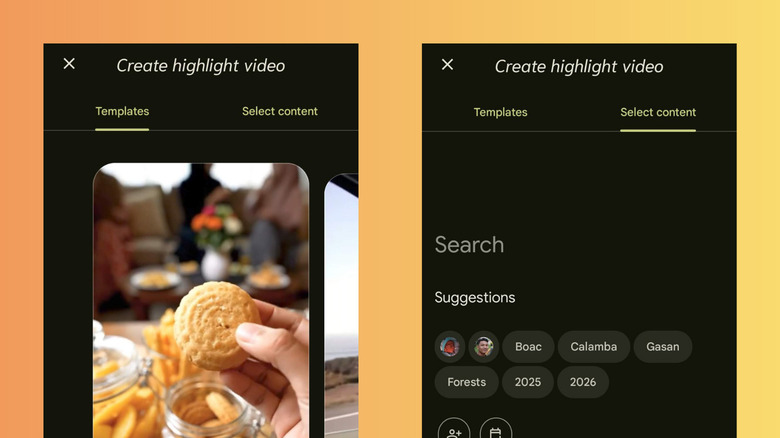
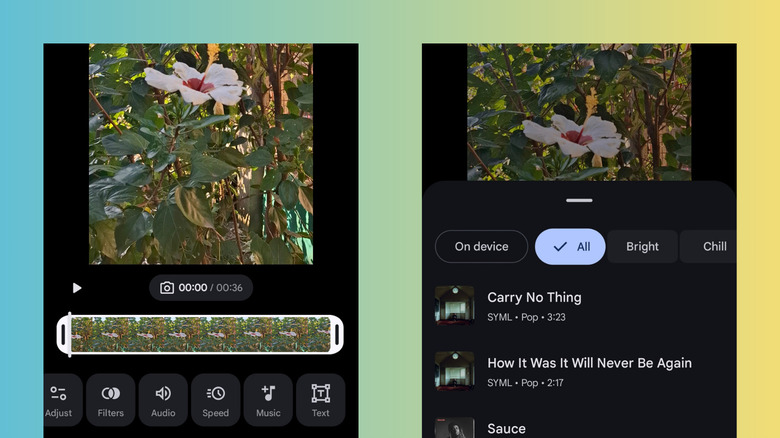
Google Photos is no longer just a place where videos go to die; it is a powerful post-production tool. For those of us who want to share high-quality content without spending hours in a complex editor, the Highlight Video templates are a game-changer. These templates use machine learning to identify the best moments in your clips—smiles, movement, and scenic views—and edit them together.
To get started, navigate to Library > Utilities > Highlight Video. You can provide a theme-based prompt like "Our weekend hiking trip" or "Best of 2025," and the app will curate the media, add transitions, and sync the footage to a music track. This is the fastest way to create highlight videos for Instagram Reels in Google Photos.
If there is a distracting person in the background of your perfect shot, you can use the move and remove objects using Google Photos Magic Editor tool. By tapping Edit > Tools > Magic Editor, you can circle an object to erase it or move your subject to a more central position. The AI fills in the background realistically, a feature that was once reserved for professional desktop software.
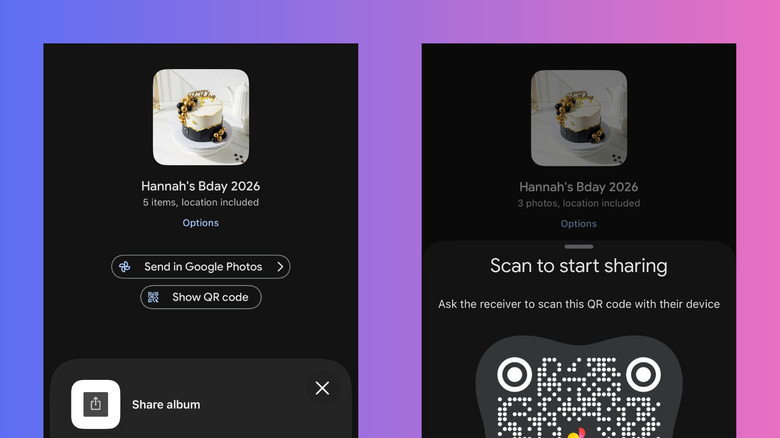
When it comes to sharing your creations at events like weddings or conferences, you can now generate QR code to share Google Photos albums. Instead of faffing with links or inviting people one by one via email, just show the QR code on your screen or print it out. Guests can scan it to instantly view the album or contribute their own photos, creating a collaborative content creation workflow.
4. Reclaim Space with AI-Powered Storage Management
The era of unlimited free backup is long gone, and with high-resolution 8K video becoming standard, storage fills up fast. To organize Google Photos library effectively, you need to be aggressive about what you keep. Google reports that approximately one-third of most users' photo galleries consist of similar or near-duplicate images, which can bloat your cloud usage.
The app now uses Photo Stacks to automatically group similar photos taken in a short burst, keeping your main library view clean. However, to truly save space, go to Menu > Settings > Storage > Manage Storage. Here, the AI identifies blurry photos, large videos, and old screenshots that you likely don't need anymore.
You can also use the app to automatically clean up blurry photos in Google Photos by batch-deleting the AI-identified "junk" files. When deciding between archive vs delete Google Photos library cleanup, remember that archiving removes the photo from your main timeline but keeps it in your storage quota, while deleting removes it entirely. With the 2026 update, the app also provides a "High Efficiency" toggle that can re-compress older, large files into a more modern format to save space without a noticeable loss in quality.
5. Secure Sensitive Data with Cloud-Synced Locked Folders
We all have photos that shouldn't be in the main scroll—screenshots of IDs, financial documents, or private family moments. The Locked Folder feature has been around for a while, but the 2026 update added the long-awaited ability to sync these folders across devices via cloud backup.
Everything in the Locked Folder is protected by your device's biometric authentication (Face ID or Fingerprint). Because these files are encrypted, they won't appear in your main grid, search results, or even third-party apps that have access to your gallery.
| Feature | Archive | Locked Folder |
|---|---|---|
| Visibility | Hidden from main grid | Hidden from grid and search |
| Security | Standard account login | Biometric/PIN required |
| Cloud Sync | Always synced | Optional cloud sync (new for 2026) |
| Third-Party Access | Accessible by other apps | Completely blocked |
To set this up, go to Library > Utilities > Locked Folder. It is one of the most effective Google Photos hacks for maintaining a professional boundary if you often show photos on your phone to colleagues or friends.
FAQ
What are the best hidden features of Google Photos?
Some of the best hidden Google Photos hacks include the ability to change the date and time of multiple photos at once (Select photos > More > Edit date & time) and the "Color Pop" tool in the editor, which turns the background black and white while keeping the subject in color. Additionally, the new 2026 QR code sharing for albums is a massive time-saver for social gatherings.
How can I search for specific text within my images?
You can search for specific text by simply typing the words into the main search bar at the top of the app. Because of the advanced OCR for productivity, Google Photos can read text on posters, menus, receipts, and even handwritten notes. Once you find the image, tap the "Copy Text" button that appears to extract the data.
What is the easiest way to organize a messy photo library?
The easiest way to organize Google Photos library is to utilize the Manage Storage tool to delete duplicates and blurry shots, followed by enabling Photo Stacks to group similar images. You can also use the Ask Photos Gemini feature to help you categorize images into albums using natural language commands like "Put all my 2025 vacation photos into a new album called Travel."
How do I hide sensitive photos from the main gallery?
You should use the Locked Folder feature found under Library > Utilities. This removes the images from your main timeline and requires biometric authentication to view them. For photos that aren't necessarily private but just cluttering your view (like screenshots), the Archive function is a better choice as it keeps them searchable but out of sight.
Mastering these Google Photos productivity tools is about more than just clearing out clutter; it is about making your media work for you. Whether you are using Google Photos AI features to find a tax receipt or using Google Photos video editing tips to create a viral Reel, the platform has become an indispensable part of the modern mobile lifestyle. Take five minutes today to try a Gemini prompt or clean up your storage—your future self will thank you for the organized digital space.