Quick Facts
- Best for Home Theater: 60GHz WirelessHD kits for lossless 1080p and near-zero lag.
- Best for Business: USB-C transmitters supporting DP Alt Mode for modern ultrabooks.
- Connectivity: Most professional-grade kits offer plug-and-play connectivity without software.
- Range: Real-world performance is typically 30-50% of advertised lab specifications due to walls.
- Limitation: Currently, no mainstream consumer wireless systems support full HDR metadata.
- Latency: High-end 4K units average ~66ms latency, while 60GHz units drop below 10ms.
Upgrade your setup with a wireless projector adapter. A wireless projector adapter consists of a transmitter and a receiver designed to replace physical HDMI or USB-C cables. The transmitter connects to your source device, such as a laptop or media player, while the receiver plugs into the projector’s input port. These devices use dual-band frequencies to mirror your screen with minimal latency, providing a clean setup for home theaters or business presentations.
The Reality Check: Understanding Range and Resolution in 2026
As someone who spends more time troubleshooting hardware than I do actually watching movies, I have to be honest: wireless video has improved significantly, but it is not magic. When looking for a wireless projector adapter, you are choosing between two primary radio frequency protocols, and each has a specific trade-off between range and image fidelity.
Most consumer-grade units operate on the 5GHz dual-band frequency. This is the same spectrum your Wi-Fi uses. It is excellent for passing through a single wall or a cabinet door, but it uses heavy compression to keep the signal stable. If you are looking for the best wireless HDMI transmitter for 4k projector setups, you need to look closely at the specs. Most 5GHz units cap out at 4K at 30Hz, which is fine for movies but can feel "jittery" for mouse movements or gaming.
On the other hand, 60GHz (often called WirelessHD) offers uncompressed, high-definition resolution with virtually zero signal latency. Think of it like a massive pipe; the data flows freely without being squashed. The catch? It requires a strict line-of-sight range. If someone walks between the transmitter and receiver, the screen might go black. It is like a flashlight beam—blocked by any solid object.
The market data reflects this shift toward wireless convenience. The global smart projector market, which integrates wireless connectivity features like Wi-Fi and Bluetooth, was valued at USD 2.84 billion in 2024 and is projected to grow at a compound annual growth rate of 14.6% to reach USD 7.20 billion by 2034. Consumers are clearly voting with their wallets for cable-free environments.
| Protocol | Typical Range | Interference Risk | Best Use Case |
|---|---|---|---|
| 5GHz (Wi-Fi based) | 30-100 feet | High (Routers, Microwaves) | Movies, Presentations, Multi-room |
| 60GHz (WirelessHD) | 10-30 feet | Low (Line-of-sight only) | Gaming, High-end Home Theater |
Choosing Your Hardware: Dongles vs. Transmitter Kits
When you decide to cut the cord, you will encounter two main form factors: the compact wireless HDMI dongle for projector use and the larger, more robust transmitter and receiver units.
If you are a road warrior, a dongle is your best friend. These are typically powered by a USB port on your laptop and offer a slim profile. However, for a permanent home or office installation, I always recommend a dedicated kit with external power. These kits have better cooling and larger antennas, which translates to better streaming stability over long periods.
For modern laptop users, keep an eye out for a wireless USB-C to HDMI adapter for laptop to projector connectivity. These transmitters plug directly into your USB-C port, provided your laptop supports DisplayPort Alt Mode. This eliminates the need for an HDMI-to-USB-C bridge, further cleaning up your workspace.
If you are wondering how to make an old projector wireless, the process is surprisingly simple. As long as that legacy unit has an HDMI port, it can be "smartened up." If it only has VGA, you will need an additional active converter, but the core principle remains the same: the receiver handles the digital signal processing, making the age of the projector irrelevant to the wireless transmission itself.
Step-by-Step Projector Wireless Adapter Setup
Setting up your hardware shouldn't require a degree in network engineering. Most modern systems utilize plug-and-play connectivity, meaning they create their own private ad-hoc network independent of your home Wi-Fi.
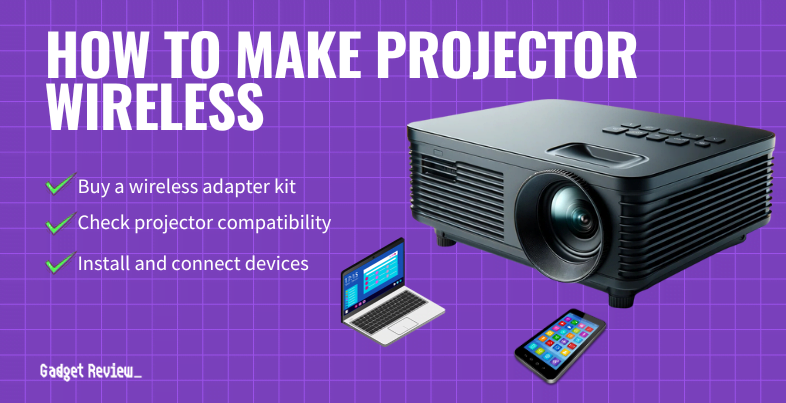
- Prepare the Receiver: Plug the receiver unit into the HDMI input on the back of your projector. If your projector is ceiling-mounted, you may need to use a short HDMI extension cable so the receiver isn't cramped against the mounting bracket.
- Power On: Connect the receiver to a power source. Many projectors have a "USB Power" port specifically for this. If not, you will need to run a small USB cable to a wall outlet.
- Connect the Transmitter: Plug the transmitter into your source device (laptop, Blu-ray player, or game console).
- Syncing: Turn both devices on. Most kits will automatically pair within 30 to 60 seconds. You will usually see a blinking LED turn solid once the link is established.
- Output Settings: On your laptop, ensure your display settings are set to "Mirror" or "Extend." I recommend matching the source resolution to the projector's native resolution to minimize scaling lag.
Pro-Tip: If you are installing a receiver on a ceiling-mounted projector, avoid placing the receiver directly behind the projector's exhaust fan. The heat can cause the wireless chipset to throttle, leading to signal dropouts or stuttering video.
Optimizing Performance: Avoiding Interference and Lag
Even the best wireless projector adapter can struggle in a crowded apartment building or a high-tech office. Adoption of smart projectors for residential use has seen a 27% year-over-year increase as consumers seek integrated streaming capabilities, which means more wireless signals are competing for airtime than ever before.
If you experience "stuttering," it is likely due to interference reduction issues. Many 5GHz adapters use Dynamic Frequency Selection (DFS) to find a clear channel, but metal objects like filing cabinets or large mirrors can reflect the signal and cause multi-path interference.
For those building a wireless projector setup for classroom without wifi, these adapters are a godsend because they don't require an existing network. However, to ensure a low latency wireless HDMI for gaming projectors experience, try to maintain a clear line-of-sight range between the transmitter and receiver. Even if the box says it works through walls, every barrier adds a few milliseconds of signal latency and reduces the overall bitrate.
Best Setups for Specific Use Cases
Your needs in a boardroom are vastly different from those in a backyard movie night.
Business and Education For a wireless projector adapter for business presentations, look for kits that support multiple transmitters. This allows different presenters to "click in" and take over the screen without swapping cables. Reliability and ease of use are more important here than raw frame rates.
Home Theater and Gaming If you are a cinephile, check for HDCP compatibility. This is the digital handshake required to stream protected content from Netflix or Disney+. Without it, you might get sound but no picture. For gamers, the priority is always low latency. Avoid 5GHz models and spend the extra money on a 60GHz kit to ensure your controller inputs feel instantaneous.
Outdoor Cinema Setting up a long range wireless HDMI transmitter for outdoor cinema is the ultimate way to impress the neighbors. Since there are fewer walls outdoors, you can often reach the full advertised range of the device. Just be sure to keep the receiver protected from moisture, even on humid nights.
FAQ
How do I make my projector wireless?
To make any projector wireless, you simply need to plug a wireless receiver into its HDMI port and provide it with power via USB or an AC adapter. Then, connect the corresponding transmitter to your laptop or media player. The two devices will sync automatically, sending video and audio through the air without the need for a long cable.
What is the best way to connect a laptop to a projector wirelessly?
The most reliable method is using a dedicated wireless HDMI transmitter and receiver kit. For modern laptops, a USB-C transmitter that supports DisplayPort Alt Mode is the cleanest solution, as it draws power directly from the laptop and requires no extra software or Wi-Fi configuration.
Do wireless projector adapters work with all projectors?
Yes, as long as the projector has a standard HDMI input. For much older projectors that only have VGA or DVI ports, you can still use a wireless adapter by adding an active HDMI-to-VGA converter, though you may need a separate cable for audio if the projector doesn't have built-in speakers.
Can you stream video without lag using a wireless projector adapter?
While all wireless transmission introduces some delay, 60GHz WirelessHD adapters offer near-zero lag that is imperceptible to most users. For standard 5GHz adapters, there is usually a small delay of 60ms to 150ms, which is fine for movies but might be noticeable in fast-paced competitive gaming.
Do I need Wi-Fi to use a wireless HDMI adapter?
Most professional wireless HDMI kits do not require an existing Wi-Fi network. They create their own direct, encrypted wireless link between the transmitter and the receiver. This makes them ideal for environments where Wi-Fi is spotty or non-existent, such as outdoor setups or secure office buildings.